Hi,
Setup:
SQL 2008 r2
Windows Server 2008 r2
IIS 7.5
Ensure IIS Windows Authentication is installed.
Also ensure:
So, go to the web site (Microsoft Dynamics CRM) -> features view -> double-click on handler mappings -> double click on "StaticFile" -> make sure it reads:
StaticFileModule,DefaultDocumentModule
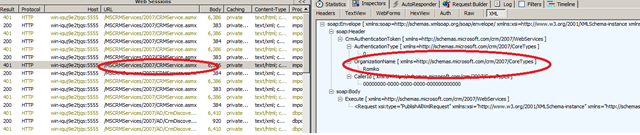
use Fiddler if you get issues. I was playing with DbPopulator and the RunPopulation command and had issues, Fiddler helped me solved them. Like connecting to my CRM website:
here is the RunPopulation.exe i used, notice portnumber for iis! I got errors with SOAP CALLS, since Organisaton was wrong, by using fiddler you can find these issue, when it calls: CRMService.asmx to upload data to CRM:
SET WEBSERVER=WIN-IQUJ9E2TJQS:5555
SET ORGANIZATION=Romiko
SET DOMAIN=Romiko.Derbynew.Com
SET USERNAME=romiko
SET PASSWORD=mypassword
SET CRMUSERBASE=Romiko
SET CRMUSERSTART=1
SET CRMUSERCOUNT=1
ImportCustomization\ImportCustomization.exe ImportCustomization\Account_Customized_10Attributes_form.xml /webserver:%WEBSERVER% /orgname:%ORGANIZATION% /domainname:%DOMAIN% /username:%USERNAME% /password:%PASSWORD% /authentication:AD
ImportCustomization\ImportCustomization.exe ImportCustomization\Contact_Customized_10Attributes_form.xml /webserver:%WEBSERVER% /orgname:%ORGANIZATION% /domainname:%DOMAIN% /username:%USERNAME% /password:%PASSWORD% /authentication:AD
ImportCustomization\ImportCustomization.exe ImportCustomization\Task_Customized_10Attributes_form.xml /webserver:%WEBSERVER% /orgname:%ORGANIZATION% /domainname:%DOMAIN% /username:%USERNAME% /password:%PASSWORD% /authentication:AD
DbPopulator\UserConfigGen.exe /domain:%DOMAIN% /webserver:%WEBSERVER% /userbase:%USERNAME% /password:%PASSWORD% /threadcount:1 /crmuserbase:%CRMUSERBASE% /crmuserstart:%CRMUSERSTART% /crmusercount:%CRMUSERCOUNT% /orgname:%ORGANIZATION%
DbPopulator\dbPopulator.exe UserPopulate.xml
DbPopulator\dbPopulator.exe DbPopulator\ProductSuite.xml
DbPopulator\dbPopulator.exe DbPopulator\NestedSFAEntitiesWithState_Custom.xml
DbPopulator\dbPopulator.exe DbPopulator\ReportsData.xml

Also ensure:
Microsoft Dynamics CRM 4.0
Microsoft Dynamics CRM 4.0 is compatible with Windows Server 2008 and Windows Server 2008 R2-based computers. The Microsoft Dynamics CRM 4.0 client for Microsoft Office Outlook is supported on Windows Server 2008 and Windows Server 2008 R2 when used with Terminal Services or with Citrix.
The following versions of Windows Server 2008 and Windows Server 2008 R2 are supported:
- The 32-bit and 64-bit editions of the Windows Server 2008 Standard
- The 32-bit and 64-bit editions of the Windows Server 2008 Enterprise
- The 32-bit and 64-bit editions of the Windows Server 2008 Datacenter
- The 32-bit and 64-bit editions of the Windows Server 2008 Web Server
Installing Microsoft Dynamics CRM 4.0 on Windows Server 2008
Note: Microsoft Dynamics CRM 4.0 is not currently supported in an IPv6 only environment.
Note: During the install of Microsoft Dynamics CRM 4.0 you must use Network Service as the Service Account or the installation will fail.
A server role describes the primary function of the server. In Windows Server 2008, administrators can dedicate an entire computer to one server role, or install multiple server roles on a single computer. In order to install Microsoft Dynamics CRM 4.0 on Windows Server 2008 the following Windows Server 2008 Server roles need to be installed.
- Static Content role service (Included in the Web Server (IIS) role)
- Dynamic Content Compression role service (Included in the Web Server (IIS) role)
- Windows Authentication IIS role service (Included in the Web Server (IIS) role)
- Compatibility Components role service (Included in the Web Server (IIS) role)
- Indexing Service (Included in the File Services role)
To add the above roles before you install Microsoft Dynamics CRM 4.0 follow these steps:
- Click Start, click All Programs, click Administrative Tools, and then click Server Manager.
- Right-click Roles, and then click Add Roles.
- Click Next to get to the Server Role Screen.
- Mark the checkbox for the following roles, and then click Next.
- Application Server
- File Services
- Click Next to get to the Roles Services for the Application Server.
- Select the checkbox next to Web Server (IIS) Support. When the Add Roles Wizard box comes up, click Add Required Role Services, and then click Next.
- Click Next to get to the Web Server Role Services, keep the existing checkboxes that are marked and mark the checkbox next to IIS 6 Management Compatibility, and then click Next.
- Click Next to get to the File Services Role Services, mark the checkbox next to Indexing Service , and then click Next.
- Click Install
If you have already enabled the Application Server, File Services or Web Server (IIS). Then to enable certain Role Services follow these steps:
- Click Start, click All Programs, click Administrative Tools and click Server Manager.
- Expand Roles and right-click Application Server, File Services or Web Server (IIS) depending on the role you need and click Add Role Services.
- Complete the wizard to add the desired role services.
 Back to the top
MORE INFORMATION
Back to the top
Issues that may occur when you use Windows Server 2008 with Microsoft Dynamics CRM 4.0
The following known issues may occur when you use Microsoft Dynamics CRM 4.0 with Windows Server 2008 if the above roles are not installed. . Any available workarounds are also described.
Issue 1: Error message when you try to open the Microsoft Dynamics CRM 4.0 Web application:
"Problems with this Web page might prevent it from being displayed properly or functioning properly" Line: 194 Char: 1 Error: Object expected code: 0 URL: http://localhost/
To work around this problem, enable the Static Content role service in the Web Server (IIS) role.
Issue 2: Error message when you install Microsoft Dynamics CRM 4.0:
"Action Microsoft.Crm.Setup.Server.EnableCompressionAction failed" System.Runtime.InteropServices.COMException (0x80005006): Exception from HRESULT: 0x80005006
To workaround this problem, enable the Dynamic Content Compression role service in the Web Server (IIS) role.
Issue 3: Error message when you try to open the Microsoft Dynamics CRM 4.0 Web application:
"HTTP Error 401.2 – Unauthorized"
To work around this problem, enable the Windows Authentication role service in the Web Server (IIS) role.
Issue 4: Error message when you try to install the Microsoft Dynamics CRM 4.0 server:
"Internet Information Services (IIS) 7 along with IIS 6 Compatibility Components must be installed on Windows Server 2008"
Microsoft Dynamics CRM 4.0 only supports IIS 6.0 Management Compatibility role service.
To work around this problem, you must install the IIS 6.0 Compatibility role service in the Web Server (IIS) role.
Issue 5: If you only enable IPv6, the following problems may occur in Microsoft Dynamics CRM 4.0. Consider the following scenario. You install Microsoft Dynamics CRM 4.0 Internet Facing Deployment (IFD) in an IPv6-only environment. You set the internalnetworkaddress registry key to an IPv6 address. You try to open the Microsoft Dynamics CRM 4.0 Web application. In this scenario, you receive the following error message:
An invalid IP address was specified.
Consider the following scenario. You try to install the Microsoft Dynamics CRM 4.0 server in an IPv6-only environment. Then, you configure the Setup process to create the Web site to be used as the Microsoft Dynamics CRM server. In this scenario, you receive the following error message:
Check WebServerValidator: Failure: An address incompatible with the requested protocol was used
To work around these problems, make sure IPv4 is enabled along with IPv6 and that you have Update Rollup 3 or higher installed.
Issue 6: Consider the following scenario: You try to install the Microsoft Dynamics CRM 4.0 Server with a Security Account running under a Domain User account on Windows Server 2008. The Microsoft Dynamics CRM 4.0 installation tries to add the domain user to the IIS Worker Process Group (IIS_WPG). Windows Server 2008 runs IIS 7.0. However, Microsoft Dynamics CRM 4.0 uses IIS 6 compatibility mode. In this scenario, the Setup process fails, and you receive the following error message:
Action Microsoft.Crm.Setup.Server.ConfigureAspNetAccountAction failed. System.ComponentModel.Win32Exception: The group name could not be found.
This problem occurs because IIS 6 compatibility mode no longer has the IIS_WPG group.
To work around this problem, you must select the Network service to start Microsoft Dynamics CRM 4.0.
Once Microsoft Dynamics CRM 4.0 is installed and running you can change the service account to a domain user by doing the following:
- On the Microsoft Dynamics CRM server click Start, click Administrative Tools, and then click Internet Information Services (IIS) Manager .
- Expand your Web Server name and then click Application Pools .
- Right-click CRMAppPool, and then click Advanced Settings.
- Click Identity, change the Identity to the Service Account you created, and then click OK.
- Click Start, click Run, type iisreset, and then click OK..
Active Directory Changes:
- On the domain controller click Start, click Administrative Tools, and then click Active Directory Users & Computers.
- Navigate to where the Microsoft Dynamics CRM Security Groups were created and add the service account to both the PrivUserGroup and SQLAccessGroup.
File System Changes on the 2008 IIS Server:
- On the Microsoft Dynamics CRM Server navigate to C:\Program Files\Microsoft Dynamics CRM\.
- Change the permissions on the Trace Directory giving the service account FULL CONTROL to this directory.
Include the service account in the following groups in the Microsoft Dynamics CRM server:
- The local IIS_IUSRS group
- The local CRM_WPG group
To to this, follow these steps:
- In the Microsoft Dynamics CRM server, click Start, point to Administrative Tools, and then click Server Manager.
- Expand Configuration, expand Local Users and Groups, and then click Groups.
- In Groups pane, right-click IIS_IUSRS, and then click Properties.
- Click Add, type the service account, click Check Names, and then click OK two times.
- In Groups pane, right-click CRM_WPG, and then click Properties.
- Click Add, type the service account, click Check Names, and then click OK two times.
Issue 7; When you upgrade from Windows Server 2003 to Windows Server 2008, the Indexing Service is uninstalled. When the Indexing Service is uninstalled, you cannot use the application Help files in Microsoft Dynamics CRM 4.0.
To work around this problem, enable the Indexing Service role service in the File Services role.









 Romiko Derbynew