Author: Romiko Derbynew

Dynamics CRM 4.0 Windows Server 2008/IIS 7.5 install problems

Hi,

Setup:

SQL 2008 r2

Windows Server 2008 r2

IIS 7.5

Ensure IIS Windows Authentication is installed.

Also ensure:

So, go to the web site (Microsoft Dynamics CRM) -> features view -> double-click on handler mappings -> double click on "StaticFile" -> make sure it reads:
StaticFileModule,DefaultDocumentModule


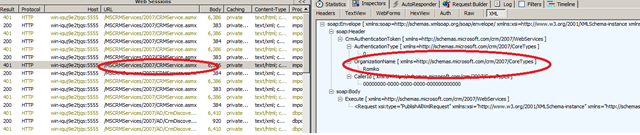
use Fiddler if you get issues. I was playing with DbPopulator and the RunPopulation command and had issues, Fiddler helped me solved them. Like connecting to my CRM website:

here is the RunPopulation.exe i used, notice portnumber for iis! I got errors with SOAP CALLS, since Organisaton was wrong, by using fiddler you can find these issue, when it calls: CRMService.asmx to upload data to CRM:


SET WEBSERVER=WIN-IQUJ9E2TJQS:5555
SET ORGANIZATION=Romiko
SET DOMAIN=Romiko.Derbynew.Com
SET USERNAME=romiko
SET PASSWORD=mypassword

SET CRMUSERBASE=Romiko
SET CRMUSERSTART=1
SET CRMUSERCOUNT=1

ImportCustomization\ImportCustomization.exe ImportCustomization\Account_Customized_10Attributes_form.xml /webserver:%WEBSERVER% /orgname:%ORGANIZATION% /domainname:%DOMAIN% /username:%USERNAME% /password:%PASSWORD% /authentication:AD
ImportCustomization\ImportCustomization.exe ImportCustomization\Contact_Customized_10Attributes_form.xml /webserver:%WEBSERVER% /orgname:%ORGANIZATION% /domainname:%DOMAIN% /username:%USERNAME% /password:%PASSWORD% /authentication:AD
ImportCustomization\ImportCustomization.exe ImportCustomization\Task_Customized_10Attributes_form.xml /webserver:%WEBSERVER% /orgname:%ORGANIZATION% /domainname:%DOMAIN% /username:%USERNAME% /password:%PASSWORD% /authentication:AD

DbPopulator\UserConfigGen.exe /domain:%DOMAIN% /webserver:%WEBSERVER% /userbase:%USERNAME% /password:%PASSWORD% /threadcount:1 /crmuserbase:%CRMUSERBASE% /crmuserstart:%CRMUSERSTART% /crmusercount:%CRMUSERCOUNT% /orgname:%ORGANIZATION%

DbPopulator\dbPopulator.exe UserPopulate.xml
DbPopulator\dbPopulator.exe DbPopulator\ProductSuite.xml
DbPopulator\dbPopulator.exe DbPopulator\NestedSFAEntitiesWithState_Custom.xml
DbPopulator\dbPopulator.exe DbPopulator\ReportsData.xml


image

Also ensure:

Microsoft Dynamics CRM 4.0

Microsoft Dynamics CRM 4.0 is compatible with Windows Server 2008 and Windows Server 2008 R2-based computers. The Microsoft Dynamics CRM 4.0 client for Microsoft Office Outlook is supported on Windows Server 2008 and Windows Server 2008 R2 when used with Terminal Services or with Citrix.
The following versions of Windows Server 2008 and Windows Server 2008 R2 are supported:

  • The 32-bit and 64-bit editions of the Windows Server 2008 Standard
  • The 32-bit and 64-bit editions of the Windows Server 2008 Enterprise
  • The 32-bit and 64-bit editions of the Windows Server 2008 Datacenter
  • The 32-bit and 64-bit editions of the Windows Server 2008 Web Server

Installing Microsoft Dynamics CRM 4.0 on Windows Server 2008
Note: Microsoft Dynamics CRM 4.0 is not currently supported in an IPv6 only environment.
Note: During the install of Microsoft Dynamics CRM 4.0 you must use Network Service as the Service Account or the installation will fail.
A server role describes the primary function of the server. In Windows Server 2008, administrators can dedicate an entire computer to one server role, or install multiple server roles on a single computer. In order to install Microsoft Dynamics CRM 4.0 on Windows Server 2008 the following Windows Server 2008 Server roles need to be installed.

  • Static Content role service (Included in the Web Server (IIS) role)
  • Dynamic Content Compression role service (Included in the Web Server (IIS) role)
  • Windows Authentication IIS role service (Included in the Web Server (IIS) role)
  • Compatibility Components role service (Included in the Web Server (IIS) role)
  • Indexing Service (Included in the File Services role)

To add the above roles before you install Microsoft Dynamics CRM 4.0 follow these steps:

  1. Click Start, click All Programs, click Administrative Tools, and then click Server Manager.
  2. Right-click Roles, and then click Add Roles.
  3. Click Next to get to the Server Role Screen.
  4. Mark the checkbox for the following roles, and then click Next.
    • Application Server
    • File Services
  5. Click Next to get to the Roles Services for the Application Server.
  6. Select the checkbox next to Web Server (IIS) Support. When the Add Roles Wizard box comes up, click Add Required Role Services, and then click Next.
  7. Click Next to get to the Web Server Role Services, keep the existing checkboxes that are marked and mark the checkbox next to IIS 6 Management Compatibility, and then click Next.
  8. Click Next to get to the File Services Role Services, mark the checkbox next to Indexing Service , and then click Next.
  9. Click Install

If you have already enabled the Application Server, File Services or Web Server (IIS). Then to enable certain Role Services follow these steps:

  1. Click Start, click All Programs, click Administrative Tools and click Server Manager.
  2. Expand Roles and right-click Application Server, File Services or Web Server (IIS) depending on the role you need and click Add Role Services.
  3. Complete the wizard to add the desired role services.

Back to the top

MORE INFORMATION

Back to the top

Issues that may occur when you use Windows Server 2008 with Microsoft Dynamics CRM 4.0

The following known issues may occur when you use Microsoft Dynamics CRM 4.0 with Windows Server 2008 if the above roles are not installed. . Any available workarounds are also described.
Issue 1: Error message when you try to open the Microsoft Dynamics CRM 4.0 Web application:

"Problems with this Web page might prevent it from being displayed properly or functioning properly" Line: 194 Char: 1 Error: Object expected code: 0 URL: http://localhost/

To work around this problem, enable the Static Content role service in the Web Server (IIS) role.
Issue 2: Error message when you install Microsoft Dynamics CRM 4.0:

"Action Microsoft.Crm.Setup.Server.EnableCompressionAction failed" System.Runtime.InteropServices.COMException (0x80005006): Exception from HRESULT: 0x80005006

To workaround this problem, enable the Dynamic Content Compression role service in the Web Server (IIS) role.
Issue 3: Error message when you try to open the Microsoft Dynamics CRM 4.0 Web application:

"HTTP Error 401.2 – Unauthorized"

To work around this problem, enable the Windows Authentication role service in the Web Server (IIS) role.
Issue 4: Error message when you try to install the Microsoft Dynamics CRM 4.0 server:

"Internet Information Services (IIS) 7 along with IIS 6 Compatibility Components must be installed on Windows Server 2008"

Microsoft Dynamics CRM 4.0 only supports IIS 6.0 Management Compatibility role service.
To work around this problem, you must install the IIS 6.0 Compatibility role service in the Web Server (IIS) role.
Issue 5: If you only enable IPv6, the following problems may occur in Microsoft Dynamics CRM 4.0. Consider the following scenario. You install Microsoft Dynamics CRM 4.0 Internet Facing Deployment (IFD) in an IPv6-only environment. You set the internalnetworkaddress registry key to an IPv6 address. You try to open the Microsoft Dynamics CRM 4.0 Web application. In this scenario, you receive the following error message:

An invalid IP address was specified.

Consider the following scenario. You try to install the Microsoft Dynamics CRM 4.0 server in an IPv6-only environment. Then, you configure the Setup process to create the Web site to be used as the Microsoft Dynamics CRM server. In this scenario, you receive the following error message:

Check WebServerValidator: Failure: An address incompatible with the requested protocol was used

To work around these problems, make sure IPv4 is enabled along with IPv6 and that you have Update Rollup 3 or higher installed.
Issue 6: Consider the following scenario: You try to install the Microsoft Dynamics CRM 4.0 Server with a Security Account running under a Domain User account on Windows Server 2008. The Microsoft Dynamics CRM 4.0 installation tries to add the domain user to the IIS Worker Process Group (IIS_WPG). Windows Server 2008 runs IIS 7.0. However, Microsoft Dynamics CRM 4.0 uses IIS 6 compatibility mode. In this scenario, the Setup process fails, and you receive the following error message:

Action Microsoft.Crm.Setup.Server.ConfigureAspNetAccountAction failed. System.ComponentModel.Win32Exception: The group name could not be found.

This problem occurs because IIS 6 compatibility mode no longer has the IIS_WPG group.
To work around this problem, you must select the Network service to start Microsoft Dynamics CRM 4.0.
Once Microsoft Dynamics CRM 4.0 is installed and running you can change the service account to a domain user by doing the following:

  1. On the Microsoft Dynamics CRM server click Start, click Administrative Tools, and then click Internet Information Services (IIS) Manager .
  2. Expand your Web Server name and then click Application Pools .
  3. Right-click CRMAppPool, and then click Advanced Settings.
  4. Click Identity, change the Identity to the Service Account you created, and then click OK.
  5. Click Start, click Run, type iisreset, and then click OK..

Active Directory Changes:

  1. On the domain controller click Start, click Administrative Tools, and then click Active Directory Users & Computers.
  2. Navigate to where the Microsoft Dynamics CRM Security Groups were created and add the service account to both the PrivUserGroup and SQLAccessGroup.

File System Changes on the 2008 IIS Server:

  1. On the Microsoft Dynamics CRM Server navigate to C:\Program Files\Microsoft Dynamics CRM\.
  2. Change the permissions on the Trace Directory giving the service account FULL CONTROL to this directory.

Include the service account in the following groups in the Microsoft Dynamics CRM server:

  • The local IIS_IUSRS group
  • The local CRM_WPG group

To to this, follow these steps:

  1. In the Microsoft Dynamics CRM server, click Start, point to Administrative Tools, and then click Server Manager.
  2. Expand Configuration, expand Local Users and Groups, and then click Groups.
  3. In Groups pane, right-click IIS_IUSRS, and then click Properties.
  4. Click Add, type the service account, click Check Names, and then click OK two times.
  5. In Groups pane, right-click CRM_WPG, and then click Properties.
  6. Click Add, type the service account, click Check Names, and then click OK two times.

Issue 7; When you upgrade from Windows Server 2003 to Windows Server 2008, the Indexing Service is uninstalled. When the Indexing Service is uninstalled, you cannot use the application Help files in Microsoft Dynamics CRM 4.0.
To work around this problem, enable the Indexing Service role service in the File Services role.
Rendering and Binding Drop Down Lists using ASP.NET MVC 3 EditorFor

Hi,

I wanted to render a drop down list on my EditorTemplates. I notice on the net allot of people creating ascx controls and using something like:

[UIHint("List")]

if you do not, you end up with an error:

error CS0305: Using the generic type ‘System.Collections.Generic.IEnumerable<T>’ requires 1 type arguments

However, this is not necessary in MVC 3, I am using Razor, so cshtml. I am sure it will work just as well in MVC2.

All you need to do is be explicit on the generics e.g.

In my cshtml file which is in the EditorTemplates, I have this:


Click me for ENUM lists

<div class="editor-field">
 @Html.DropDownList("CategoryId", new SelectList(ViewData["Categories"] as IEnumerable<PhotoRA.Web.Models.Category>, "CategoryId", "Name", Model.CategoryId))
 </div>

All I do is cast the ViewData with the as clause and use my generic type:

as IEnumerable<PhotoRA.Web.Models.Category>

So, no need for a ASCX file just for a dropdownlist!

The ViewModel in this case looks like this:

public class StoreManagerViewModel
{
 public Photo Photo { get; set; }
 public List<Category> Categories { get; set; }
 public List<Event> EventList { get; set; } 

}


Click me for ENUM lists

Mecurial / Tortoisehg: Setting up a Source Control Repository on HTTP

Hi,

Install the following

http://tortoisehg.bitbucket.org/download/index.html

One this is installed we will:

  • Create a Repository where our source code will sit.
  • Create a clone where our working location is
    STEP 1: Create the Repository

So, the first step is to allocate a folder for the repository:

My repository folder is called:

PhotoRARepository

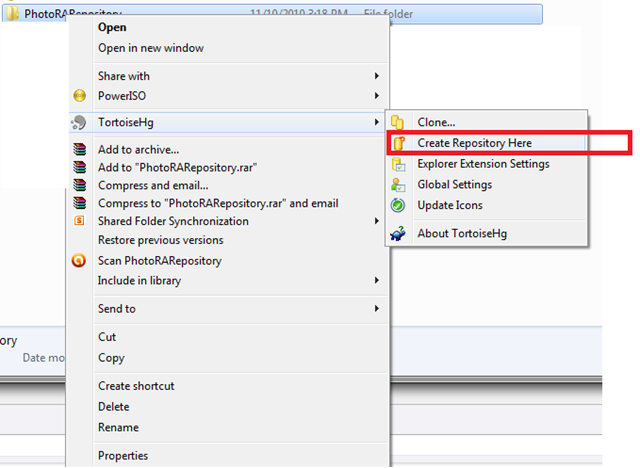
We will then right click the folder and select Create Repository:

image

We just confirm the destination as the same place:

image

Cool, now we need to publish the repository to the web.

Right click the folder and go to repository explorer.

image

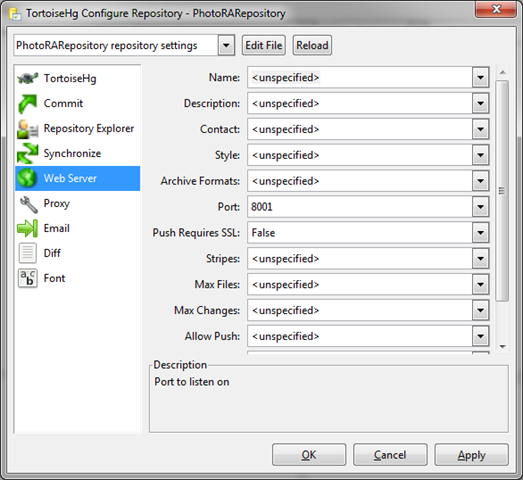
Then in the explorer go to Tools->Settings and configure HTTP/HTTPS and port number to listen on:

image

Once this is done, click the Server Button!

image

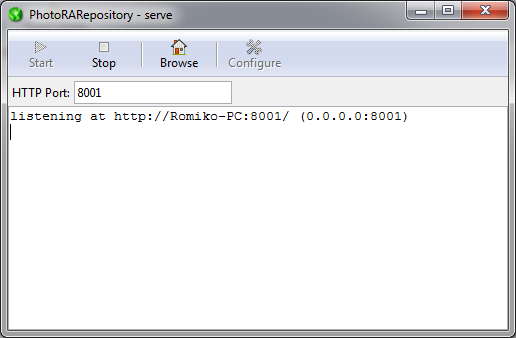
You will see a window open that is listening on this new port:

image

That’s it we done.

We can also updated the .hgignore file to ignore checking in these files:

image

# Ignore file for Visual Studio 2008

# use glob syntax
syntax: glob

# Ignore Visual Studio 2008 files
*.obj
*.exe
*.pdb
*.user
*.aps
*.pch
*.vspscc
*_i.c
*_p.c
*.ncb
*.suo
*.tlb
*.tlh
*.bak
*.cache
*.ilk
*.log
*.lib
*.sbr
*.scc
[Bb]in
[Dd]ebug*/
obj/
[Rr]elease*/
_ReSharper*/
[Tt]est[Rr]esult*
[Bb]uild[Ll]og.*
*.[Pp]ublish.xml


Next, you need to activate the files in the repository, by adding them, if you got existing files already in the folder!

image


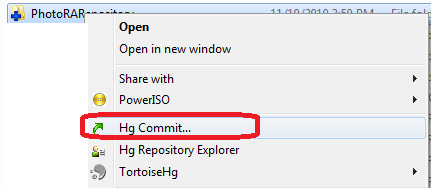
Once this is done, you COMMIT them to the repository:

image

Confirm all the files and we done on the Master repository side:)

image

Double check all files have a nice green tick:

image

If you go back to the repository explorer the history should now be there after the commit.

image

    STEP 1: Clone the Repository from a developer machine


Note: if you have the master repository, you still need to clone it and use the clone, never use the repository directly!)

To use the repository, you need to create another folder on ALL users machines that will use the source control. To do this, they will CLONE the repository.

So if you are the only user of the project, you will STILL need to clone it, that means if your computer is the repository and you want to use the source control, you must also clone it.

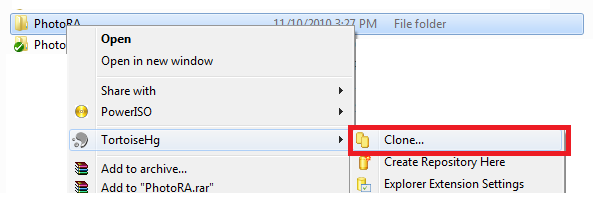
So i created a new folder called PhotoRA, which will be my clone. I right click the folder and select Clone:

image

Then specify the web URL.

image

Once done, it will automatically fill the folder and you can now use Visual Studio and start coding.

image

We can test this, by opening the solution editing the file and committing it to the repository.

I went an updated the web.config file in my clone repository using Visual Studio. Now I right click the clone folder and commit.

image

Next I right click my clone folder and select repository explorer and I see the history, I can now PUSH it up to the main repository.

image

You can see all the chit chat in the HTTP Server Log:

image

Never edit files directly in the MAIN repository!


Repeat STEP 2 for ALL developers using your repository 🙂

That’s it 🙂

MVC 3 Cleaner Views

Hi,

Lets compare MVC 2 to a MVC 3 view, a basic one:

MVC 2:

<%@ Page Title="" Language="C#" MasterPageFile="~/Views/Shared/Site.Master" Inherits="System.Web.Mvc.ViewPage<PhotoRA.Web.ViewModels.StoreBrowseByEventViewModel>" %> 

<asp:Content ID="Content1" ContentPlaceHolderID="TitleContent" runat="server"> 
</asp:Content> 

<asp:Content ID="Content2" ContentPlaceHolderID="MainContent" runat="server"> 
    <h2>Browse Photo's</h2> 
    <ul>
    <%foreach (var photo in Model.Photos) {%>
    <li><a href="<%: Url.Action("Details","Store", new {photoId = photo.PhotoId} )  %>"> <img src="<%:photo.Photo_Url %>" /> </a></li>
    <%}%>   
    </ul>


</asp:Content>

MVC3:

@model PhotoRA.Web.ViewModels.StoreBrowseByEventViewModel
    <h2>Browse Photo's</h2>
  <ul>
    @foreach (var photo in Model.Photos) {
      <li><a href="@Url.Action("Details", "Store", new {photoId = photo.PhotoId})"><img src="@photo.Photo_Url" /></a></li>
    }
  </ul>


Pretty Clean….

There is also a @helper for HTML helpers and loads of other stuff such as layout defaults and better IoC/DI support.

Windows Azure AppFabric – Part 1: The Big Picture with Pub/Sub

Hi,

I am currently working on some AppFabric projects for a company I am thrilled to have recently joined called Readify. So, why not share the love and discuss AppFabric.

Part 1: I am hoping to complete a series of blogs on Windows Azure AppFabric. This blog will be part where we look at the basics for getting started and the bigger picture and some infrastructure configuration for IIS AutoStart, I love WAS J We must use it.

Part 2: Will show a Asynchronous message pattern via Windows Azure Appfabric and we will use WPF clients to publish and subscribe messages using the EventRelayBinding. The WPF application will be using the Event Aggregation framework from the Composite Application Library (Prism), which you can download here: http://msdn.microsoft.com/en-us/library/ff648465.aspx

We also use a WPF phone client, that subscribes to events, it is VERY SIMILAR to a real windows 7 Phone implementation where calls back to the phone occur from the Windows 7 Phone cloud that pushes Tile and Toast notifications. Perhaps in a separate blog I will post a sample Windows 7 App, however, I have to chat with my colleague Miguel Maderoas he is doing allot of work on it in regards to IoC (Ninject) and Silverlight stuff.

Part 3: We will look at integration with Azure Worker/Web Roles and Azure Queues

Part 4: We will look at BizTalk 2010 integration scenarios J

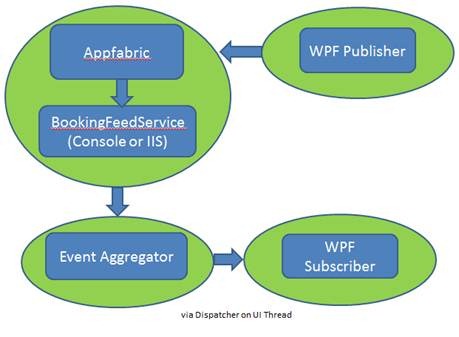
What this allows is a single client to subscribe to the AppFabric Service Bus and then it can distribute it to internal subscribers; this is a nice way to receive messages when Message Queues are out of the question. So in Part two the high level solution will be:

I have omitted the client in this diagram that published to AppFabric.

clip_image002

Service Bus Benefits

· Expose apps and services through problematic network boundaries

· Exposing services easily, supporting multiple connection options and publish and subscribe for multicasting. 

· Lightweight developer friendly programming model

· Shields your services from intrusions and denial-of-service attacks

Service Bus Features

· Services discovered through URL, irrespective of location

· One-way messaging between sender and listener supports unicast and multicast datagram distribution

· Full-duplex connection-oriented sessions

· Full-duplex, connection-oriented peer-to-peer sessions

· Multiple publishers and multiple subscribers can simultaneously use the service’s topic management and event distribution system

· Support of REST and HTTP Access from non-.NET platforms

· Global hierarchical namespaces that are DNS- and transport- independent

· Anonymous access to services is supported

Community Technology Preview

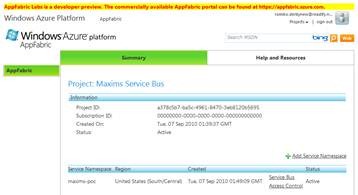
To get started with AppFabric, there is a free CTP portal where you can register a service, below is a Service Bus, hosted on the CTP labs cloud, which is free of charge.

clip_image004

Windows Azure AppFabric Getting Started

Once the CTP portal is running you can then setup the development environment to work with the Labs Portal and the SDK.

Labs

http://www.microsoft.com/downloads/details.aspx?FamilyID=d89640fc-c552-446e-aead-b1e0d940f31b&displaylang=en

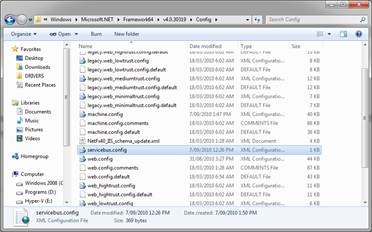
You can rename the Servicebus.config.txt file to Servicebus.config and ensure to have a Servicebus.config in the .Net Framework configuration folder, depending on the framework version you using e.g. c:\Windows\Microsoft.NET\Framework64\v4.0.30319\config\servicebus.config

The default content for the Lab config file is:

servicebus.appfabriclabs.com

accesscontrol.appfabriclabs.com

accesscontrol.appfabriclabs.com

Ensure to read the Release Notes.mht

Note:The above config file is for Development only, production will be pointing to: servicebus.windows.net

clip_image006

Service Bus SDK

· http://www.microsoft.com/downloads/details.aspx?FamilyID=39856a03-1490-4283-908f-c8bf0bfad8a5&displaylang=en

Run this command to customize the location of the SDK:

msiexec /I WindowsAzureAppFabricSDK.msi APPLICATIONFOLDER=c:\WindowsAzureAppFabricSDK /qn

Service Bus Known Issues

1. Current users would need to update their issuer keys for their existing applicationss to work with the new services – you can get this key from the ServiceBus section on the portal.

2. When uploading CrossDomain.XML to the Service Bus root, please leave out the schema declaration.

3. Silverlight clients convert every Service Bus operation error to a generic HTTP NotFound error.

4. Service Bus Multicast with Message Buffers features, which have been available in LABS since March 2010, has been temporarily removed from the LABS environment. The team is working on an alternative approaches to these features.

Access Control SDK

The access control samples can be downloaded from:

http://acs.codeplex.com/wikipage?title=Samples

Access Control

Shared key

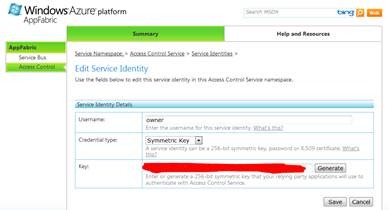
The default mechanism to authenticate is Shared Key, therefore ensure in AppFabric Labs Portal, you find the Issuer Name and Issuer Secret:

Default Issuer Name is: Owner

You can find the details in the ACS links for Service Identities. So to keep things simple, we will not use any federated services and claim tokens such as SimpleWebToken.

Below is a screenshot, where you can find this information, the production version has links to the Issuer Name from the Service NameSpace Management page, but not in the Labs Portal!

clip_image008

Then when creating a connection from a client endpoint, the code will resemble the following for Shared Key authentication.

TransportClientEndpointBehavior relayCredentials = new TransportClientEndpointBehavior();

relayCredentials.CredentialType = TransportClientCredentialType.SharedSecret;

relayCredentials.Credentials.SharedSecret.IssuerName = issuerName;

relayCredentials.Credentials.SharedSecret.IssuerSecret = issuerSecret;

Uri serviceAddress = ServiceBusEnvironment.CreateServiceUri(“sb”, serviceNamespace,

String.Format(CultureInfo.InvariantCulture, “{0}/MulticastService/”, session));

ServiceHost host = new ServiceHost(typeof(MulticastService), serviceAddress);

host.Description.Endpoints[0].Behaviors.Add(relayCredentials);

host.Open();

This can be testing using the simple SDK samples for Azure AppFabric, particularly the sample application: WindowsAzureAppFabricSDKSamples_V1.0-CS\ServiceBus\GettingStarted\Echo. Note run RelayConfigurationInstaller.exe if you convert the sample to .Net 4.0

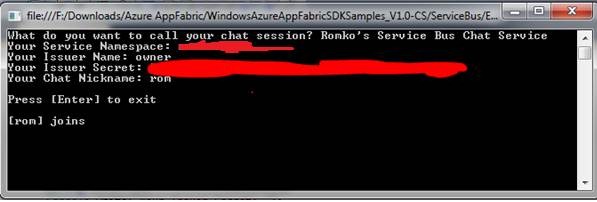
Here is output from the console to test the connection, remember the servicebus.config file MUST be in the config folder in the .NetFramework as mentioned before, or you can add it to the local app.config for each sample you want to use, if you do not want to add it, else it will try to connect to the Production AppFabric Portal and the host.Open() method will fail as it is resolving the service name to servicebus.windows.net instead of servicebus.appfabriclabs.com

clip_image010

Windows Azure AppFabric Platform Training Kit

You can download the following kit to assist in learning various scenarios with App-Fabric Service Bus:

http://www.microsoft.com/downloads/en/confirmation.aspx?FamilyID=413e88f8-5966-4a83-b309-53b7b77edf78&displaylang=en


Hosting a Service with relay bindings Preparation

What we want to do is ensure that Publisher can always publish messages, so let’s host the service in IIS AppFabric, then configure the service to relay the message to a Brodcaster, this means two things:

1. The service accepts messages from a publisher, hence a IContract

2. The service resends the message to a new service endpoint in AppFabric that Clients connect to; we call this the BookingFeedBroadCast endpoint!

Here is a diagram showing what we building in the future parts:

clip_image012

Note, you can have multiple Publishers and multiple Subscribers.

You probably first wrote the service that has a channel listening to AppFabric as a Console App, this can be hosted in IIS with some small changes and some hotfixes!

Since relay bindings OPENS a channel with Host.open(), IIS cannot activate such a service, so if you want to host a service with relay bindings, then you need to use IIS Autostart

Check List

· Always run Visual Studio 2010 in Administrator’s Mode

· Have IIS 6.0 Metabase Compatibility installed.

· IIS 7.5

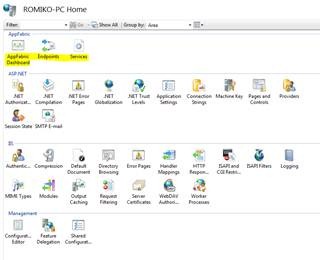
· AppFabric Server Install
clip_image014

· Two patches to allow AppFabric XML settings to be recognised by IIS and the other for autostart features.

o http://support.microsoft.com/kb/980423– transportClientEndpointBehavior and serviceRegistrySettings in C:\Windows\System32\inetsrv\config\schema

o http://support.microsoft.com/kb/983484/en-us

· Run the RelayConfigurationInstaller.exe which is part of the Azure AppFabric SDK

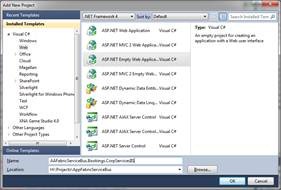
· Create a new project (Empty ASP.NET Application) and just add linked references to the console version (I like the console version for testing, very rare scenario where I have a console app for testing, since it connects to the service bus it makes sense to have it here, I guess you can make some integration tests too).
clip_image016

· Configure hosting in IIS on the project properties web page.
clip_image018

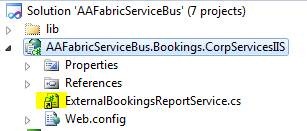
· Add links to the original services in the console, or if you prefer to just have this, then create the service etc, the contracts are in a different assembly, so you will not see them here:
clip_image020

o Notice above that I have it linked, since I use it for testing in a console app as well, but I always prefer IIS auto Start, then I always know the latest service for publishing is always up and running!

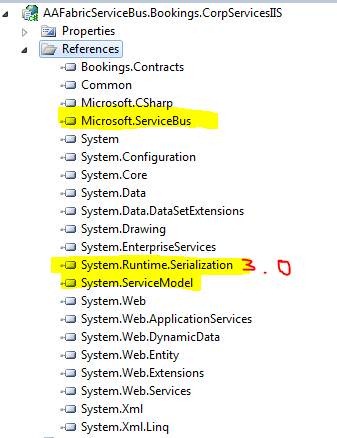
clip_image022

Notice that System.Runtim.Serialization is .Net 3.0 assembly!

· Now we just configure the web.config for it. This is slightly different to the console application config. Here is my config, notice I am using NetEventRelayBinding, for a multicast scenario, or commonly called PUB/SUB messaging pattern.

In future parts, I will explain these settings, they for a Pub/Sub model! I have the credentials twice one for IIS to use and the other for the service to call the broadcaster endpoint. You can always just have one location if need me, I just find it easier to have them in both places as I use System.Configuration.

Notice the service here is also a client! It is a client to a Subscribers endpoint to broadcast the message for pub/sub J

We can now publish the application to IIS, notice we actually do not have an SVC file, since we really do not need one, as the EventRelayBinding will open a channel when IIS instantiates it. So in IIS we configure the AutoStart without a SVC file!
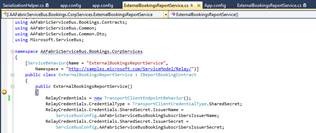
Notice the relative address in the web.config is:

<add relativeAddress="ExternalBookingsReportService.svc"

You can make yours whatever you like.

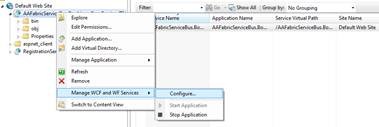
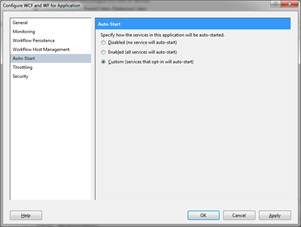
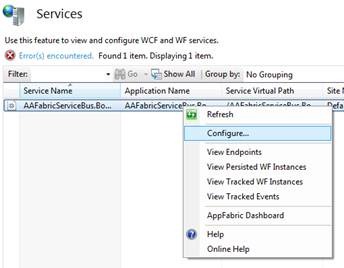
· In IIS we will configure the WCF properties with AutoStart Set to custom:
clip_image024

clip_image026

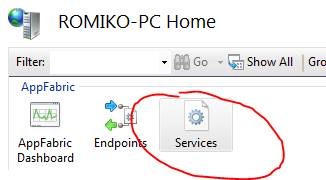
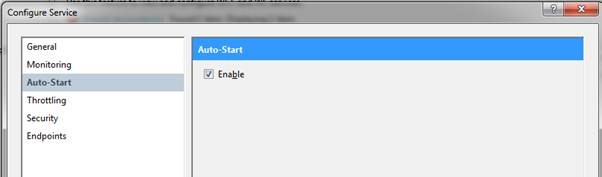
· Then at the AppFabric Service level we will set auostart (if you do not do the step above, this will be greyed out!) Also in production use a dedicate application pool for AuoStart!
clip_image028

clip_image030

clip_image032

That it is, now the service will automatically start up, no requests from users are needed, now when it autostarts, it can create a channel with the AppFabric Service Bus!

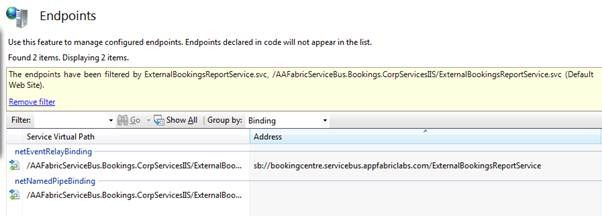
We can check that the endpoints are configured from the config file correctly in IIS AppFabric:

clip_image034

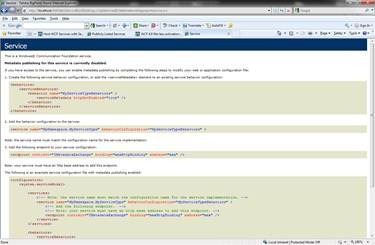
To test the endpoint with ap fabric is easy, just browse the to the default virtual directory for the app and add the relative address e.g.

http://localhost/AAFabricServiceBus.Bookings.CorpServicesIIS/externalbookingsreportservice.svc

This is in the ServiceActivation element in the web.config:

clip_image036

I have not created a Mex EndPoint, and why should I when building a PUB/Sub system, it is totally transparent from subscribers J

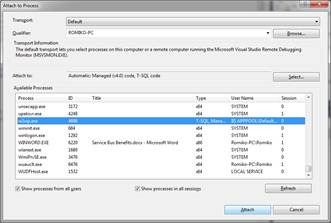
Now, I do not want to get into too much detail here, the idea is to have some inkling of configuration settings that you will get into, however, if I now publish a message the Bus, I can debug the service hosted in IIS:

clip_image038

Now when I use a client who connects to AppFabric:

clip_image040

I should be able to step in:

clip_image042

Cool right! A client submitted a message asynchronously and we can debug it remotely J

Let the system go with F5 and indeed a subscriber got the message via AppFabric and IIS Autostart:

clip_image044

Pricing

I understand pricing is big issue for allot of people, the best advice is to get an excel sheet and try calculate the costs, you will be amazed at how cheap hosting services are, however depending on how you design your architecture; you can keep the costs down!

The following prices are in US Dollars

Access Control

Access Control transactions = $1.99/100K

Service Bus connections

$3.99 per connection on a “pay-as-you-go” basis

$9.95 for a pack of 5 connections

$49.75 for a pack of 25 connections

$199 for a pack of 100 connections

$995 for a pack of 500 connections

Data transfers

Data transfers = $0.10 in / $0.15 out / GB – ($0.30 in / $0.45 out / GB in Asia)

Measuring AppFabric Consumption

AppFabric Service Bus connections can be provisioned individually on a “pay-as-you-go” basis or in a pack of 5, 25, 100 or 500 connections. For individually provisioned connections, you will be charged based on the maximum number of connections you use for each day. For connection packs, you will be charged daily for a pro rata amount of the connections in that pack (i.e., the number of connections in the pack divided by the number of days in the month). You can only update the connections you provision as a pack once every seven days. You can modify the number of connections you provision individually at any time.

For AppFabric Access Control transactions, customers will be charged the actual number of transactions utilized for the billing period (i.e., not in discrete blocks of 100,000 transactions), plus data transfers in or out.

Community Technology Preview (CTP)

Community Technology Preview (CTP) participants that have not yet upgraded to a commercial subscription of the Windows Azure platform will continue to be subject to the following limits:

· Total compute usage: 2,000 compute hours

· Cloud storage capacity: 50GB

· Total storage data transfers: 20GB/day

Conclusion

In part 2 we will go into a deep dive and check out how to build these composite applications. I hope this gives you some ideas on AppFabric. Also, we could make this a reliable message pattern by introducing queues, but I need to do some thinking around that to make it as reliable as NserviceBus, which will be a challenge in AppFabric/Azure hosting, but should be possible.
Windows 7 Phone Development and Hyper-V/Server 2008

Hi,

For those of you that want to develop Windows Phone apps on Hyper-V or Windows Server 2008, think again!!! You have been warned:


1. Intel I7 VPRO processor with Hyper Threading enabled causes blue screens with Hyper-V

a. Solution: Disable Hyper Hyper Threading

2. Windows 7 Phone Development Tool kit and Hyper-V will not work, the emulator will crash the VM, once it starts

a. Solution: Throw a Tantrum, kick, swear, run around and throw your clothes off and then install it on a non VM OS, oh wait another problem!!!

3. Windows 7 Phone tools do not work on Windows Server 2008

a. You need a host operating system like Windows 7/Vista

Boot VHD Drive in Windows Server 2008 R2

Hi,


You can configure the Windows Boot Loader using BCDEDIT to boot off a VHD drive from the boot menu:


C:\Windows\system32>bcdedit /copy {current} /d "Windows 7 VHD"

Copy the output of the GUID and use it here:

my example is: db994f45-acc9-11df-a9e1-e4856d34cfae


Do not use my GUID!

C:\Windows\system32>bcdedit /set {db994f45-acc9-11df-a9e1-e4856d34cfae} device v
hd=”[H:]\Windows 7 Development\Windows 7 Development.vhd”
The operation completed successfully.

C:\Windows\system32>bcdedit /set {db994f45-acc9-11df-a9e1-e4856d34cfae} osdevice vhd=”[H:]\Windows 7 Development\Windows 7 Development.vhd”
The operation completed successfully.

C:\Windows\system32>bcdedit /set {db994f45-acc9-11df-a9e1-e4856d34cfae} detecthal on
The operation completed successfully.

Then double check config:


C:\Windows\system32>bcdedit

Windows Boot Manager
——————–
identifier              {bootmgr}
device                  partition=\Device\HarddiskVolume1
description             Windows Boot Manager
locale                  en-US
inherit                 {globalsettings}
default                 {current}
resumeobject            {db994f41-acc9-11df-a9e1-e4856d34cfae}
displayorder            {current}
                        {db994f45-acc9-11df-a9e1-e4856d34cfae}
toolsdisplayorder       {memdiag}
timeout                 30

Windows Boot Loader
——————-
identifier              {current}
device                  partition=C:
path                    \Windows\system32\winload.exe
description             Windows Server 2008 R2
locale                  en-US
inherit                 {bootloadersettings}
recoverysequence        {db994f43-acc9-11df-a9e1-e4856d34cfae}
recoveryenabled         Yes
osdevice                partition=C:
systemroot              \Windows
resumeobject            {db994f41-acc9-11df-a9e1-e4856d34cfae}
nx                      OptOut
hypervisorlaunchtype    Auto

Windows Boot Loader
——————-
identifier              {db994f45-acc9-11df-a9e1-e4856d34cfae}
device                  vhd=[H:]\Windows 7 Development\Windows 7 Development.vhd

path                    \Windows\system32\winload.exe
description             Windows 7 VHD
locale                  en-US
inherit                 {bootloadersettings}
recoverysequence        {db994f43-acc9-11df-a9e1-e4856d34cfae}
recoveryenabled         Yes
osdevice                vhd=[H:]\Windows 7 Development\Windows 7 Development.vhd

systemroot              \Windows
resumeobject            {db994f41-acc9-11df-a9e1-e4856d34cfae}
nx                      OptOut
hypervisorlaunchtype    Auto
detecthal               Yes

Ninject, Primer – Contextual Binding

Hi,

I am currently learning how to use Ninject as a Inversion of Control and Dependency Injection tool.

I have created a very simple Console Application that is based on the tutorials at github. As I learn all the cool features of Ninject, I will then update my blog e.g. When I start learning about conventions and custom providers etc

My first Class File has custom attributes that I can use to apply contextual/conditional binding:

——————————CustomNinjectAttributes.cs————————–

using  System; 

namespace NinjectTutorial 
{ 
    public class RangeAttribute : Attribute{} 

    public class ThrowingAttribute : Attribute { } 

    public class MeleeBladeAttribute : Attribute { } 
}

—————————— END CustomNinjectAttributes.cs————————–

We will use the above vocabulary on selected properties of Player types in the game (e.g. Warrior, Ninja, Samurai)

Ok, so the next part is to define all the weapons available. Then , we will define the player types and then use Ninject to detect the players weapon based on the attributes.
Ok, so the weapons are:

—————————————–Weapons.cs——————————————–

using System;

namespace NinjectTutorial 
{ 

    public interface IWeapon 
    { 
        void Hit(string target); 
    } 

    public class Sword : IWeapon 
    { 
        public void Hit(string target) 
        { 
            System.Console.WriteLine("Chopped {0} clean in half", target); 

        } 
    } 

    public class Bow : IWeapon 
    { 
        public void Hit(string target) 
        { 
            System.Console.WriteLine("Arrow hit target in the Bulls eye!", target); 

        } 
    } 

    public class Shuriken : IWeapon 
    { 
        public void Hit(string target) 
        { 
            Console.WriteLine("Pierced {0}'s armor", target); 
        } 
    }  
}

—————————————–END Weapons.cs——————————————–

Now that we have the weapons defined, lets then use Property injection in combination with contextual binding based on decorating properties with custom attributes that we defined above!

—————————————–MarksMan.cs——————————————–

using System; 
using Ninject; 

namespace NinjectTutorial 
{ 
    public class MarksMan 
    { 
        [Inject, Range] 
        public IWeapon Weapon 
        { 
            get; 
            set; 
        } 

        public void Attack(string target) 
        { 
            Weapon.Hit(target); 
        } 
    } 
}

—————————————–END MarksMan.cs——————————————–

—————————————–Ninja.cs——————————————–

using System; 
using Ninject; 

namespace NinjectTutorial 
{ 
    public class Ninja 
    { 
        [Inject, Throwing] 
        public IWeapon Weapon 
        { 
            get; 
            set; 
        } 

        public void Attack(string target) 
        { 
            Weapon.Hit(target); 
        } 
    } 
}

—————————————–END Ninja.cs——————————————–

—————————————–Samurai.cs——————————————–

using System; 
using Ninject; 

namespace NinjectTutorial 
{ 
    public class Samurai 
    { 
        [Inject, MeleeBladeAttribute] 
        public IWeapon Weapon 
        { 
            get; 
            set; 
        } 

        public void Attack(string target) 
        { 
            Weapon.Hit(target); 
        } 
    } 
}

—————————————–END Samurai.cs——————————————–

Steps to notice

  • We use the Inject attribute in combination with the custom attribute
  • This means when we define bindings we can now have conditions based on custom attribute names which are strongly types
  • You do not need custom attributes you could use strings, but then you lose type safety.
    Excellent, now the last part of the setup is to create a custom Ninject module. Note that when you create a module, it will not be called directly, but Ninject will detect and load it for you, when you ask it to.
    ok, so lets create a module that does all the binding stuff for us, so we can keep our game code clean!

—————————————– AllFighterModule .cs——————————————–

using System;

using Ninject;

using Ninject.Modules;

namespace NinjectTutorial

{

    public class AllFighterModule : NinjectModule

    {

        public override void Load()

        {

            Bind<IWeapon>().To<Sword>().WhenTargetHas<MeleeBladeAttribute>();

            Bind<IWeapon>().To<Bow>().WhenTargetHas<RangeAttribute>();

            Bind<IWeapon>().To<Shuriken>().WhenTargetHas<ThrowingAttribute>();

            Bind<Samurai>().ToSelf();

        }

    }

}

—————————————–END  AllFighterModule .cs——————————————–

As we can see when use the WHEN keyword to detect the decorated custom attributes and then bind the appropriate concrete class.

Now to run the game, lets check out the console application

———————————————Program.cs———————————————-

using System;

using Ninject;

namespace NinjectTutorial

{

    class Program

    {

        public static void Main()

        {

            IKernel kernel = new StandardKernel();

            kernel.Load(AppDomain.CurrentDomain.GetAssemblies()); //Go Load Ninject Modules

            var samurai = kernel.Get<Samurai>();

            var marksMan = kernel.Get<MarksMan>();

            var ninja = kernel.Get<Ninja>();

            samurai.Attack("The Boss Mob!");

            marksMan.Attack("The Eagle!");

            ninja.Attack("The Robber!");

            System.Console.ReadKey();

        }

    }

}

———————————————End Program.cs———————————————-

Notice here, that we load the kernel and we also tell the kernel to find the modules! So

kernel.Load(AppDomain.CurrentDomain.GetAssemblies()); //Go Load Ninject Modules

will go and automatically load the AllFighterModule and get the bindings, this is done because the AllFigterModule extends the class : NinjectModule

The output of our cool little game is:

image

So our little warriors are working hard to keeping the peace with Ninject technology 🙂

I hope this helps you getting started with Ninject.