Author: Romiko Derbynew

BizTalk: Executing Inline Send Pipelines in an Orchestration

Hi Folks,

No, I have not forgotten to post the blog about web services part 2 and MSBuild part 2, I need to find sometime to do it, I hate to rush it, you know…

Introduction

After toiling with Inline pipelines to achieve low latency objectives, I thought it might be a good idea to share what I have learnt about them.

I have two Send Pipelines.

One of them is used to prepare a dynamic Windows SharePoint Services Send Port

The other is a very complicated pipeline that transforms flat files to a very specific XML schema, it has it’s own rule engine and built in auditing components as well as a host of other class libraries that it uses for flat file conversion to XML. You might ask me, why the Fu… did you write your own component, when there is a BizTalk Mapper, you want me to be honest. I think the BizTalk mapper is a load of S%$^ for enterprise applications. It is cool for flight itinerary examples and very small transformations. Secondly it is slow. Thirdly is consumes huge amounts of memory.

So I decided to develop a Flat File mapping tool that is called from within a Pipeline, this allows me to use the streaming model within the pipeline and process one record at a time from a flat file. This I think is much more flexible. Secondly I can use a custom rule engine to apply manipulation and lastly, I can use a XSLT 2.0! You heard me right, BizTalk does not support XSLT 2.0, so there goes allot of mapping features. How it works in a nutshell, is that I have a database that is used to dynamically detect file feeds and apply the appropriate transformation, the XSLT 2.0 templates are stored in a configuration database that the FileManagement web service interfaces with, the Pipeline component library uses the handlers to these libraries for managing all the metadata. It is extremely fast. Also the actually mapping of the data is stored in a Serializable class, and a UI is used to De-serialize and Serialize this mapping data for on the fly changes. This means, that if the flat file schema changes or the mapping needs to change, I DO NOT need to REDPLOY half of my bloody BizTalk assembles, you know the score, the schemas need to be redeployed, the mappings and so the list goes on.

This is not what this blog is about, but I thought it would be nice since the orchestration I show you is a FileManagement orchestration and is responsible for this part. The orchestration will process a flat file, send it to SharePoint for archiving and then transform it to XML format and then send it to a central database for workflow processing.

Inline Send Pipeline

Here is an overview of the Orchestration, I kept it simple, so big warning! This orchestration is not yet optimised to reduce persistence points. However using Inline Pipelines can improve latency, if done correctly. So if you use this orchestration please optimise it. For example, I have no Suspend shapes, and I should have them, I don’t like to lose my data!

SharePoint Send Pipeline

The task of this pipeline is to promote some properties that the dynamic send port will use e.g.

pInMsg.Context.Write("ConfigPropertiesXml", "http://schemas.microsoft.com/BizTalk/2006/WindowsSharePointServices-properties", configxml);

You can read my previous blog about this property at:

developing-a-dynamic-biztalk-windows-sharepoint-adapter

Another task that it does is generate custom metadata by interfacing with a Business Object Layer to detect all metadata.

So in a nutshell this pipeline is more of a property manager.

SendWSSProperties.btp

image 

Here is the Execute method of the WSSFilesEncoder component.

public IBaseMessage Execute(IPipelineContext pContext, IBaseMessage pInMsg)
       {
           IBaseMessage outMsg;          
           string recieveFileNamePath = pInMsg.Context.Read("ReceivedFileName", "http://schemas.microsoft.com/BizTalk/2003/file-properties").ToString();
           string originalFileName = Path.GetFileName(recieveFileNamePath);
           string receiveFolderName = Path.GetDirectoryName(recieveFileNamePath);
           AuditFileFeedRequest request = new AuditFileFeedRequest();
           try
           {
               //Link the context of the output message to the input message
               outMsg = pContext.GetMessageFactory().CreateMessage();
               outMsg.Context = pInMsg.Context;
               outMsg.AddPart(pInMsg.BodyPartName, pContext.GetMessageFactory().CreateMessagePart(), true);

               //initialize the FileMetaData
               string messageID =  pInMsg.Context.Read("InterchangeID", "http://schemas.microsoft.com/BizTalk/2003/system-properties").ToString();
               SharePointMetaData smd = new SharePointMetaData(originalFileName, receiveFolderName, messageID);
               ConfigPropertiesXml  spp = smd.GetCustomSharePointColumns();
               request = AuditManager.GenerateAuditRequest(spp.SPSIDValue, spp.FileFeedSourceValue, spp.OriginalFileNameValue, spp.NameValue);
               outMsg.Context.Write("Filename", "http://schemas.microsoft.com/BizTalk/2006/WindowsSharePointServices-properties", smd.NewFileName);
               outMsg.Context.Promote("Filename", "http://schemas.microsoft.com/BizTalk/2006/WindowsSharePointServices-properties", smd.NewFileName);
               string configxml = spp.Serialize().InnerXml;
               pInMsg.Context.Write("ConfigPropertiesXml", "http://schemas.microsoft.com/BizTalk/2006/WindowsSharePointServices-properties", configxml);
           }
           catch (Exception e )
           {
               LogManager.LogGeneral("Exception Occured " + e.Message);
               AuditManager.Audit(request, null, "SharePoint SendPort: " + incomingArchiving, "Failure", e.Message);
               throw new Exception("Exception Occured: " + e.Message);

           }
           AuditManager.Audit(request, null, "SharePoint SendPort: " + incomingArchiving, "Success","SharePoint Import Ended");
           return pInMsg;
       }

So above, a flat file goes in and a flat file comes out with some new properties!

For those sharepoint Guru’s? I developed a custom class that can be used to manage properties being sent to a document library.

So if you look at my Document Library, you can see when I send a flat file that metadata is populated, this is all done with the class I show below.

image

It is a really cool class, if using a dynamic send port to SharePoint you can use this class to generate the config properties in the message context at runtime, just customise it for you! Compare this to the Document Library columns I have above. Then in a pipeline you can instantiate this class and fill in the properties from a xml file or a database!

using System;
using System.CodeDom.Compiler;
using System.ComponentModel;
using System.Diagnostics;
using System.IO;
using System.Xml;
using System.Xml.Schema;
using System.Xml.Serialization;

namespace MMIT.FileManagement.BOL.SharePoint
{
    /// <remarks/>
    [GeneratedCode("xsd", "2.0.50727.42")]
    [Serializable]
    [DebuggerStepThrough]
    [DesignerCategory("code")]
    [XmlType(AnonymousType = true)]
    [XmlRootAttribute(Namespace = "", IsNullable = false)]
    public class ConfigPropertiesXml
    {
        private string SPSIDField = "SPSID";

        private string propertySource1Field ="";

        private string FileFeedSourceField = "FileFeedSource";

        private string propertySource2Field = "";

        private string OriginalFileNameField = "OriginalFileName";

        private string propertySource3Field = "";

        private string BizTalkMessageIDField = "BizTalkMessageID";

        private string propertySource4Field = "";

        private string RegionField = "Region";

        private string propertySource5Field = "";

        private string CountryField = "Country";

        private string propertySource6Field = "";

        private string BrandField = "Brand";

        private string propertySource7Field = "";

        private string NameField = "Name";

        private string propertySource8Field = "";     

        /// <remarks/>
        [XmlElement(Form = XmlSchemaForm.Unqualified, ElementName = "PropertyName1")]
        public string SPSID
        {
            get { return SPSIDField;}
            set { SPSIDField = value; }
        }

        /// <remarks/>
        [XmlElement(Form = XmlSchemaForm.Unqualified, ElementName = "PropertySource1")]
        public string SPSIDValue
        {
            get { return propertySource1Field; }
            set { propertySource1Field = value; }
        }

        /// <remarks/>
        [XmlElement(Form = XmlSchemaForm.Unqualified, ElementName = "PropertyName2")]
        public string FileFeedSource
        {
            get { return FileFeedSourceField; }
            set { FileFeedSourceField = value; }
        }

        /// <remarks/>
        [XmlElement(Form = XmlSchemaForm.Unqualified, ElementName = "PropertySource2")]
        public string FileFeedSourceValue
        {
            get { return propertySource2Field; }
            set { propertySource2Field = value; }
        }

        /// <remarks/>
        [XmlElement(Form = XmlSchemaForm.Unqualified, ElementName = "PropertyName3")]
        public string OriginalFileName
        {
            get { return OriginalFileNameField; }
            set { OriginalFileNameField = value; }
        }

        /// <remarks/>
        [XmlElement(Form = XmlSchemaForm.Unqualified, ElementName = "PropertySource3")]
        public string OriginalFileNameValue
        {
            get { return propertySource3Field; }
            set { propertySource3Field = value; }
        }

        /// <remarks/>
        [XmlElement(Form = XmlSchemaForm.Unqualified, ElementName = "PropertyName4")]
        public string BizTalkMessageID
        {
            get { return BizTalkMessageIDField; }
            set { BizTalkMessageIDField = value; }
        }

        /// <remarks/>
        [XmlElement(Form = XmlSchemaForm.Unqualified, ElementName = "PropertySource4")]
        public string BizTalkMessageIDValue
        {
            get { return propertySource4Field; }
            set { propertySource4Field = value; }
        }

        /// <remarks/>
        [XmlElement(Form = XmlSchemaForm.Unqualified, ElementName = "PropertyName5")]
        public string Region
        {
            get { return RegionField; }
            set { RegionField = value; }
        }

        /// <remarks/>
        [XmlElement(Form = XmlSchemaForm.Unqualified, ElementName = "PropertySource5")]
        public string RegionValue
        {
            get { return propertySource5Field; }
            set { propertySource5Field = value; }
        }

        /// <remarks/>
        [XmlElement(Form = XmlSchemaForm.Unqualified, ElementName = "PropertyName6")]
        public string Country
        {
            get { return CountryField; }
            set { CountryField = value; }
        }

        /// <remarks/>
        [XmlElement(Form = XmlSchemaForm.Unqualified, ElementName = "PropertySource6")]
        public string CountryValue
        {
            get { return propertySource6Field; }
            set { propertySource6Field = value; }
        }

        /// <remarks/>
        [XmlElement(Form = XmlSchemaForm.Unqualified, ElementName = "PropertyName7")]
        public string Brand
        {
            get { return BrandField; }
            set { BrandField = value; }
        }

        /// <remarks/>
        [XmlElement(Form = XmlSchemaForm.Unqualified, ElementName = "PropertySource7")]
        public string BrandValue
        {
            get { return propertySource7Field; }
            set { propertySource7Field = value; }
        }

        /// <remarks/>
        [XmlElement(Form = XmlSchemaForm.Unqualified, ElementName = "PropertyName8")]
        public string Name
        {
            get { return NameField; }
            set { NameField = value; }
        }

        /// <remarks/>
        [XmlElement(Form = XmlSchemaForm.Unqualified, ElementName = "PropertySource8")]
        public string NameValue
        {
            get { return propertySource8Field; }
            set { propertySource8Field = value; }
        }

        /// <summary>
        /// From XML to Object
        /// </summary>
        /// <param name="doc"></param>
        /// <returns></returns>
        public static ConfigPropertiesXml BuildConfigPropertiesXml(XmlNode doc)
        {
            if (doc == null)
                return null;
            XmlSerializer X = new XmlSerializer(typeof(ConfigPropertiesXml));
            return (ConfigPropertiesXml)X.Deserialize(new XmlNodeReader(doc));
        }

        /// <summary>
        /// From Objec to XML
        /// </summary>
        /// <returns></returns>
        public XmlDocument Serialize()
        {
            XmlSerializerNamespaces ns = new XmlSerializerNamespaces();
            ns.Add("", "");
            XmlDocument doc = new XmlDocument();
            XmlWriterSettings writerSettings = new XmlWriterSettings();
            writerSettings.OmitXmlDeclaration = true;
            StringWriter stringWriter = new StringWriter();
            using (XmlWriter xmlWriter = XmlWriter.Create(stringWriter, writerSettings))
            {
                XmlSerializer X = new XmlSerializer(typeof(ConfigPropertiesXml));
                X.Serialize(xmlWriter, this,ns);
                doc.LoadXml(stringWriter.ToString());
            }        
            return doc;
        }

        /// <summary>
        /// Returns a populated ConfigPropertiesXml string
        /// </summary>
        /// <returns></returns>
        public static ConfigPropertiesXml SetSharePointColumns(int SharePointID, string FileFeedSource, string OriginalFileName, string BizTalkMessageID, string Region, string Country, string Brand, string NewFileName)
        {
            ConfigPropertiesXml cp = new ConfigPropertiesXml();

            cp.SPSIDValue = SharePointID.ToString();
            cp.FileFeedSourceValue = FileFeedSource;
            cp.OriginalFileNameValue = OriginalFileName;
            cp.BizTalkMessageIDValue = BizTalkMessageID;
            cp.RegionValue = Region;
            cp.CountryValue = Country;
            cp.BrandValue = Brand;
            cp.NameValue = NewFileName;
            return cp;
        }

    }
}

File Translator Pipeline

This pipeline actually modifies the message! A flat file goes in and a XML comes out. I apologise for the name UFT, it means universal file translator, I never made up this name! it is rather funny.

SendUFT.btp

image

Here is the execute method of the FileTranslator Pipeline.

public IBaseMessage Execute(IPipelineContext pc, IBaseMessage pInMsg)
       {
           RecordCount recordCount = new RecordCount();
           string configPropertiesXml = pInMsg.Context.Read("ConfigPropertiesXml", "http://schemas.microsoft.com/BizTalk/2006/WindowsSharePointServices-properties").ToString();
           XmlDocument doc = new XmlDocument();
           doc.LoadXml(configPropertiesXml);
           XmlNode node = doc.SelectSingleNode("ConfigPropertiesXml");
           ConfigPropertiesXml spp = ConfigPropertiesXml.BuildConfigPropertiesXml(node);
           AuditFileFeedRequest request = AuditManager.GenerateAuditRequest(spp.SPSIDValue, spp.FileFeedSourceValue, spp.OriginalFileNameValue, spp.NameValue);
           LogManager.LogGeneral("Started, UFT Import from SharePoint: " + spp.NameValue);

           try
           {

               UFTMappingAgent vFileConfig = new UFTMappingAgent(spp.FileFeedSourceValue, spp.SPSIDValue);
               StreamReader inputStream = new StreamReader(pInMsg.BodyPart.GetOriginalDataStream(), vFileConfig.UftMapping.Encoding);
               MemoryStream outputMemoryStream = UFTEngine.StartUFT(inputStream, recordCount, Simulation.Flag.Disabled, vFileConfig);
               outputMemoryStream.Position = 0;
               outputMemoryStream.Seek(0, SeekOrigin.Begin);
               pInMsg.BodyPart.Data = outputMemoryStream;
               LogManager.LogGeneral("Completed UFT PipeLine, File Import: " + spp.NameValue);
               //#if(DEBUG)
               DebugData(outputMemoryStream);
               //#endif
           }
           catch (Exception e)
           {
               LogManager.LogGeneral("File Import Failed: " + spp.NameValue + Environment.NewLine + e.Message);
               AuditManager.Audit(request, recordCount, "UFT", "Failure", e.Message);
               throw;
           }
           AuditManager.Audit(request, recordCount, "UFT", "Success", "UFT Ended");
           return pInMsg;
       }

Orchestration

Ok, now the exciting bit for those of you that already have pipelines and just want to know how to execute them. Here is my orchestration.

image

I highlighted the shapes that are used for preparing Inline Pipelines.

image

In this shape I take the input message that came into the orchestration and I add it to a PipeLine collection of type:

Microsoft.XLANGs.Pipeline.SendPipelineInputMessages

Basically, what you need to realize is that when you call a Send Pipeline it needs to know the 3 things:

1. The type of pipeline to call

2. The SendPipelineInputMessages

3. The Output variable that the pipeline uses to assign it’s output message

So before we execute a pipeline, the first thing we do is prepare the SendPipelineInputMessages. In my case, I am not batching, I just send one message to the collection. Remember messages are immutable in BPEL so when a pipeline spits out a message you MUST assign it to a NEW message. Ok here are the variable properties for my collection.

image


Here is the code for the expression shape above:

image

The next shape is specific to my business process and does not concern us much, but I put it here, it is a detection mechanism to detect a file feed and grabs its configuration from a database.

image

image

I then have an If statement to check if the file was successfully detected. If it is we can then execute the pipeline. Since we already added the input message to the collection, we ready to go. But before we do so, I have some good news!! Whenever you add messages to a collection of type Microsoft.XLANGs.Pipeline.SendPipelineInputMessages, the CONTEXT properties associated with the message is preserved!

image

You realise that the call to the Pipeline is ALWAYS in a Construction Shape since we will create a new message, in this case the new message will be: PromotedFlatFile

image

image

Here is the code for executing the pipeline, Notice the variables for the method!

image

So, there you have it, I then take the PromotedFlatFIle and send it to SharePoint.

image


image

I also have another pipeline further down, in that section, I do allot of the work in one expression within the Message Construct. Lets check it out!

image

image

Above, I use a new collection for my message (We could have used the existing one, BUT NEVER set it to null, you need the constructor!) So the statement below will never work.

FlatFileUFTPipelineInputMessage = null;

FlatFileUFTPipelineInputMessage.Add(PromotedFlatFile);

Here is the text representation of the call:

System.Diagnostics.Trace.WriteLine("Completed to send flat file to SharePoint");
SendUFTMessage = null;
FlatFileUFTPipelineInputMessage.Add(PromotedFlatFile);
System.Diagnostics.Trace.WriteLine("Executing UFT Pipeline");
Microsoft.XLANGs.Pipeline.XLANGPipelineManager.ExecuteSendPipeline
(
typeof(MMIT.FileManagement.Pipelines.SndUFT),
FlatFileUFTPipelineInputMessage,
SendUFTMessage
);
System.Diagnostics.Trace.WriteLine("Completed Executing UFT Pipeline");

Now I just send the New

SendUFTMessage which is an XML file and not a flat file!

What I do here is call another orchestration to import the xml data.

image

image


Conclusion

Executing Inline pipelines is pretty straight forward, however you need to make sure you working with the latest version of a message, in my case the UFT Pipeline was working with a message constructed from the previous pipeline!

Also, the above orchestration is not optimised. So choosing transaction scopes wisely and the use of Suspend shapes is a good idea, which I will do when i go back to work on Monday morning, sigh………..

SharePoint, BizTalk: Developing a Dynamic BizTalk Windows SharePoint Adapter

Hi Folks,

I recently needed to automate our file management system. I decided to use the BizTalk SharePoint Adapter that ships with BizTalk 2006 and R2. This article is for advanced BizTalk developers that are comfortable with pipeline components.

Introduction

How the adapter works is that you need to install the Adapter Web Service on the server hosting the SharePoint site where you want BizTalk messages to be delivered. When you run the setup wizard from the BizTalk CD you will notice the Share Adapter option, it is easy to confuse this with an Adapter, but it is not an adapter, the adapter is already installed in BizTalk, the add-on in the CD is the actual web service that the Adapter will communicate with in order to post documents and messages to a SharePoint site.

I am going to show you how to do this the hardcore way, what I mean is, NOT using Orchestrations, I hate them, I really do hate orchestrations.

Below is a diagram showing the high level architectural overview of the communication layers.

Sources: http://technet.microsoft.com/en-us/library/aa558796.aspx

So the option on the CD is actually to install the BTSharePointAdapterWS.asmx Web service.

The problem I found with the SharePoint adapter is the following:

  1. I have different types of messages that need to be send to SharePoint, and extra column information needs to be populated in the Document Library once BizTalk posts data to the Document Library. The extra column information is different for different messages. I want to avoid having multiple SharePoint Send ports!
  2. When BizTalk posts messages to the SharePoint server, some of the documents are routed directly to an Archive location while others are sent to an Incoming Folder on SharePoint so that a separate BizTalk process can process the files and send them to the BizTalk workflow application. Upon successfully sending a SharePoint document to the workflow system on BizTalk, the SharePoint adapter must Archive the file into an archive location for users to have access to.

The Receive Adapter for SharePoint is rather nice, however I feel it is still an immature product, and needs some work on it. One of the main reasons is that if you look closer at it, it supports archiving documents once pulled from SharePoint.

This is a fantastic feature! But I was soon to be disappointed as I am with allot of the BizTalk features (Such as the aggregator pattern that does not work properly, seem my blog about it). The problem is that the Archive feature above calls the web service and method FinalizeDocuments:

Now if you look at my requirements above, I wanted extra column info to me sent to SharePoint, the send port for SharePoint can do this, see below:

Which is nice, you mention the custom column name you added in the document library view and then the value. This information for all the columns is then translated into an XML document (More on this later) and then sent to the adapter for processing.

So back the problem, if you choose to Archive your files, the web service method will NOT copy all the custom column information across, so you lose it, and this can spell bad news, when you have views in SharePoint that rely on these columns for filtering e.g. By Country, Region, Brand etc. So I hope Microsoft fixes this problem soon, what they need to do is alter the web service to also manage the document metadata from the columns, this is easy for them to do, since there receive adapter automatically gets this information, I will show you how later.

Ok, so I think I have set the scene here in summary we got some serious issues with the SharePoint adapter and we need to address them.

Overview

What we going to do is this.

  1. Install the Web Service on the SharePoint Site
  2. Configure a Dynamic SharePoint Service send port to send documents to SharePoint
  3. Configure a Receive SharePoint port to pull the documents from SharePoint (But not use the archive feature of the receive port, sinceCon archiving does not store custom column information, we need to setup an extra processing round in BizTalk to send it back to SharePoint for archiving)
  4. Configure a Dynamic SharePoint service to Archive documents (Setup a filter expressions to subscribe to messages coming from the SharePoint port)
  5. Configure a send port that subscribes to the same messages as step 4 but routes these to the workflow system

The Pattern is like this

  • File Receive Locations to pickup files
  • Dynamic send port to send documents to the incoming folder to archive folder (messages in incoming are pulled back into BizTalk, messages sent to archive are not meant to go to workflow system)
  • SharePoint Receive Location to pull files from incoming
  • Send location to subscribed to pulled messages and send it to workflow
  • SharePoint send location to subscribed to pulled messages and send it to Archive

Basically we had to introduce extra ports to compensate the bug in the SharePoint adapter where column information is lost, what we did is develop a custom pipeline that will manage the metadata from the SharePoint site when data is pulled off the site.

This is what the configuration looks like in BizTalk.

TIP: In production make a dedicated receive and send handler for SharePoint, if the SharePoint server is down, the BizTalk process will crash! Another bug with the SharePoint adapter, insufficient error handling! Remember in BizTalk that a receive handler and send handler are actual windows services, so make one dedicated to SharePoint, so when it crashes it does not affect other BizTalk processes! MICROSOFT PLEASE FIX THIS, IF SHAREPOINT IS UNAVAILABLE DON’T CRASH THE BIZTALK HOST INSTANCE IT IS RUNNING UNDER!

So as you can see my two custom pipeline components are located in the receive ports, the one custom component on the file receive port is used to prepare the context data in BizTalk so that the Dynamic Send Port can interpret this at runtime, the other custom component is developed to manage the metadata from SharePoint and remember the custom column values when PULLING from SharePoint.

Here are the send ports.


Notice the AND filter above, I will discuss this later, it is the DEFAULT value when you create a filter, and it can cause problems with Dynamic Send ports!

Notice the filter above matches the filters below, since these to send ports subscribe to the SAME message:

Remember I spoke about the "AND" above, if you go to the Group Hub Page and check the subscriptions for a DYNAMIC Port:

You get this filter on a dynamic port:

Â

This is how we subscribe to messages, THINK ABOUT THIS…. I hope you had a though about it, remember a dynamic port does not have any configuration forms, so to configure the port, you need to do it at runtime, which means you will need to promote the .OutboundTransportType and OutboundTransportType, since the filter is set in the GUI for ReceivePortName == File Management Importer. Where do you promote these in an orchestration or PIPELINE? We will come back to this, but for now remember, when dealing with dynamic ports, you need to manage the conext information manually in an orchestration or pipeline, since I hate orchestrations, I always develop custom pipelines.

A huge clue to configure a dynamic send port is this article:

http://technet.microsoft.com/en-us/library/aa547920.aspx

We will come back this later, for now, I wanted you to keep in mind that configuring dynamic send ports is not trivial, but also not hard, in fact even without any documentation it can be done, by delving into BizTalk.System Application and checking out the schemas, for this one, I had to read this schema:

If you open it, it provides clues on how to configure message context for the dynamic send port. Remember the static port is similar to the dynamic one!

You can read the above schema view to see what properties to promote, for example, LOOK AT FILENAME, when you receive a file from the file adapter, the property is called Receivefilename,

but in WSS adapter it is different, which means you lose the file name info but you can still save it and then manually promote and set this value, I show you how later, for now, I want you to understand the mechanics of dynamic property promotion, in essence what you looking at above is a BUILT IN PROPERTY SCHEMA.

From the above you can see why when a message goes from one adapter to another that context information can be lost, because adapters have different context property names, so a file name in a file adapter is different to a SharePoint adapter, since they different PROPERTY SCHEMA’S! Ok, enough lets get down configuring the web service.

Configure the security groups

I always have my service accounts and permissions in Active Directory, so get these groups up and running in AD.

  • Create a Windows Group called: SharePoint Enabled Hosts


Then you add the BizTalk host to the group, this is the service account username used by BizTalk, the one that is used when you configure a BizTalk handler, I chatted about this before, always have a dedicated handler for SharePoint1

  • On the SharePoint site where the BTSharePointAdapterWS is going to be installed, give the group SharePoint Enabled Hosts the contributor access


Configure the SharePoint Web Service

On the SharePoint server use the BizTalk R2 CD to install the SharePoint Adapter Service:

Then run the BizTalk Configuration

It will install the web service on the web site:


Edit the web service web.config file by commenting out the remove name element, this will allow you to browse the web service list.

                                <webServices>

                                                <protocols>

                                                                <!–<remove name="Documentation"/>–>

                                                </protocols>

                                </webServices> 


Configure the File Receive Port and Location

Now that you got the web service running, we now need to configure the file receive location

Basically, it is pretty easy to setup the receive location; the hard part is developing the custom pipeline component to prepare the document for the Dynamic SharePoint adapter. I assume you know how to write custom pipeline components, the component I developed is a decoder.

Here is the code for my pipeline, I call a custom external class to manage the metadata, you can do the same if you like. The class I use reads a SQL table to detect the file coming in, by reading the pattern in the file name or the folder name where it came from (You can store this, since a property in the File adapter is the file path). I want to keep this document simple, so I assume you know about developing pipeline components, there is many resources on the net.

The main code is in the execute method.

public IBaseMessage Execute(IPipelineContext pContext, IBaseMessage pInMsg)

{

IBaseMessage outMsg;

string recieveFileNamePath = pInMsg.Context.Read("ReceivedFileName", "http://schemas.microsoft.com/BizTalk/2003/file-properties&quot;).ToString();

string originalFileName = Path.GetFileName(recieveFileNamePath);

////////////////////////////////////////////////////////////////////

LogManager.Log("Preparing to Send File to Sharepoint, Send Files To SharePoint: " + recieveFileNamePath, "General");

////////////////////////////////////////////////////////////////////

try

{

//Link the context of the output message to the input message

outMsg = pContext.GetMessageFactory().CreateMessage();

outMsg.Context = pInMsg.Context;

outMsg.AddPart(pInMsg.BodyPartName, pContext.GetMessageFactory().CreateMessagePart(), true);


//initialize the FileMetaData

string messageID = pInMsg.Context.Read("InterchangeID", "http://schemas.microsoft.com/BizTalk/2003/system-properties&quot;).ToString();

FileMetaData fmd = new FileMetaData(originalFileName, messageID);


outMsg.Context.Write("Filename", "http://schemas.microsoft.com/BizTalk/2006/WindowsSharePointServices-properties&quot;, fmd.NewFileName);

outMsg.Context.Promote("Filename", "http://schemas.microsoft.com/BizTalk/2006/WindowsSharePointServices-properties&quot;, fmd.NewFileName);


outMsg.Context.Write("OutboundTransportType", "http://schemas.microsoft.com/BizTalk/2003/system-properties&quot;, "Windows SharePoint Services");

outMsg.Context.Promote("OutboundTransportType", "http://schemas.microsoft.com/BizTalk/2003/system-properties&quot;, "Windows SharePoint Services");

outMsg.Context.Write("OutboundTransportLocation", "http://schemas.microsoft.com/BizTalk/2003/system-properties&quot;, @"wss://" + fmd.SharePointServer + ":" + fmd.SharePointPortNumber + "/" + fmd.SharePointIncomingDocumentPath);

outMsg.Context.Promote("OutboundTransportLocation", "http://schemas.microsoft.com/BizTalk/2003/system-properties&quot;, @"wss://" + fmd.SharePointServer + ":" + fmd.SharePointPortNumber + "/" + fmd.SharePointIncomingDocumentPath);


string ConfigPropertiesXml = @"<ConfigPropertiesXml>

<PropertyName1>SPSID</PropertyName1>

<PropertySource1>" + fmd.SharePointID + @"</PropertySource1>

<PropertyName2>FileFeedSource</PropertyName2>

<PropertySource2>" + fmd.FileFeedSource + @"</PropertySource2>

<PropertyName3>OriginalFileName</PropertyName3>

<PropertySource3>" + fmd.OriginalFileName + @"</PropertySource3>

<PropertyName4>BizTalkMessageID</PropertyName4>

<PropertySource4>" + fmd.BizTalkMessageID + @"</PropertySource4>

<PropertyName5>Region</PropertyName5>

<PropertySource5>" + fmd.Region + @"</PropertySource5>

<PropertyName6>Country</PropertyName6>

<PropertySource6>" + fmd.Country + @"</PropertySource6>

<PropertyName7>Brand</PropertyName7>

<PropertySource7>" + fmd.Brand + @"</PropertySource7>

</ConfigPropertiesXml>";


outMsg.Context.Write("ConfigPropertiesXml", "http://schemas.microsoft.com/BizTalk/2006/WindowsSharePointServices-properties&quot;, ConfigPropertiesXml);


////////////////////////////////////////////////////////////////////

LogManager.Log("Writing Context Properties, Send Files To SharePoint: NewFilename=" + fmd.NewFileName + " OriginalFileName:" + originalFileName, "General");

////////////////////////////////////////////////////////////////////


}

catch (Exception e )

{

LogManager.Log("Exception Occured " + e.Message ,"General");

throw new Exception("Exception Occured: " + e.Message);


}


return pInMsg;

}


Excuse my class FileMetaData, this is a custom class I developed to manage and store metadata, for this article I won’t delve into it but what it does is basically detects the file feed source and does other business rules which is beyond the scope of this article. But here is an outline of it for interest, from the class below, you can see how much more power I get from using pipelines that orchestrations, and I can use non serializable classes etc.


This is how your BizTalk project might look like

Remember multiple BizTalk projects can be installed in ONE BizTalk application, just update the project properties here:

Here in the pipeline, I set the values of the CUSTOM COLUMNS in SharePoint in this variable:

http://technet.microsoft.com/en-us/library/aa547920.aspx

Here is how the data looks like in the message during routing once in the message box:

What’s really cool, is you can manually force a message to fail by shutting down the web service or changing the name of it, then look at the suspended instance in BizTalk and learn how to populate the context properties, here is the important ones, I circle them for you. This was all done with the pipeline above!

This is getting EXCITING!!!

You see what we did here is PREPARE the file for SharePoint way before it gets there, we did this on the file receive port:

NOW DO YOU UNDERSTAND WHY A FILENAME FROM A FILE ADAPTER DOES NOT know how to find it’s way to the filename in the WSS adapter? Look above, the pipeline we developed promoted and populated the values in for the context in red!

How the WSS adapter works and various others is using an XML template, in this case ConfigPropertiesXML (THE SQL adapter does the same thing, remember my article about it, you could bypass orchestrations and prepare the SQL adapter by manually writing data to the configpropertiesxml, there are many articles on how this is done in an orchestration, but bugger that, let’s do them in the component level, much faster and you can do allot of dynamic value management by using a configuration database, and yes it is super fast when combined with Enterprise Library Caching Block!)

Configure Dynamic send port to incoming folder on SharePoint

Now all you need to do is create a dynamic send port and configure the filter to grab documents from the file receive port, remember the filter I mentioned!

This filter will do this in the background:


Now if you look at the Pipeline we created above the following code gets the filter working!

outMsg.Context.Write("OutboundTransportType", "http://schemas.microsoft.com/BizTalk/2003/system-properties&quot;, "Windows SharePoint Services");

outMsg.Context.Promote("OutboundTransportType", "http://schemas.microsoft.com/BizTalk/2003/system-properties&quot;, "Windows SharePoint Services");


So it should make sense, since allot of people get stuck trying to route documents to a dynamic port, YOU HAVE to promote or set values for properties, and the best way to find out is to look at the subscription filters in the group hub page!

SharePoint Receive Location to pull files from incoming

Then you create a Receive Location to pull from the incoming folder on SharePoint:

But you need to manage the context information and column information; this is a bit trickier! What I did was I needed to know was:

  • Does the default receive adapter store the column information that gets lost if I used the archive feature from the receive location

The answer is yes it does! What I did was I configure the receive adapter to pull messages from SharePoint, and made no subscription for it, to force a failure and looked in the context of the message to see where this info was stored, then I could access it. The easiest way to force a failure was un-enlist my send ports to workflow and archive on SharePoint, so I get a stuck message in BizTalk that was pull from Sharepoint.

And my receive port is running with this configuration:

NOTICE ANOTHER CUSTOM PIPELINE, I show it later, for now, it is IMPORTANT to understand how we get access to column information when pulling a file from sharepoint:

When you pull documents off SharePoint you must specify a view name, I use ALL Documents here since I have a library dedicated to BizTalk polling! Makes document library management easier.


I know drop a file, the file will fail in BizTalk as no active subscriptions are running once the file is pulled from SharePoint:

So in SharePoint the file will go here:

Notice the custom column information.

The receive location will pull the file off SharePoint and suspend.

This is the perfect opportunity to check if the COLUMN INFO is in the message context, if it is, we can write a custom pipeline to get it and store it and then another send port to SharePoint can archive it!!!

WE STYLING THERE IS A FIELD!!

This is the data in the field InPropertiesXml!!!!!!!!!

What I do is click it and press Ctrl-C and then put it in notepad and clean it up a bit so it is readable:


Ok, so you get the idea, I used the BizTalk admin console to check the message context of a freshly baked SharePoint file and then write a pipeline component to get this data and then prepare it for sending to SharePoint by transferring the data to the configpropertiesXMLl! Like this:

public IBaseMessage Execute(IPipelineContext pContext, IBaseMessage pInMsg)

{

IBaseMessage outMsg;

string sharePointFileName = pInMsg.Context.Read("Filename", "http://schemas.microsoft.com/BizTalk/2006/WindowsSharePointServices-properties&quot;).ToString();

////////////////////////////////////////////////////////////////////

LogManager.Log("Preparing to Send File to Workflow and Archive in Sharepoint, Receive Files from SharePoint: " + sharePointFileName, "General");

////////////////////////////////////////////////////////////////////

try

{

//Link the context of the output message to the input message

outMsg = pContext.GetMessageFactory().CreateMessage();

outMsg.Context = pInMsg.Context;

outMsg.AddPart(pInMsg.BodyPartName, pContext.GetMessageFactory().CreateMessagePart(), true);


//initialize the FileMetaData

string messageID = pInMsg.Context.Read("InterchangeID", "http://schemas.microsoft.com/BizTalk/2003/system-properties&quot;).ToString();


//Get the MetaData that was pulled off the SharePoint Server, The Adapter stores it in InPropertiesXml context which is not promoted

string inPropertiesXml = outMsg.Context.Read("InPropertiesXml","http://schemas.microsoft.com/BizTalk/2006/WindowsSharePointServices-properties&quot;).ToString();

XmlDocument doc = new XmlDocument();

doc.LoadXml(inPropertiesXml);

FileMetaData fmd = new FileMetaData();


foreach (XmlNode node in doc.SelectSingleNode("InPropertiesXml").ChildNodes) //Since all data is stored in a root node structure

{

if (node.Attributes.Count > 0) //Only look at nodes in the XML with attributes, since the metdata is stored in attributes

{

switch (node.Attributes[0].Value)

{

case "Filename":

fmd.NewFileName = node.InnerText;

break;

case "SPSID":

fmd.SharePointID = int.Parse(node.InnerText);

break;

case "FileFeedSource":

fmd.FileFeedSource = node.InnerText;

break;

case "OriginalFileName":

fmd.OriginalFileName = node.InnerText;

break;

case "BizTalkMessageID":

fmd.BizTalkMessageID = messageID; //Assigns a new BizTalk Message ID

break;

case "Region":

fmd.Region = node.InnerText;

break;

case "Country":

fmd.Country = node.InnerText;

break;

}

}

}


fmd.SetFileMetaDataArchive(); //Initilise the object


outMsg.Context.Write("Filename", "http://schemas.microsoft.com/BizTalk/2006/WindowsSharePointServices-properties&quot;, fmd.NewFileName);

outMsg.Context.Promote("Filename", "http://schemas.microsoft.com/BizTalk/2006/WindowsSharePointServices-properties&quot;, fmd.NewFileName);


outMsg.Context.Write("OutboundTransportType", "http://schemas.microsoft.com/BizTalk/2003/system-properties&quot;, "Windows SharePoint Services");

outMsg.Context.Promote("OutboundTransportType", "http://schemas.microsoft.com/BizTalk/2003/system-properties&quot;, "Windows SharePoint Services");

outMsg.Context.Write("OutboundTransportLocation", "http://schemas.microsoft.com/BizTalk/2003/system-properties&quot;, @"wss://" + fmd.SharePointServer + ":" + fmd.SharePointPortNumber + "/" + fmd.SharePointArchiveDocumentPath);

outMsg.Context.Promote("OutboundTransportLocation", "http://schemas.microsoft.com/BizTalk/2003/system-properties&quot;, @"wss://" + fmd.SharePointServer + ":" + fmd.SharePointPortNumber + "/" + fmd.SharePointArchiveDocumentPath);


string ConfigPropertiesXml = @"<ConfigPropertiesXml>

<PropertyName1>SPSID</PropertyName1>

<PropertySource1>" + fmd.SharePointID + @"</PropertySource1>

<PropertyName2>FileFeedSource</PropertyName2>

<PropertySource2>" + fmd.FileFeedSource + @"</PropertySource2>

<PropertyName3>OriginalFileName</PropertyName3>

<PropertySource3>" + fmd.OriginalFileName + @"</PropertySource3>

<PropertyName4>BizTalkMessageID</PropertyName4>

<PropertySource4>" + fmd.BizTalkMessageID + @"</PropertySource4>

<PropertyName5>Region</PropertyName5>

<PropertySource5>" + fmd.Region + @"</PropertySource5>

<PropertyName6>Country</PropertyName6>

<PropertySource6>" + fmd.Country + @"</PropertySource6>

<PropertyName7>Brand</PropertyName7>

<PropertySource7>" + fmd.Brand+ @"</PropertySource7>

</ConfigPropertiesXml>";


outMsg.Context.Write("ConfigPropertiesXml", "http://schemas.microsoft.com/BizTalk/2006/WindowsSharePointServices-properties&quot;, ConfigPropertiesXml);


}

catch (Exception e )

{

LogManager.Log("Exception Occured " + e.Message ,"General");

throw new Exception("Exception Occured: " + e.Message);


}


return pInMsg;

}


SharePoint send location to Archive

Ok, then all you do is create a new dynamic send port with filters to get messages from this SharePoint port.

Here is the filter in the subscriptions page in GHP.

Send location to subscribed to pulled messages and send it to workflow

With same filters as above, but the not dynamic so they look like this, notice NO AND IN THIS, since it is not dynamic!!!!

SharePoint Libraries

Ok, so now in SharePoint, the final check is to see if the columns are populated in the archive folder!

IT SURE IS!

And the incoming library is now empty J

Conclusion

That’s all folks, We covered allot here, but I hope this article will give you a deeper understanding of modifying context properties to effectively setup dynamic routing, you wondering how the column data is populated, I have a database table that the custom file management class calls to detect the country, region and brand info etc, this all comes from the Data Access Layer class, outlines above in the class diagram, this is beyond the scope of this article, but it does prove that you can route documents and dynamically set properties and EVEN transform flat files to XML using a sophisticated custom class which takes text data and transform them to XML, without using the sluggish BizTalk Mapper, maybe in another blog I will cover a universal way to translate flat files to XML used in BizTalk, we will see, hope you enjoyed it!

Here is a sneak at the SQL table used to configure a file feed, all this is set within a pipeline by using caching, data access layer and a file metadata class as well as a custom file translation design pattern to convert data from flat file to xml, it is extremely fast, a 10MB file will take 2-3 seconds to process in a pipeline, if this is done in an orchestration it would take much longer from 30 seconds to minutes. What I like about a custom file mapper, is I have total contol over encoding.

USE [FileManagement]

GO

/****** Object: Table [dbo].[FileFeeds] Script Date: 06/15/2008 12:53:34 ******/

SET ANSI_NULLS ON

GO

SET QUOTED_IDENTIFIER ON

GO

SET ANSI_PADDING ON

GO

CREATE TABLE [dbo].[FileFeeds](

    [Id] [bigint] IDENTITY(1,1) NOT NULL,

    [FileFeedSource] [nvarchar](255) NOT NULL,

    [StringIdentifierInFileName] [nvarchar](50) NULL,

    [FolderName] [nvarchar](255) NOT NULL,

    [FileType] [nvarchar](50) NOT NULL,

    [Delimiter] [char](1) NULL,

    [Encoding] [nvarchar](25) NOT NULL,

    [SharePointServer] [nvarchar](100) NOT NULL,

    [SharePointPortNumber] [int] NOT NULL,

    [SharePointIncomingDocumentPath] [nvarchar](255) NOT NULL,

    [SharePointArchiveDocumentPath] [nvarchar](255) NULL,

    [ContainMultipleSources] [bit] NOT NULL,

    [DefaultSourceName] [nvarchar](255) NULL,

    [FileMappingXML] [xml] NULL,

    [CreationDate] [datetime] NOT NULL CONSTRAINT [DF_FileFeeds_CreationDate] DEFAULT (getdate()),

    [Region] [varchar](50) NULL,

    [Country] [varchar](50) NULL,

    [Brand] [varchar](255) NULL,

CONSTRAINT [PK_FileFeeds] PRIMARY KEY NONCLUSTERED

(

    [Id] ASC

)WITH (PAD_INDEX = OFF, STATISTICS_NORECOMPUTE = OFF, IGNORE_DUP_KEY = OFF, ALLOW_ROW_LOCKS = ON, ALLOW_PAGE_LOCKS = ON) ON [PRIMARY]

) ON [PRIMARY]


GO

SET ANSI_PADDING OFF


Seems to me Microsoft rushed the development of the WSS adapter, else they would have noticed that the static port does not retain column info when you use the intrinsic archive feature! Maybe they will fix this, who knows, a Feature or a Bug?

BizTalk SQL Receive Location – Deadlocks, Dirty Reads and Isolation Levels

Hi Folks,

Imagine you have a SQL Receive location, that is pulling data from SQL on a regular interval. Also let’s say the receive location is pulling data every 5 seconds or so. There is a good chance, when BizTalk decides to throttle the system resources that multiple receive location queries (same query), will be running at the same time.

In fact I use the SQL receive location and my custom SQL send port (see blog on this, allows you to send XML data directly to SQL from BizTalk, and it is free to download, since the aggregator pattern is flawed.). So it is imperative that I can ensure deadlocks do not occur and dirty reads done dirt cheap.

One of the first things you can do when pulling data from SQL is change the isolation level, as the BizTalk SQL adapter has it’s own isolation level (Serializable), which loves to cause deadlocks. Here is a nice blog about it:

http://geekswithblogs.net/gwiele/archive/2004/11/25/15974.aspx

So here is our sample BizTalk SQL receive location:

image

Here is how I configure the SQL code to pull data without causing deadlocks.


CREATE  PROCEDURE [dbo].[GetWorkflowRecord]
@BatchSize int,
@Stage varchar(3) = null
AS
BEGIN
    — TO OVERRIDE THE BIZTALK ADPATER ISOLATION LEVEL
    SET TRANSACTION ISOLATION LEVEL READ COMMITTED
    DECLARE @ids TABLE (id BIGINT PRIMARY KEY CLUSTERED, wfs_Code_Previous VARCHAR(3))

    UPDATE    dbo.wfr_WorkflowRecord
    SET        wfr_wfs_code = ‘PRO’
    ,        wfr_Username = system_user
    OUTPUT    inserted.wfr_id
    ,        deleted.wfr_wfs_Code INTO @ids
    FROM dbo.wfr_WorkflowRecord WITH (READPAST) –do not update records that are read by other processes
        JOIN
        (
            SELECT TOP(@BatchSize) wfr_id AS tmp_wfr_id
            FROM    fee_Feed
            INNER JOIN    dbo.wfr_WorkflowRecord ON wfr_fee_id = fee_id
            LEFT OUTER JOIN    dbo.imp_ImportBatch ON imp_id = wfr_imp_id
            WHERE    wfr_wfs_code = (‘SUC’)
            AND        wfr_Batch is null
            AND        wfr_stg_code = @Stage
            AND        ISNULL(imp_Finished, 1) = 1    –Only pick up records for a finished import batch (or no batch)
            AND        fee_isActive = 1 –Only pick up records that are activated
            ORDER BY fee_Priority
        ) tmp ON wfr_id = tmp_wfr_id
    WHERE    wfr_wfs_code = (‘SUC’)
            AND        wfr_Batch is null
            AND        wfr_stg_code = @Stage

    ;WITH XMLNAMESPACES (DEFAULT ‘http://Workflow.Common.Schemas’)
    SELECT    wfr_wfs_Code    AS "WorkflowData/Status"
    ,        wfs_Code_Previous AS "WorkflowData/PreviousStatus"
    ,        wfr_stg_Code    AS "WorkflowData/Stage"
    ,        rou_Name        AS "WorkflowData/Route"
    ,        ”                AS "WorkflowData/Error"
    ,        wrd_XMLData        AS "MMITData"
    FROM    dbo.wfr_WorkflowRecord (NOLOCK) wfr
    INNER JOIN dbo.wrd_WorkflowRecordData (NOLOCK) ON wrd_id = wfr_wrd_id
    INNER JOIN dbo.fee_Feed (NOLOCK) ON fee_id = wfr_fee_id
    INNER JOIN dbo.cfs_ConfigurationSet (NOLOCK) ON cfs_code = fee_cfs_code
    INNER JOIN dbo.rou_Route (NOLOCK) ON rou_code = cfs_rou_code
    INNER JOIN @ids ON id = wfr_id
    FOR XML PATH(‘WorkflowRecord’)

    UPDATE    dbo.wfr_WorkflowRecord
    SET        wfr_stg_code = ‘BIZ’
    FROM    @Ids
    WHERE    wfr_id = id
END

First a more relaxed isolation level should be cool to pull data. So we choose Read Committed.

READ COMMITTED: Specifies that statements cannot read data that has been modified but not committed by other transactions. This prevents dirty reads. Data can be changed by other transactions between individual statements within the current transaction, resulting in nonrepeatable reads or phantom data. This option is the SQL Server default.
Ok, the next thing I do is use a READPAST hint when updating data, this ensures I do not acquire locks by other update statements. The advantage of this table hint is that, like NOLOCK, blocking does not occur when issuing queries. In addition, dirty reads are not present in READPAST because the hint will not return locked records. The downside of the statement is that, because records are not returned that are locked, it is very difficult to determine if your result set, or modification statement, includes all of the necessary rows. You may need to include some logic in your application to ensure that all of the necessary rows are eventually included.
 
Since we using BizTalk receive location, it will eventually get records that a ReadPast forgot, so no hassle, here.
 
Thirdly if my update has an Inner and an Outer query, I ensure the filter is placed in both, this avoids allot of locking issues when concurrent updates are running on the same data table. See the bold wfr_wfs_code filters on ‘SUC’ in the outer and inner query for the update.
 
Lastly, ANY selects I am doing, I use a WITH (NOLOCK) to ensure my so innocent select statements do not acquire Shared Locks on SQL resources.

I chose the above query, as it has a bit of everything in it.  I hope you find this as useful as I did. I have a good SQL guru sitting next to me at work, so thanks to Christodoulos Koukoulidis for all his SQL Geek tips, without him, I think I would have a dirty read done dirt cheap solution 🙂

Ensure you using TCP and not Shared memory as well for performance!

Cheers

Automating Hosts, Host Instances and Adapter Handlers configuration in BizTalk 2006

Hi Folks,

I am going to be focusing on automating BizTalk Server 2006 configuration for the creation of Adapters, Hosts and Host Instances. The current project I am working on, we use multiple Host Instances and various send/receive adapter for the applications we have installed on BizTalk Server.

Overview

BizTalk has some nice built in features to make our lives easier, the following are the main features we use as BizTalk developers or administrators when deploying a clean solution.

  • Binding Files – Automate binding your logical ports in Orchestrations to physical ports, creating send and receive ports and linking them to Adapter handlers via Host Instances.

  • Policy Files – Business Rule Engine installation of Vocabularies, Rules and Policies.

  • BTSNTSvc.exe.config – A place where you can add custom settings, fine tune and retrieve them programmatically, I prefer Enterprise Single Sign-On database for this, more about that in later blogs.

What about Hosts, Host Instances and Adapters?

Today I will be focusing on automating Host Instances and Adapter Installation and provide sample code that can be used, since it is not on the above list.

Purpose

This blog is to introduce you to the power of combining C# and WMI and creating a custom admin tool for your BizTalk 2006 environment, to fill in the gaps.

Scenario

Before we start let’s focus on how one would actually go about in setting up Host Instances and Adapters. The current tool used for this is Microsoft BizTalk Server 2006 Administrative Console.

  1. Create a Host
  2. Create a Host Instance and link it to the Host
  3. Create a Send/Receive Handler for each adapter that will be using the Host

So, you if you use 3 Adapters (MSMQ, File and Soap), you will have allot of work set out for you, and this can become rather tedious when rebuilding your development or test environment.

So let’s get down and dirty!

Technical Details

I am going to use a very basic example, where we want a different service process to manage Orchestrations, Send Ports and Receive Ports. So in a nutshell you can have a BizTalk Application use different host instances for hosting Send/Receive Ports and Orchestrations, for performance, since you allocate more threads to a single BizTalk application to use

It is common for people to get confused with this sort of grouping, the above is for performance. Another grouping that one can do is by Application, this is more for management and deployment benefits. Microsoft has mentioned that it is efficient to sometimes group common Artifacts in BizTalk at the application level for ease of deployment. So for example your entire Schema’s in one application, all Orchestrations in another and so on.

WMI

bts_WMINameSpace = @"root\MicrosoftBizTalkServer";

bts_HostSettingNameSpace = "MSBTS_HostSetting";

bts_ServerAppTypeNameSpace = "MSBTS_ServerHost";

bts_HostInstanceNameSpace = "MSBTS_HostInstance";

bts_AdapterSettingNameSpace = "MSBTS_AdapterSetting";

bts_ReceiveHandlerNameSpace = "MSBTS_ReceiveHandler";

bts_SendHandlerNameSpace = "MSBTS_SendHandler2";

Class Diagram

Let’s be honest, all you OO geeks out there can probably do some encapsulation and all the other nifty tricks to make this program GREAT! However, I have kept the code pure functional.

Assumptions

I have assumed your BizTalk server is in windows domain called Dev, and that you follow the best practices and use domain groups for the configuration of your Host Instances. The configuration file has the following, which you will need to change to suite your environment.

username="Dev\BizTalkSVC" password="mypassword"

ntgroupname="Dev\BizTalk Application Users"


The code generates a command console application, and the xml configuration file is required to be in the same directory as the executable.

The command to type is BizTalkAdministration.exe and it will then look for the configuration file in the same directory. Simple, no arguments etc.

Configuration File

Below is a copy of the configuration file, you can see that we want to create:

  • Four Hosts
  • 4 Host Instances
  • For each instance a corresponding Send or Receive Handler or both

<?xml version="1.0" encoding="utf-8"?>

<BtsAdminConfiguration>

<Hosts>

<Host hostname="Orchestrations" ntgroupname="Dev\BizTalk Application Users" isdefault="false" hosttracking="false" authtrusted="true" hosttype="1"/>

<Host hostname="RecievePorts" ntgroupname="Dev\BizTalk Application Users" isdefault="false" hosttracking="false" authtrusted="true" hosttype="1"/>

    <Host hostname="SendPorts" ntgroupname="Dev\BizTalk Application Users" isdefault="false" hosttracking="false" authtrusted="true" hosttype="1"/>

    <Host hostname="WorkFlowEngine" ntgroupname="Dev\BizTalk Application Users" isdefault="false" hosttracking="false" authtrusted="true" hosttype="1"/>

</Hosts>

<HostInstances>

<HostInstance servername="." hostname="Orchestrations" username="Dev\BizTalkSVC" password="mypassword" startinstance="true"/>

<HostInstance servername="." hostname="RecievePorts" username="Dev\BizTalkSVC" password="mypassword" startinstance="true"/>

    <HostInstance servername="." hostname="SendPorts" username="Dev\BizTalkSVC" password="mypassword" startinstance="true"/>

    <HostInstance servername="." hostname="WorkFlowEngine" username="Dev\BizTalkSVC" password="mypassword" startinstance="true"/>

</HostInstances>

<Adapters>

<Adapter name="FILE" type="FILE" comment="FILE adapter">

<ReceiveHandler hostname="Orchestrations"/>

<ReceiveHandler hostname="RecievePorts"/>

<ReceiveHandler hostname="WorkFlowEngine"/>

<SendHandler hostname="Orchestrations"/>

<SendHandler hostname="RecievePorts"/>

     <SendHandler hostname="WorkFlowEngine"/>

</Adapter>

<Adapter name="MSMQ" type="MSMQ" comment="MSMQ adapter">

<ReceiveHandler hostname="WorkFlowEngine"/>

<SendHandler hostname="WorkFlowEngine"/>

</Adapter>

<Adapter name="SOAP" type="SOAP" comment="SOAP adapter">

<SendHandler hostname="WorkFlowEngine"/>

<SendHandler hostname="SendPorts"/>

<SendHandler hostname="Orchestrations"/>

</Adapter>

</Adapters>

</BtsAdminConfiguration>


Result

Here is the result of your hard work, if you run the application with the default settings, and of course you remembered to change the account and group settings in the configuration file.

Hosts Created

Host Instances Created

TIP: Notice the Not installed status above, this usually occurs if you provide and incorrect username and password in the configuration file, since it tries to create a windows service for you. To solve it, ensure you get your username and password right first time; else it is time to get out the helmets, elbow pads and knee pads for full contact double clicking and fixing the account credentials.

File Adapters

Soap Adapters

MSMQ Adapters


Download Source Code

The sample code for this can be found here:

Developed using Microsoft Visual Studio 2005 in C#.

http://biztalkconfigloader.codeplex.com/


I hope you found this blog helpful and wish you the best of times with the new tool.

SSO fails after VS2010 Install RC1

Hi Folks,

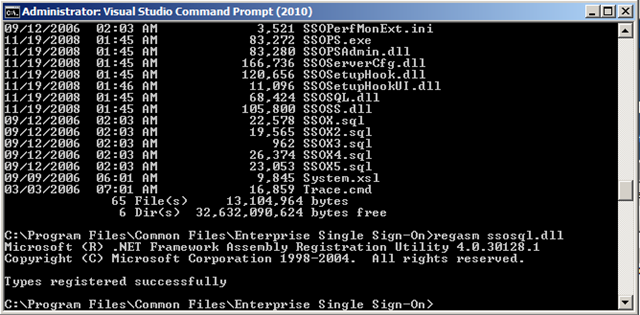
After I installed VS2010 RC1, BizTalk 2009 fails, the reason is the Enterprise Single Sign on service fails.

To fix it go to the Enterprise Single Sign_On folder in VS command prompt and re-register the dll.

Errors in event log:

The description for Event ID 7023 from source Service Control Manager cannot be found. Either the component that raises this event is not installed on your local computer or the installation is corrupted. You can install or repair the component on the local computer.

If the event originated on another computer, the display information had to be saved with the event.

The following information was included with the event:

Enterprise Single Sign-On Service
%%2148734720

The locale specific resource for the desired message is not present

image

Use

Regasm  “C:\Program Files\Common Files\Enterprise Single Sign-On\ssosql.dll”

Cheers!

BizTalk Server and Renaming the machine – Development Templates

Hi Folks,

I would like to clear something up about this, without being too rude.

I am currently watching this video, and it is very unclear about renaming BizTalk server development environments.#

http://channel9.msdn.com/posts/johanlindfors/BizTalk-Server-Development-Best-Practices-12/

I am going to make it clear, you CAN do it and will not have problems if:

  1. Optional (Virtualised on Server 2003/2008)
  2. BizTalk is installed but not configured
  3. SQL Server is installed

This is what you do. You can give a copy of the virtual machine to another purpose, you can either sysprep, or just use the VM clone utilities like Virtual Box has. In fact I develop on Virtual Box, and all I do is take a VM template and IMPORT it using the Virtual Box Import facility, this will take care of SIDS etc.

I really have no clue, why people get into a fuss with it.

Anyways, whatever you do to “clone” the machine, once it is cloned, renamed SQL Server in Query Analyzer with this command:

sp_dropserver <old_name>

GO

sp_addserver <new_name>, local GO

And then Configure BizTalk.

I will admit that Virtual Box has been the most stable development platform for BizTalk from my experience, VMWare has been the worst.

Easy as that.

Ok, so if anyone tells you it is not supported or causes problems, it is not true! It really irritates me when you get someone waving the MS banner and repeating others without trying it out right?

Ok cool, now that we sorted this out. You got DEV templates that can be cloned and up and running within an hour 🙂

Keep it SIMPLE! Why TIGHTLY couple a VM to a HOST? No need for Hyper-V when you can use Virtual Box, this means you can keep them on a portable drive and run it from practically any host box (MAC, LINUX, Windows).

It is amazing, we talk about loose coupling and then you get some wise cracks developing on Hyper-V. Sigh….

Use an SSD for laptop Host and run the VM off a standard second drive or if you have the cash another SSD. Have fun!

Download it here:

http://www.virtualbox.org/wiki/Downloads

If you need any help setting up DEV’s for BizTalk, drop me a mail!