Category: .Net Development

Demystifying .NET Core Memory Leaks: A Debugging Adventure with dotnet-dump

Demystifying .NET Core Memory Leaks: A Debugging Adventure with dotnet-dump

It has been a while since I wrote about memory dump analysis; the last post on the subject was back in 2011. Lets get stuck into the dark arts.

First and foremost, .NET is very different to .NET Core, down to App Domains and how the MSIL is executed. Understanding this is crucial before you kick off a clrstack! or dumpdomain! Make sure you understand the architecture of what you debugging from ASP to console apps. Dumpdomain caught me off guard, as you would use dumpdomain to get the sourcecode and decompile via the PDB files in the past.

FeatureASP.NET CoreASP.NET Framework
Cross-Platform SupportRuns on Windows, Linux, and macOS.Primarily runs on Windows.
HostingCan be hosted on Kestrel, IIS, HTTP.sys, Nginx, Apache, and Docker.Typically hosted on IIS.
PerformanceOptimized for high performance and scalability.Good performance, but generally not as optimized as ASP.NET Core.
Application ModelUnified model for MVC and Web API.Separate models for MVC and Web API.
ConfigurationUses a lightweight, file-based configuration system (appsettings.json).Uses web.config for configuration.
Dependency InjectionBuilt-in support for dependency injection.Requires third-party libraries for dependency injection.
App DomainsUses a single app model and does not support app domains.Supports app domains for isolation between applications.
Runtime CompilationSupports runtime compilation of Razor views (optional).Supports runtime compilation of ASPX pages.
Modular HTTP PipelineHighly modular and configurable HTTP request pipeline.Fixed HTTP request pipeline defined by the Global.asax and web.config.
Package ManagementUses NuGet for package management, with an emphasis on minimal dependencies.Also uses NuGet but tends to have more complex dependency trees.
Framework VersionsApplications target a specific version of .NET Core, which is bundled with the app.Applications target a version of the .NET Framework installed on the server.
Update FrequencyRapid release cycle with frequent updates and new features.Slower release cycle, tied to Windows updates.
Side-by-Side DeploymentSupports running multiple versions of the app or .NET Core side-by-side.Does not support running multiple versions of the framework side-by-side for the same application.
Open SourceEntire platform is open-source.Only a portion of the platform is open-source.

So we embark on a quest to uncover hidden memory leaks that lurk within the depths of .NET Core apps, armed with the mighty dotnet-dump utility. This tale of debugging prowess will guide you through collecting and analyzing dump files, uncovering the secrets of memory leaks, and ultimately conquering these elusive beasts.

Preparing for the Hunt: Installing dotnet-dump

Our journey begins with the acquisition of the dotnet-dump tool, a valiant ally in our quest. This tool is a part of the .NET diagnostics toolkit, designed to collect and analyze dumps without requiring native debuggers. It’s a lifesaver on platforms like Alpine Linux, where traditional tools shy away.

To invite dotnet-dump into your arsenal, you have two paths:

  1. The Global Tool Approach: Unleash the command dotnet tool install --global dotnet-dump into your terminal and watch as the latest version of the dotnet-dump NuGet package is summoned.
  2. The Direct Download: Navigate to the mystical lands of the .NET website and download the tool executable that matches your platform’s essence.

The First Step: Collecting the Memory Dump

With dotnet-dump by your side, it’s time to collect a memory dump from the process that has been bewitched by the memory leak. Invoke dotnet-dump collect --process-id <PID>, where <PID> is the identifier of the cursed process. This incantation captures the essence of the process’s memory, storing it in a file for later analysis.

The Analytical Ritual: Unveiling the Mysteries of the Dump

Now, the real magic begins. Use dotnet-dump analyze <dump_path> to enter an interactive realm where the secrets of the dump file are yours to discover. This enchanted shell accepts various SOS commands, granting you the power to scrutinize the managed heap, reveal the relationships between objects, and formulate theories about the source of the memory leak.

Common Spells and Incantations:

  • clrstack: Summons a stack trace of managed code, revealing the paths through which the code ventured.
  • dumpheap -stat: Unveils the statistics of the objects residing in the managed heap, highlighting the most common culprits.
  • gcroot <address>: Traces the lineage of an object back to its roots, uncovering why it remains in memory.

The Final Confrontation: Identifying the Memory Leak

Armed with knowledge and insight from the dotnet-dump analysis, you’re now ready to face the memory leak head-on. By examining the relationships between objects and understanding their roots, you can pinpoint the source of the leak in your code.

Remember, the key to vanquishing memory leaks is patience and perseverance. With dotnet-dump as your guide, you’re well-equipped to navigate the complexities of .NET Core memory management and emerge victorious.

Examine managed memory usage

Before you start collecting diagnostic data to help root cause this scenario, make sure you’re actually seeing a memory leak (growth in memory usage). You can use the dotnet-counters tool to confirm that.

Open a console window and navigate to the directory where you downloaded and unzipped the sample debug target. Run the target:

dotnet run

From a separate console, find the process ID:

dotnet-counters ps

The output should be similar to:

4807 DiagnosticScena /home/user/git/samples/core/diagnostics/DiagnosticScenarios/bin/Debug/netcoreapp3.0/DiagnosticScenarios

Now, check managed memory usage with the dotnet-counters tool. The --refresh-interval specifies the number of seconds between refreshes:

dotnet-counters monitor --refresh-interval 1 -p 4807

The live output should be similar to:

Press p to pause, r to resume, q to quit.
Status: Running

[System.Runtime]
# of Assemblies Loaded 118
% Time in GC (since last GC) 0
Allocation Rate (Bytes / sec) 37,896
CPU Usage (%) 0
Exceptions / sec 0
GC Heap Size (MB) 4
Gen 0 GC / sec 0
Gen 0 Size (B) 0
Gen 1 GC / sec 0
Gen 1 Size (B) 0
Gen 2 GC / sec 0
Gen 2 Size (B) 0
LOH Size (B) 0
Monitor Lock Contention Count / sec 0
Number of Active Timers 1
ThreadPool Completed Work Items / sec 10
ThreadPool Queue Length 0
ThreadPool Threads Count 1
Working Set (MB) 83

Focusing on this line:

    GC Heap Size (MB)                                  4

You can see that the managed heap memory is 4 MB right after startup.

Now, go to the URL https://localhost:5001/api/diagscenario/memleak/20000.

Observe that the memory usage has grown to 30 MB.

GC Heap Size (MB)                                 30


By watching the memory usage, you can safely say that memory is growing or leaking. The next step is to collect the right data for memory analysis.

Generate memory dump

When analyzing possible memory leaks, you need access to the app’s memory heap to analyze the memory contents. Looking at relationships between objects, you create theories as to why memory isn’t being freed. A common diagnostic data source is a memory dump on Windows or the equivalent core dump on Linux. To generate a dump of a .NET application, you can use the dotnet-dump tool.

Using the sample debug target previously started, run the following command to generate a Linux core dump:

dotnet-dump collect -p 4807

The result is a core dump located in the same folder.

Writing minidump with heap to ./core_20190430_185145
Complete

For a comparison over time, let the original process continue running after collecting the first dump and collect a second dump the same way. You would then have two dumps over a period of time that you can compare to see where the memory usage is growing.

Restart the failed process

Once the dump is collected, you should have sufficient information to diagnose the failed process. If the failed process is running on a production server, now it’s the ideal time for short-term remediation by restarting the process.

In this tutorial, you’re now done with the Sample debug target and you can close it. Navigate to the terminal that started the server, and press Ctrl+C.

Analyze the core dump

Now that you have a core dump generated, use the dotnet-dump tool to analyze the dump:

dotnet-dump analyze core_20190430_185145

Where core_20190430_185145 is the name of the core dump you want to analyze.

If you see an error complaining that libdl.so cannot be found, you may have to install the libc6-dev package. For more information, see Prerequisites for .NET on Linux.

You’ll be presented with a prompt where you can enter SOS commands. Commonly, the first thing you want to look at is the overall state of the managed heap:

> dumpheap -stat

Statistics:
MT Count TotalSize Class Name
...
00007f6c1eeefba8 576 59904 System.Reflection.RuntimeMethodInfo
00007f6c1dc021c8 1749 95696 System.SByte[]
00000000008c9db0 3847 116080 Free
00007f6c1e784a18 175 128640 System.Char[]
00007f6c1dbf5510 217 133504 System.Object[]
00007f6c1dc014c0 467 416464 System.Byte[]
00007f6c21625038 6 4063376 testwebapi.Controllers.Customer[]
00007f6c20a67498 200000 4800000 testwebapi.Controllers.Customer
00007f6c1dc00f90 206770 19494060 System.String
Total 428516 objects

Here you can see that most objects are either String or Customer objects.

You can use the dumpheap command again with the method table (MT) to get a list of all the String instances:

> dumpheap -mt 00007f6c1dc00f90

Address MT Size
...
00007f6ad09421f8 00007faddaa50f90 94
...
00007f6ad0965b20 00007f6c1dc00f90 80
00007f6ad0965c10 00007f6c1dc00f90 80
00007f6ad0965d00 00007f6c1dc00f90 80
00007f6ad0965df0 00007f6c1dc00f90 80
00007f6ad0965ee0 00007f6c1dc00f90 80

Statistics:
MT Count TotalSize Class Name
00007f6c1dc00f90 206770 19494060 System.String
Total 206770 objects

You can now use the gcroot command on a System.String instance to see how and why the object is rooted:

> gcroot 00007f6ad09421f8

Thread 3f68:
00007F6795BB58A0 00007F6C1D7D0745 System.Diagnostics.Tracing.CounterGroup.PollForValues() [/_/src/System.Private.CoreLib/shared/System/Diagnostics/Tracing/CounterGroup.cs @ 260]
rbx: (interior)
-> 00007F6BDFFFF038 System.Object[]
-> 00007F69D0033570 testwebapi.Controllers.Processor
-> 00007F69D0033588 testwebapi.Controllers.CustomerCache
-> 00007F69D00335A0 System.Collections.Generic.List`1[[testwebapi.Controllers.Customer, DiagnosticScenarios]]
-> 00007F6C000148A0 testwebapi.Controllers.Customer[]
-> 00007F6AD0942258 testwebapi.Controllers.Customer
-> 00007F6AD09421F8 System.String

HandleTable:
00007F6C98BB15F8 (pinned handle)
-> 00007F6BDFFFF038 System.Object[]
-> 00007F69D0033570 testwebapi.Controllers.Processor
-> 00007F69D0033588 testwebapi.Controllers.CustomerCache
-> 00007F69D00335A0 System.Collections.Generic.List`1[[testwebapi.Controllers.Customer, DiagnosticScenarios]]
-> 00007F6C000148A0 testwebapi.Controllers.Customer[]
-> 00007F6AD0942258 testwebapi.Controllers.Customer
-> 00007F6AD09421F8 System.String

Found 2 roots.

You can see that the String is directly held by the Customer object and indirectly held by a CustomerCache object.

You can continue dumping out objects to see that most String objects follow a similar pattern. At this point, the investigation provided sufficient information to identify the root cause in your code.

This general procedure allows you to identify the source of major memory leaks.

Epilogue: Cleaning Up After the Battle

With the memory leak defeated and peace restored to your application, take a moment to clean up the battlefield. Dispose of the dump files that served you well, and consider restarting your application to ensure it runs free of the burdens of the past.

Embark on this journey with confidence, for with dotnet-dump and the wisdom contained within this guide, you are more than capable of uncovering and addressing the memory leaks that challenge the stability and performance of your .NET Core applications. Happy debugging!

Sources:
https://learn.microsoft.com/en-us/dotnet/core/diagnostics/debug-memory-leak

Debugging Azure Event Hubs and Stream Analytics Jobs

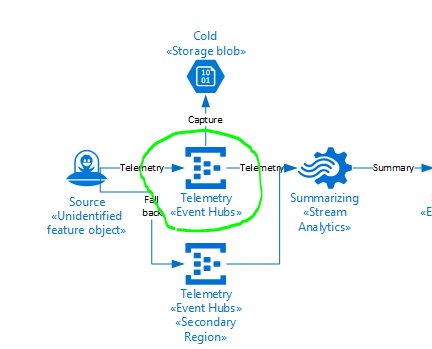
When you are dealing with millions of events per day (Json format). You need a debugging tool to deal with events that do no behave as expected.

Recently we had an issue where an Azure Streaming analytics job was in a degraded state. A colleague eventually found the issue to be the output of the Azure Streaming Analytics Job.

The error message was very misleading.

[11:36:35] Source 'EventHub' had 76 occurrences of kind 'InputDeserializerError.TypeConversionError' between processing times '2020-03-24T00:31:36.1109029Z' and '2020-03-24T00:36:35.9676583Z'. Could not deserialize the input event(s) from resource 'Partition: [11], Offset: [86672449297304], SequenceNumber: [137530194]' as Json. Some possible reasons: 1) Malformed events 2) Input source configured with incorrect serialization format\r\n"

The source of the issue was CosmosDB, we need to increase the RU’s. However the error seemed to indicate a serialization issue.

We developed a tool that could subscribe to events at exactly the same time of the error, using the sequence number and partition.

We also wanted to be able to use the tool for a large number of events +- 1 Million per hour.

Please click link to the EventHub .Net client. This tool is optimised to use as little memory as possible and leverage asynchronous file writes for the an optimal event subscription experience (Console app of course).

Have purposely avoided the newton soft library for the final file write to improve the performance.

The output will be a json array of events.

The next time you need to be able to subscribe to event hubs to diagnose an issue with a particular event, I would recommend using this tool to get the events you are interested in analysing.

Thank you.

Creating a Cloud Architecture Roadmap

Creating a Cloud Architecture Roadmap

Image result for cloud architecture jpg

Overview

When a product has been proved to be a success and has just come out of a MVP (Minimal Viable Product) or MMP (Minimal Marketable Product) state, usually a lot of corners would have been cut in order to get a product out and act on the valuable feedback. So inevitably there will be technical debt to take care of.

What is important is having a technical vision that will reduce costs and provide value/impact/scaleable/resilient/reliable which can then be communicated to all stakeholders.

A lot of cost savings can be made when scaling out by putting together a Cloud Architecture Roadmap. The roadmap can then be communicate with your stakeholders, development teams and most importantly finance. It will provide a high level “map” of where you are now and where you want to be at some point in the future.

A roadmap is every changing, just like when my wife and I go travelling around the world. We will have a roadmap of where want to go for a year but are open to making changes half way through the trip e.g. An earthquake hits a country we planned to visit etc. The same is true in IT, sometimes budgets are cut or a budget surplus needs to be consumed, such events can affect your roadmap.

It is something that you want to review on a regular schedule. Most importantly you want to communicate the roadmap and get feedback from others.

Feedback from other engineers and stakeholders is crucial – they may spot something that you did not or provide some better alternative solutions.

Decomposition

The first stage is to decompose your ideas. Below is a list that helps get me started in the right direction. This is by no means an exhausted list, it will differ based on your industry.

Component Description Example
Application Run-timeWhere apps are hostedAzure Kubernetes
Persistent StorageNon-Volatile DataFile Store
Block Store
Object Store
CDN
Message
Database
Cache
Backup/RecoveryBackup/Redundant SolutionsManaged Services
Azure OMS
Recovery Vaults
Volume Images
GEO Redundancy
Data/IOTConnected Devices / SensorsStreaming Analytics
Event Hubs
AI/Machine Learning
GatewayHow services are accessedAzure Front Door, NGIX, Application Gateway, WAF, Kubernetes Ingress Controllers
Hybrid ConnectivityOn-Premise Access
Cross Cloud
Express Route
Jumpboxes
VPN
Citrix
Source ControlWhere code lives
Build – CI/CD
Github, Bitbucket
Azure Devops, Octopus Deploy, Jenkins
Certificate ManagementSSL CertificatesAzure Key Vault
SSL Offloading strategies
Secret ManagementStore sensitive configurationPuppet (Hiera), Azure Keyvault, Lastpass, 1Password
Mobile Device ManagementGoogle Play
AppStore
G-Suite Enterprise MDM etc

Once you have an idea of all your components. The next step is to breakdown your road-map into milestones that will ultimately assist in reaching your final/target state. Which of course will not be final in a few years time 😉 or even months!

Sample Roadmap

Below is a link to a google slide presentation that you can use for your roadmap.

https://docs.google.com/presentation/d/1Hvw46vcWJyEW5b7o4Xet7jrrZ17Q0PVzQxJBzzmcn2U/edit?usp=sharing

Writing a Singleton Class in .NET

Usually you will register your classes in your Dependency Container of choice.

However if you really need to do it manually. Here is sample code that always ensures there is only one taxi instance (Poor Business is not going to do too well – Definitely not a scaleable business).


using System;
using System.Collections.Generic;

namespace Patterns.Singleton
{
    class TaxiSchedule
    {
        static void Main()
        {
            var t1 = Taxi.GetTaxi();
            var t2 = Taxi.GetTaxi();
            var t3 = Taxi.GetTaxi();
            var t4 = Taxi.GetTaxi();

            if (t1 == t2 && t2 == t3 && t3 == t4)
                Console.WriteLine("They are the same!\n");

            var taxi = Taxi.GetTaxi();
            for (int i = 0; i < 24; i++)
                Console.WriteLine("Wake Up: " + taxi.NextDriver.Name);

            Console.ReadKey();
        }
    }

    /// 

<summary>
    /// Singleton Taxi
    /// </summary>


    sealed class Taxi
    {
        static readonly Taxi instance = new Taxi();
        IList<Driver> drivers;
        Random random = new Random();
        int currentDriver = 0;

        private Taxi()
        {
            drivers = new List<Driver>
                {
                  new Driver{ Name = "Joe" },
                  new Driver{ Name = "Bob" },
                  new Driver{ Name = "Harry" },
                  new Driver{ Name = "Ford" },
                };
        }

        public static Taxi GetTaxi()
        {
            return instance;
        }

        public Driver NextDriver
        {
            get
            {
                if (currentDriver >= drivers.Count)
                    currentDriver = 0;
                currentDriver++;
                return drivers[currentDriver -1];
            }
        }
    }

    class Driver
    {
        public string Name { get; set; }
    }
}
<span data-mce-type="bookmark" style="display: inline-block; width: 0px; overflow: hidden; line-height: 0;" class="mce_SELRES_start"></span>


ARM – Modular Templates – Reference resources already created

Hi,

I noticed the Microsoft documentation related to the following function is a little bit vague.

reference(resourceName or resourceIdentifier, [apiVersion], [‘Full’])

The second issue is see a lot of people having is how do you reference a resource already created in ARM and get some of that objects properties e.g. FQDN on a public IP already created etc.

The clue to solve this issue, so that ARM Template B can reference a resource created in ARM Template A can be found here:

By using the reference function, you implicitly declare that one resource depends on another resource if the referenced resource is provisioned within same template and you refer to the resource by its name (not resource ID). You don’t need to also use the dependsOn property. The function isn’t evaluated until the referenced resource has completed deployment.

Or use linked templates (Linked templates is a huge rework and you need to host the files on the net). Lets see if we can do it via resourceId.

Therefore if we do reference a resource by resourceId, we will remove the implicit “depends on”, allowing ARM Template B to use a resource created in a totally different ARM template.

A great example might be the FQDN on an IP Address.

Imagine ARM Template A creates the IP Address


"resources": [
{
"apiVersion": "[variables('publicIPApiVersion')]",
"type": "Microsoft.Network/publicIPAddresses",
"name": "[variables('AppPublicIPName')]",
"location": "[variables('computeLocation')]",
"properties": {
"dnsSettings": {
"domainNameLabel": "[variables('AppDnsName')]"
},
"publicIPAllocationMethod": "Dynamic"
},
"tags": {
"resourceType": "Service Fabric",
"scaleSetName": "[parameters('scaleSetName')]"
}
}]

Now Imagine we need to get the FQDN of the IP Address in a ARM Template B

What we going to do is try this:

reference(resourceIdentifier, [apiVersion]) ->
reference(resourceId(), [apiVersion]) ->
e.g.

Here is an example where ARM template B references a resource in A and gets a property.


"managementEndpoint": "[concat('https://',reference(resourceId('Microsoft.Network/publicIPAddresses/',variables('AppPublicIPName')), variables('publicIPApiVersion')).dnsSettings.fqdn,':',variables('nodeTypePrimaryServiceFabricHttpPort'))]",

The important thing here is to ensure you always include the API Version. This pattern is a very powerful way to create smaller and more modular ARM templates.

Note: In the above pattern, you do not need to define DependsOn in ARM Template B, as we are explicitly defining a reference to an existing resource. ARM Template B is not responsible for creating a public IP. If you need it, you run ARM Template A.

So if you need a reference to existing resources use the above. If you need a reference to resources created in the SAME ARM template use:

reference(resourceName)

Cheers

Service Fabric – Upgrading VMSS Disks, Operating System on Primary Node Type

How do you upgrade the existing Data Disk on a primary Node Type Virtual Machine ScaleSet in Service Fabric?

How do you upgrade the existing Operating System on a primary Node Type VMSS in Service Fabric?

How do you move the Data Disk on a primary Node Type VMSS in Service Fabric?

How do you monitor the status during the upgrade, so you know exactly how many seed nodes have migrated over to the new scale set?

note – We successfully increased the SKU size as well, however this is not supported by Microsoft. However just increase your SKU in ARm and later, after the successful transfer to the new VMSS, run Update-AzureRmServiceFabricDurability.

Considerations

  • You have knowledge to use ARM to deploy an Azure Load Balancer
  • You have knowledge to use ARM to deploy a VMSS Scale Set
  • Service Fabric Durability Tier/Reliability Tier must be at least Silver
  • Keep the original Azure DNS name on the Load Balancer that is used to connect to the Service Fabric Endpoint. Very Important to write it down as a backup
  • You will need to reduce the TTL of all your DNS settings to reduce downtime during the upgrade which will just be the TTL value e.g. 10 minutes. (Ensure you have access to your primary DNS provider to do this)
  • Prepare an ARM template to add the new Azure Load Balancer that the new VMSS scaleset will attach to (Backend Pool)
  • Prepare an ARM template to add the new VMSS to an existing Service Fabric primary Node Type
  • Deploy the new Azure Load Balancer + Virtual Machine Scale Set to the Service Fabric Primary node
  • Run the RemoveScaleSetFromClusterController.ps1 – Run this script on the NEW node in the NEW VMSS. This script will monitor and facilitate moving the Primary Node Type to the new VMSS for you.  It will show you the status of the Seed nodes moving from the original Primary Node Type to the new VMSS.
  • When it completed, the last part will be to update DNS.
  • Run MoveDNSToNewPublicIPController.ps1

ARM Templates

You will need only 2 templates. One to Deploy a new Azure Load Balancer and one to Deploy the new VMSS Scale Set to the existing Service Fabric Cluster.

You will also need a powershell script that will run a custom script extension.

Custom Script – prepare_sf_vm.ps1


$disks = Get-Disk | Where partitionstyle -eq 'raw' | sort number

$letters = 70..89 | ForEach-Object { [char]$_ }
$count = 0
$label = "datadisk"

foreach ($disk in $disks) {
    $driveLetter = $letters[$count].ToString()
    $disk | 
    Initialize-Disk -PartitionStyle GPT -PassThru |
    New-Partition -UseMaximumSize -DriveLetter $driveLetter |
    Format-Volume -FileSystem NTFS -NewFileSystemLabel "$label$count" -Confirm:$false -Force
$count++
}

# Disable Windows Update
Set-ItemProperty -Path 'HKLM:\SOFTWARE\Policies\Microsoft\Windows\WindowsUpdate\AU' -Name NoAutoUpdate -Value 1


Load Balancer – azuredeploy_servicefabric_loadbalancer.json

Use your particular Load Balancer ARM Templates. No need to attached a backend pool, as this will be done by the VMSS script below.

Service Fabric attach new VMSS – azuredeploy_add_new_VMSS_to_nodeType.json

Create your own VMSS scaleset that you attach to Service fabric. The important aspect are the following.

nodeTypeRef (To attach VMSS to existing PrimaryNodeType).
dataPath (To use a new Disk for data)
dataDisk (to add a new managed physical disk)

We use F:\ onwards as D is reserved for Temp storage and E: is reserved for a CD ROM in Azure VM’s.


{
                                "name": "[concat('ServiceFabricNodeVmExt',variables('vmNodeType0Name'))]",
                                "properties": {
                                    "type": "ServiceFabricNode",
                                    "autoUpgradeMinorVersion": true,
                                    "protectedSettings": {
                                        "StorageAccountKey1": "[listKeys(resourceId('Microsoft.Storage/storageAccounts', variables('supportLogStorageAccountName')),'2015-05-01-preview').key1]",
                                        "StorageAccountKey2": "[listKeys(resourceId('Microsoft.Storage/storageAccounts', variables('supportLogStorageAccountName')),'2015-05-01-preview').key2]"
                                    },
                                    "publisher": "Microsoft.Azure.ServiceFabric",
                                    "settings": {
                                        "clusterEndpoint": "[parameters('existingClusterConnectionEndpoint')]",
                                        "nodeTypeRef": "[parameters('existingNodeTypeName')]",
                                        "dataPath": "F:\\\\SvcFab",
                                        "durabilityLevel": "Silver",
                                        "enableParallelJobs": true,
                                        "nicPrefixOverride": "[variables('subnet0Prefix')]",
                                        "certificate": {
                                            "thumbprint": "[parameters('certificateThumbprint')]",
                                            "x509StoreName": "[parameters('certificateStoreValue')]"
                                        }
                                    },
                                    "typeHandlerVersion": "1.0"
                                }
                            },
....
.......
.........
"storageProfile": {
                        "imageReference": {
                            "publisher": "[parameters('vmImagePublisher')]",
                            "offer": "[parameters('vmImageOffer')]",
                            "sku": "2016-Datacenter-with-Containers",
                            "version": "[parameters('vmImageVersion')]"
                        },
                        "osDisk": {
                            "managedDisk": {
                                "storageAccountType": "[parameters('storageAccountType')]"
                            },
                            "caching": "ReadWrite",
                            "createOption": "FromImage"
                        },
                        "dataDisks": [
                            {
                                "managedDisk": {
                                    "storageAccountType": "[parameters('storageAccountType')]"
                                },
                                "lun": 0,
                                "createOption": "Empty",
                                "diskSizeGB": "[parameters('dataDiskSize')]",
                                "caching": "None"
                            }
                        ]
                    }

...
....
.....
 "virtualMachineProfile": {
                    "extensionProfile": {
                        "extensions": [
                            {
                                "name": "PrepareDataDisk",
                                "properties": {
                                    "publisher": "Microsoft.Compute",
                                    "type": "CustomScriptExtension",
                                    "typeHandlerVersion": "1.8",
                                    "autoUpgradeMinorVersion": true,
                                    "settings": {
                                    "fileUris": [
                                        "[variables('vmssSetupScriptUrl')]"
                                    ],
                                    "commandToExecute": "[concat('powershell -ExecutionPolicy Unrestricted -File prepare_sf_vm.ps1 ')]"
                                    }
                                }
                            },


Once you have a new VMSS scale set attached to the existing NodeType, you should see in Service Fabric the extra nodes. the next step is to disable and remove the existing VMSS scaleset. This is an online operation, so you should be fine. However later we will need to update DNS for the Cluster Endpoint. This is important for Powershell Admin tools to still connect to the Service Fabric cluster.

RemoveScaleSetFromClusterController.ps1

Remote into one of the NEW VMSS virtual machines and run the following command. It will make dead sure that your seed nodes migrate over. it can take a long time (Microsoft docs say it takes a long time, how long?). it depends, for a cluster with 5 seed nodes, it took nearly 4 hours! So be patient and update the loop timeout to match your environment, increase the timeout if you have more than 5 seed nodes. My general rule is allow 45 minutes per seed node transfer.


#Requires -Version 5.0
#Requires -RunAsAdministrator


param (
    [Parameter(Mandatory = $true)]
    [string]
    $subscriptionName,

    [Parameter(Mandatory = $true)]
    [string] 
    $scaleSetToDisable,

    [Parameter(Mandatory = $true)]
    [string]
    $scaleSetToEnable,

    [Parameter(Mandatory = $true)]
    [string] 
    $resourceGroupName
)

Install-Module AzureRM.Compute -Force

Import-Module ServiceFabric -Force
Import-Module AzureRM.Compute -Force

function Disable-InternetExplorerESC {
    $AdminKey = "HKLM:\SOFTWARE\Microsoft\Active Setup\Installed Components\{A509B1A7-37EF-4b3f-8CFC-4F3A74704073}"
    $UserKey = "HKLM:\SOFTWARE\Microsoft\Active Setup\Installed Components\{A509B1A8-37EF-4b3f-8CFC-4F3A74704073}"
    Set-ItemProperty -Path $AdminKey -Name "IsInstalled" -Value 0
    Set-ItemProperty -Path $UserKey -Name "IsInstalled" -Value 0
    Stop-Process -Name Explorer
    Write-Host "IE Enhanced Security Configuration (ESC) has been disabled." -ForegroundColor Green
}

function Enable-InternetExplorerESC {
    $AdminKey = "HKLM:\SOFTWARE\Microsoft\Active Setup\Installed Components\{A509B1A7-37EF-4b3f-8CFC-4F3A74704073}"
    $UserKey = "HKLM:\SOFTWARE\Microsoft\Active Setup\Installed Components\{A509B1A8-37EF-4b3f-8CFC-4F3A74704073}"
    Set-ItemProperty -Path $AdminKey -Name "IsInstalled" -Value 1
    Set-ItemProperty -Path $UserKey -Name "IsInstalled" -Value 1
    Stop-Process -Name Explorer
    Write-Host "IE Enhanced Security Configuration (ESC) has been enabled." -ForegroundColor Green
}

$ErrorActionPreference = "Stop"

Disable-InternetExplorerESC

Login-AzureRmAccount -SubscriptionName $subscriptionName

Write-Host "Before you continue:  Ensure IE Enhanced Security is off."
Write-Host "Before you continue:  Ensure your new scaleset is ALREADY added to the Service Fabric Cluster"
Pause

try {
    Connect-ServiceFabricCluster
    Get-ServiceFabricClusterHealth
} catch {
    Write-Error "Please run this script from one of the new nodes in the cluster."
}

Write-Host "Please do not continue unless the Cluster is healthy and both Scale Sets are present in the SFCluster."
Pause

$nodesToDisable = Get-ServiceFabricNode | Where NodeName -match "_($scaleSetToDisable)_\d+"
$OldSeedCount = ( $nodesToDisable | Where IsSeedNode -eq  $true | Measure-Object).Count
$nodesToEnable = Get-ServiceFabricNode | Where NodeName -match "_($scaleSetToEnable)_\d+"

if($OldSeedCount -eq 0){
    Write-Error "Node Seed count must be greater than zero."
    exit
}

if($nodesToDisable.Count -eq 0){
    Write-Error "No nodes to disable found."
    exit
}

if($nodesToEnable.Count -eq 0){
    Write-Error "No nodes to enable found."
    exit
}

If (-not ($nodesToEnable.Count -ge $OldSeedCount)) {
    Write-Error "The new VM Scale Set must have at least $OldSeedCount nodes in order for the Seed Nodes to migrate over."
    exit
}

Write-Host "Disabling nodes in VMSS $scaleSetToDisable. Are you sure?"
Pause

foreach($node in $nodesToDisable){
    Disable-ServiceFabricNode -NodeName $node.NodeName -Intent RemoveNode -Force
}

Write-Host "Checking node status..."
$loopTimeout = 360
$loopWait = 60
$oldNodesDeactivated = $false
$newSeedNodesReady = $false

while ($loopTimeout -ne 0) {
    Get-Date -Format o
    Write-Host
    Write-Host "Nodes To Remove"

    foreach($nodeToDisable in $nodesToDisable) {
        $state = Get-ServiceFabricNode -NodeName $nodeToDisable.NodeName
        $msg = "{0} NodeDeactivationInfo: {1} IsSeedNode: {2} NodeStatus {3}" -f $nodeToDisable.NodeName, $state.NodeDeactivationInfo.Status, $state.IsSeedNode, $state.NodeStatus
        Write-Host $msg
    }

    $oldNodesDeactivated = ($nodesToDisable |  Where-Object { ($_.NodeStatus -eq [System.Fabric.Query.NodeStatus]::Disabled) -and ($_.NodeDeactivationInfo.Status -eq "Completed") } | Measure-Object).Count -eq $nodesToDisable.Count

    Write-Host
    Write-Host "Nodes To Add Status"

    foreach($nodeToEnable in $nodesToEnable) {
        $state = Get-ServiceFabricNode -NodeName $nodeToEnable.NodeName
        $msg = "{0} IsSeedNode: {1}, NodeStatus: {2}" -f $nodeToEnable.NodeName, $state.IsSeedNode, $state.NodeStatus
        Write-Host $msg
    }
    $newSeedNodesReady = ($nodesToEnable |  Where-Object { ($_.NodeStatus -eq [System.Fabric.Query.NodeStatus]::Up) -and $_.IsSeedNode} | Measure-Object).Count -ge $OldSeedCount
    if($oldNodesDeactivated -and $newSeedNodesReady) {
        break
    }
    $loopTimeout -= 1
    Start-Sleep $loopWait
}

if (-not ($oldNodesDeactivated)) {
    Write-Error "A node failed to deactivate within the time period specified."
    exit
}

$loopTimeout = 180
while ($loopTimeout -ne 0) {
    Write-Host
    Write-Host "Nodes To Add Status"

    foreach($nodeToEnable in $nodesToEnable) {
        $state = Get-ServiceFabricNode -NodeName $nodeToEnable.NodeName
        $msg = "{0} IsSeedNode: {1}, NodeStatus: {2}" -f $nodeToEnable.NodeName, $state.IsSeedNode, $state.NodeStatus
        Write-Host $msg
    }
    $newSeedNodesReady = ($nodesToEnable |  Where-Object { ($_.NodeStatus -eq [System.Fabric.Query.NodeStatus]::Up) -and $_.IsSeedNode} | Measure-Object).Count -ge $OldSeedCount
    if($newSeedNodesReady) {
        break
    }
    $loopTimeout -= 1
    Start-Sleep $loopWait
}

$NewSeedNodes = Get-ServiceFabricNode | Where-Object {($_.NodeName -match "_($scaleSetToEnable)_\d+") -and ($_.IsSeedNode -eq $True)}
Write-Host "New Seed Nodes are:"
$NewSeedNodes | Select NodeName
$NewSeedNodesCount = ($NewSeedNodes  | Measure-Object).Count

if($NewSeedNodesCount -ge $OldSeedCount) {
    Write-Host "Removing the scale set $scaleSetToDisable"
    Remove-AzureRmVmss -ResourceGroupName $ResourceGroupName -VMScaleSetName $scaleSetToDisable -Force
    Write-Host "Removed scale set $scaleSetToDisable"

    Write-Host "Removing Node State for old nodes"
    $nodesToDisable | Remove-ServiceFabricNodeState -Force
    Write-Host "Done"

    Get-ServiceFabricClusterHealth
    Get-ServiceFabricNode
} else {
    Write-Host "New Seed Nodes do not match the minimum requirements $NewSeedNodesCount."
    Write-Host "Manually run  Remove-AzureRmVmss"
    Write-Host "Then Manually run  Remove-ServiceFabricNodeState"
    Get-ServiceFabricClusterHealth
    Get-ServiceFabricNode
}

Enable-InternetExplorerESC

This script is extremely useful, you can see the progress of the transfer of seed nodes and disabling of existing primary node types.

You know it is successful, when the old nodes have ZERO seed nodes. All SEED nodes must transfer over to the new nodes, and all nodes in the old  scale set shoul dbe set to false by the end of the script execution.

MoveDNSToNewPublicIPController.ps1

Lastly you MUST update DNS to use the original CNAME . This script can help with this, what it does is actually detach the original internal Azure CNAME from the old public IP and move it to your new public IP attached to the new load balancer.


param (
        [Parameter(Mandatory = $true)]
        [string]
        $subscriptionName,

        [Parameter(Mandatory = $true)]
        [string]
        $oldLoadBalancerName,

        [Parameter(Mandatory = $true)]
        [string]
        $resourceGroupName=,

        [Parameter(Mandatory = $true)]
        [string]
        $oldPublicIpName=,

        [Parameter(Mandatory = $true)]
        [string]
        $newPublicIpName=
)

    Install-Module AzureRM.Network -Force
    Import-Module AzureRM.Network -Force

    $ErrorActionPreference = "Stop"
    Login-AzureRmAccount -SubscriptionName $subscriptionName

    Write-Host "Are you sure you want to do this. There will be brief connectivty downtime?"
    Pause

    $oldprimaryPublicIP = Get-AzureRmPublicIpAddress -Name $oldPublicIpName -ResourceGroupName $resourceGroupName
    $primaryDNSName = $oldprimaryPublicIP.DnsSettings.DomainNameLabel
    $primaryDNSFqdn = $oldprimaryPublicIP.DnsSettings.Fqdn
    
    if($primaryDNSName.Length -gt 0 -and $primaryDNSFqdn -gt 0) {
        Write-Host "Found the Primary DNS Name" $primaryDNSName
        Write-Host "Found the Primary DNS FQDN" $primaryDNSFqdn
    } else {
        Write-Error "Could not find the DNS attached to Old IP $oldprimaryPublicIP"
        Exit
    }
    
        Write-Host "Moving the Azure DNS Names to the new Public IP"
    $PublicIP = Get-AzureRmPublicIpAddress -Name $newPublicIpName -ResourceGroupName $resourceGroupName
    $PublicIP.DnsSettings.DomainNameLabel = $primaryDNSName
    $PublicIP.DnsSettings.Fqdn = $primaryDNSFqdn
    Set-AzureRmPublicIpAddress -PublicIpAddress $PublicIP

    Get-AzureRmPublicIpAddress -Name $newPublicIpName -ResourceGroupName $resourceGroupName
    Write-Host "Transfer Done"

    Write-Host "Removing Load Balancer related to old Primary NodeType."
    Write-Host "Are you sure?"
    Pause

    Remove-AzureRmLoadBalancer -Name $oldLoadBalancerName -ResourceGroupName $resourceGroupName -Force
    Remove-AzureRmPublicIpAddress -Name $oldPublicIpName -ResourceGroupName $resourceGroupName -Force

    Write-Host "Done"

Summary

In this article you followed the process to:

  • Configure ARM to add a new VMSS with OS, Data Disk and Operating System
  • Add a new Virtual Machine Scale Set to an Existing Service Fabric Node Type
  • Ran a powershell script controller to monitor the outcome of the VMSS transfer.
  • Transferred the original management DNS CNAME to the new Public IP Address

Conclusion

This project requires a lot of testing for your environment, allocate at least a a few days to test the entire process before you try it out on your production services.

HTH

T-SQL UpperCase first letter of word

I am amazed by the complex solutions out on the internet to upper case the first letter of a word in SQL. Here is a way I think is nice and simple.


-- Test Data

declare @word varchar(100)
with good as (select 'good' as a union select 'nice' union select 'fine')
select @word = (SELECT TOP 1 a FROM good ORDER BY NEWID())

-- Implementation

select substring(Upper(@word),1,1) + substring(@word, 2, LEN(@word))

Request.Browser.IsMobileDevice & Tablet Devices

Hi,

The problem with Request.Browser.IsMobileDevice is that it will classify a tablet as a mobile device.

If you need to discern between mobile, tablet and desktop. Then use the following extension method.

public static class HttpBrowserCapabilitiesBaseExtensions
{
 public static bool IsMobileNotTablet(this HttpBrowserCapabilitiesBase browser)
 {
  var userAgent = browser.Capabilities[""].ToString();
  var r = new Regex("ipad|(android(?!.*mobile))|xoom|sch-i800|playbook|tablet|kindle|nexus|silk", RegexOptions.IgnoreCase);
  var isTablet = r.IsMatch(userAgent) && browser.IsMobileDevice;
  return !isTablet && browser.IsMobileDevice;
 }
}


Then to use it is easy. Just import the namespace and reference the method.

using Web.Public.Helpers;
...
if (Request.Browser.IsMobileNotTablet() && !User.IsSubscribed)
....


JWPlayer .NET Client – Management API

Hi,

We recently migrated all our content from Ooyala to JWPlayer Hosted Platform. We needed a .NET tool to perform the following:

  1. Create Videos from remote sources
  2. Update Videos later e.g. Thumbnails etc
  3. List Videos in a Custom Application
  4. Other cools ideas that come in after adopting a new tool

Currently JWPlayer Management API only has a PHP and Python 2.7 Client as examples for Batch Migration.

To use in Visual Studio:

  1. Open Package Manager Console
  2. Run – Install-Package JWPlayer.NET

I have created an Open Source JWPlayer.NET library. Please feel free to improve on it e.g. Make it fluent.

Get Source Code (JWPlayer.NET)

Below is how you can use the API as at 29/06/2017.

Create Video

var jw = new Jw(ApiKey, ApiSecret);
var parameters = new Dictionary<string, string>
{
    {"sourceurl", "http://www.sample-videos.com/video/mp4/720/big_buck_bunny_720p_1mb.mp4"},
    {"sourceformat", "mp4"},
    {"sourcetype", "url"},
    {"title", "Test"},
    {"description", "Test Video"},
    {"tags", "foo, bar"},
    {"custom.LegacyId", Guid.NewGuid().ToString()}
};
var result = jw.CreateVideo(parameters);

Update Video

var jw = new Jw(ApiKey, ApiSecret);
var parameters = new Dictionary<string, string>
{
    {"video_key", "QxbbRMMP"},
    {"title", "Test Updated"},
    {"tags", "foo, bar, updated"},
};
var result = jw.UpdateVideo(parameters);

List Video

var jw = new Jw(ApiKey, ApiSecret);
var basicVideoSearch = new BasicVideoSearch {Search = "Foo", StartDate = DateTime.UtcNow.AddDays(-100)};
var result = jw.ListVideos(basicVideoSearch);
var count = result.Videos.Count;


Batch Migrations

Ensure you stick to the Rate Limit of 60 calls per minute, or call your JWPlayer Account Manager to increase it.

for(var i = 0; i < lines.count; i++)
{
   jw.CreateVideo(parameters);
   Thread.Sleep(TimeSpan.FromSeconds(1));
}

Clone JWPlayer.NET

Calculate Wind Direction and Wind Speed from Wind Vectors

Wind Vectors have a U (Eastward) and V (Northward) Component.

Below is the code in C# to calculate the resultant wind

public struct Wind
    {
        public Wind(float speed, float direction)
        {
            Speed = speed;
            Direction = direction;
        }
        public float Speed { get; set; }
        public float Direction { get; set; }
    }

public static Wind CalculateWindSpeedAndDirection(float u, float v)
        {
            if(Math.Abs(u) < 0.001 && Math.Abs(v) < 0.001)
                return new Wind(0,0);
            const double radianToDegree = (180 / Math.PI);

            return new Wind(
                Convert.ToSingle(Math.Sqrt(Math.Pow(u, 2) + Math.Pow(v, 2))),
                Convert.ToSingle(Math.Atan2(u, v) * radianToDegree + 180));
        }

Test Code

        [TestCase(-8.748f, 7.157f, 11.303f, 129.29f)]
        [TestCase(-4.641f, -3.049f, 5.553f, 56.696f)]
        [TestCase(10f, 0f, 10f, 270f)]
        [TestCase(-10f, 0f, 10f, 90)]
        [TestCase(0f, 10f, 10f, 180f)]
        [TestCase(0f, -10f, 10f, 360f)]
        [TestCase(0f,0f,0f,0f)]
        [TestCase(0.001f, 0.001f, 0.0014142f, 225f)]
        public void CanConvertWindVectorComponents(float u, float v, float expectedWindSpeed, float expectedWindDirection)
        {
            var result = MetraWaveForecastLocationModel.CalculateWindSpeedAndDirection(u, v);
            Assert.AreEqual(Math.Round(expectedWindDirection,2), Math.Round(result.Direction,2));
            Assert.AreEqual(Math.Round(expectedWindSpeed,2), Math.Round(result.Speed,2));
        }