Tag: DevOps

When a vendor can brick your cluster: hard questions for Bitnami/VMWare after the 2025 catalog switch

When a vendor can brick your cluster: hard questions for Bitnami/VMWare after the 2025 catalog switch

TL;DR: In late Aug–Sep 2025, Bitnami (Broadcom) shifted most free images off docker.io/bitnami, introduced a latest-only, dev-intended “bitnamisecure” subset, archived versioned tags to docker.io/bitnamilegacy (no updates), ran rolling brownouts of popular images, and said their OCI Helm charts on Docker Hub would stop receiving updates (except for the tiny free subset). Result: lots of teams saw pull failures and surprise drift, especially for core bits like kubectl, ExternalDNS, PostgreSQL; some Helm charts still referenced images that went missing mid-migration. GitHub+2hub.docker.com+2


What changed (and when)

  • Timeline. Bitnami announced the change for 28 Aug 2025, then postponed deletion of the public catalog to 29 Sep 2025, running three 24-hour brownouts to “raise awareness.” Brownout sets explicitly included external-dns (Aug 28) and kubectl, redis, postgresql, mongodb (Sep 17). Tags were later restored, except very old distro bases. GitHub
  • Free tier becomes “bitnamisecure/…” Available only as latest and “intended for development” (their wording). No version matrix. hub.docker.com+1
  • Legacy archive. Versioned tags moved to docker.io/bitnamilegacyno updates, no support; meant only as a temporary bridge. GitHub+1
  • Charts. Source code stays on GitHub, but OCI charts on Docker Hub stop receiving updates (except the small free subset) and won’t work out-of-the-box unless you override image repos. Bitnami’s own FAQ shows helm upgrade … --set image.repository=bitnamilegacy/... as a short-term band-aid. GitHub

That mix of latest-only + brownouts + chart defaults still pointing at moved/blocked images is why so many clusters copped it, bru—especially anything depending on kubectl sidecars/hooks, ExternalDNS, or PostgreSQL images. GitHub


Why “latest-only, dev-intended” breaks production hygiene

Production needs immutability and pinning. “Latest” is mutable and can introduce breaking changes or CVE regressions without your staging gates ever seeing them. Bitnami explicitly positions these bitnamisecure/* freebies as development-only; if you need versions, you’re pointed to a paid catalog. That alone makes the free images not fit for prod, regardless of hardening claims. hub.docker.com


How clusters actually broke

  • Brownouts removed popular images for 24h windows. If your charts/Jobs still pulled from docker.io/bitnami, pods simply couldn’t pull. Next reconciliation loop? CrashLoop/back-off. GitHub
  • Chart/image mismatch. OCI charts remain published but aren’t updated to point at the new repos; unless you override every image.repository (and sometimes initContainer/metrics sidecars), you deploy a chart that references unavailable images. Bitnami’s own example shows how many fields you might need to override in something like PostgreSQL. GitHub
  • kubectl images. Lots of ops charts use a tiny kubectl image for hooks or jobs. When bitnami/kubectl went dark during brownouts, those jobs failed. Upstream alternatives exist (see below). hub.docker.com+1

Better defaults for core components (ditch the vendor lock)

Wherever possible, move back upstream for the chart and use official/community images:

  • ExternalDNS – Upstream chart & docs (Kubernetes SIGs): kubernetes-sigs/external-dns. Image: registry.k8s.io/external-dns/external-dns (pin a tag). GitHub+1
  • Velero – Upstream chart (VMware Tanzu Helm repo on Artifact Hub) and upstream images (pin). artifacthub.io
  • kubectl – Prefer upstream registry: registry.k8s.io hosts Kubernetes container images; several maintained images provide kubectl (or use distro images like alpine/kubectl/rancher/kubectl if they meet your standards—pin exact versions). GitHub+3Kubernetes+3GitHub+3

For stateful services:

  • PostgreSQL – Operators such as CloudNativePG (CNCF project). Alternatives include commercial operators; or, if you stick with straight images, use the official postgres image and manage via your own Helm/Kustomize. cloudnative-pg.io+1
  • MongoDBPercona Operator for MongoDB (open-source) is a strong, widely used option. Percona Documentation+1
  • Redis – Consider the official redis image (or valkey where appropriate), plus a community operator if you need HA/cluster features; evaluate operator maturity and open issues for your SLA needs. (Context from Bitnami’s lists shows Redis/Valkey were part of the brownout sets.)

Questions Bitnami should answer publicly

  1. Why ship a dev-only latest-only free tier for components that underpin production clusters, without a long freeze window and frictionless migration for chart defaults? (Their Docker Hub pages literally say latest-only and dev-intended.) hub.docker.com
  2. Why brownouts of ubiquitous infra images (external-dns, kubectl, postgresql) during the migration window, increasing blast radius for unsuspecting teams? GitHub
  3. Why leave OCI charts published but not updated to sane defaults (or at least yanking them) so new installs don’t reference unavailable registries by default?

Bitnami

Gain confidence, control and visibility of your software supply chain security with production-ready open source software delivered continuously in hardened images, with minimal CVEs and transparency you can trust. 

We have lost confidence in your software supply chain.

Optimizing Dockerfile for Web Applications with Multi-Stage Builds

Optimizing Dockerfile for Web Applications with Multi-Stage Builds

Introduction

Docker has revolutionized the way applications are developed and deployed. However, as Docker images grow in complexity, so do their sizes, which can lead to longer build times, increased storage costs, and slower deployment speeds. One way to mitigate these issues is through optimizing Dockerfiles using multi-stage builds. This blog post will explain how to optimize Dockerfiles, reduce image size, and improve security using multi-stage builds and other best practices.

Understanding Multi-Stage Builds

Multi-stage builds allow you to use multiple FROM statements in your Dockerfile. This feature enables you to create intermediate images that are not included in the final image, thereby reducing the final image size.

Best Practices for Dockerfile Optimization

1. Use Small Base Images: Start with a minimal base image like alpine to reduce the overall size.

2. Combine Commands: Use && to chain commands together to reduce the number of layers.

3. Clean Up: Remove unnecessary files and packages to keep the image clean and minimal.

4. Avoid Unnecessary Packages: Only install the packages you need.

5. Multi-Stage Builds: Use multi-stage builds to keep build dependencies out of the final image.

6. Remove SSH and Unnecessary Services: Improve security by not including SSH and other unnecessary services in your image.

Example Web Application Dockerfile (Non-Optimized)

# Non-Optimized Dockerfile
FROM ubuntu:20.04

# Install dependencies
RUN apt-get update && \
    apt-get install -y nginx curl

# Copy application files
COPY . /var/www/html

# Expose port
EXPOSE 80

# Start nginx
CMD ["nginx", "-g", "daemon off;"]


Example Web Application Dockerfile (Optimized)

# Stage 1: Build Stage
FROM node:16-alpine as build

# Set working directory
WORKDIR /app

# Install dependencies
COPY package*.json ./
RUN npm install

# Copy application files and build
COPY . .
RUN npm run build

# Stage 2: Runtime Stage
FROM nginx:alpine

# Remove default nginx website
RUN rm -rf /usr/share/nginx/html/*

# Copy built application from build stage
COPY --from=build /app/build /usr/share/nginx/html

# Stage 3: Install Runtime Dependencies
FROM node:16-alpine as runtime

# Set working directory
WORKDIR /app

# Copy only package.json and package-lock.json to install runtime dependencies
COPY package*.json ./
RUN npm install --production

# Copy built application from build stage
COPY --from=build /app/build /app

# Expose port
EXPOSE 80

# Start the application
CMD ["npm", "start"]

# Start nginx
CMD ["nginx", "-g", "daemon off;"]

Explanation

1. Build Stage: This stage includes all dependencies (both development and production) required to build the application.

2. Runtime Stage: This stage installs only the production dependencies to keep the final image lean and optimized.

3. Separation of Concerns: By separating the build and runtime stages, we ensure that unnecessary development dependencies are not included in the final image.

4. Nginx Configuration: The final image uses Nginx to serve the built application, ensuring a lightweight and secure setup.

Conclusion

Optimizing your Dockerfiles can significantly reduce image size, improve build times, and enhance security. By using multi-stage builds, small base images, combining commands, and cleaning up unnecessary files, you can create efficient and secure Docker images. The example provided demonstrates how to apply these best practices to a simple web application using Nginx and Node.js.

You can do the same with your dev and production environment; stage 1 can include all the dev tools for compilation, e.g. gcc, MSBuild, etc, and stage 2 can remove these dev tools that are not required at runtime.

References

Docker Documentation

Best Practices for Writing Dockerfiles

By following these guidelines, you can ensure that your Docker images are optimized for performance, security, and efficiency.

What is Devops – Part 1

What is Devops – Part 1

Patrick Debois from Belgium is the actual culprit to blame for the term Devops, he wanted more synergy between developers and operations back in 2007.

Fast-forward a few years and now we have “Devops” everywhere we go. If you using the coolest tools in town such as Kubernetes, Azure Devops Pipelines, Jenkins, Grafana etc – then you probably reckon that you are heavy into Devops. This can not be further from the truth.

The fact is that Devops is more about a set of patterns and practices within a culture that nurtures shared responsibilities across all teams during the software development life-cycle.

Put it this way, if you only have 1 dude in your team that is “doing Devops”, then you may want to consider if you are really implementing Devops or one of it’s anti-patterns. Ultimately you need to invest in everyone within the SDLC teams to get on board with the cultural shift.

If we cannot get the majority of engineers involved in the SDLC to share responsibilities, then we have failed at our objectives regarding Devops, even if we using the latest cool tools from Prometheus to AKS/GKE. In a recent project that I was engaged in there was only 1 devops dude, when he fell ill nobody from any of the other engineering teams could perform his duties. Despite the fact that confluence has numerous playbooks and “How To’s”. Why?

It comes down to people, process & culture. All of which can be remedied with strong technical leadership and encouraging your engineers to work with the process and tools in their daily routine. Hence why I encourage developers that are hosting their code on Kubernetes to use Minikube on their laptops.

If there is any advice that I can provide teams that want to implement Devops – Focus on People then Process and finally the Tools.

In order to setup the transition for success – we will discuss in the next part of this series the pillars of Devops.

Installing Kubernetes – The Hard Way – Visual Guide

Installing Kubernetes – The Hard Way – Visual Guide

This is a visual guide to compliment the process of setting up your own Kubernetes Cluster on Google Cloud. This is a visual guide to Kelsey Hightower GIT project called Kubernetes The Hard Way. It can be challenging to remember all the steps a long the way, I found having a visual guide like this valuable to refreshing my memory.

Provision the network in Google Cloud

VPC

Provision Network

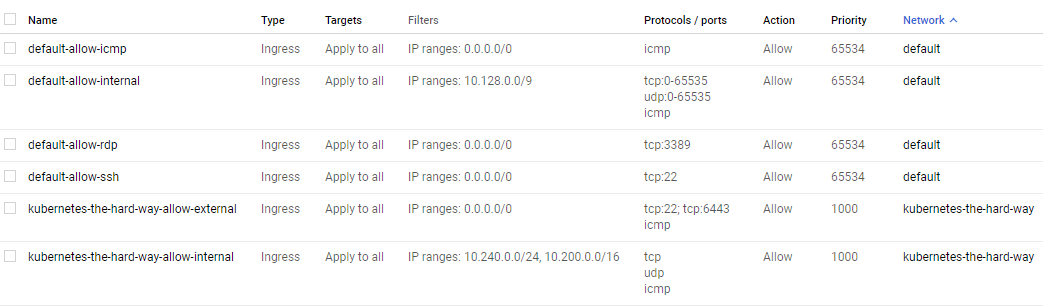
Firewall Rules

External IP Address

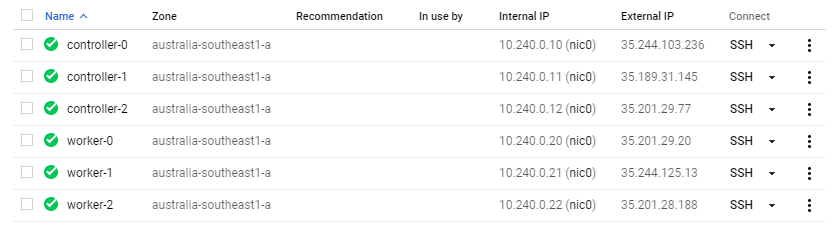
Provision Controllers and Workers – Compute Instances

Controller and Worker Instances

Workers will have pod CIDR

10.200.0.0/24

10.200.1.0/24

10.200.2.0/24

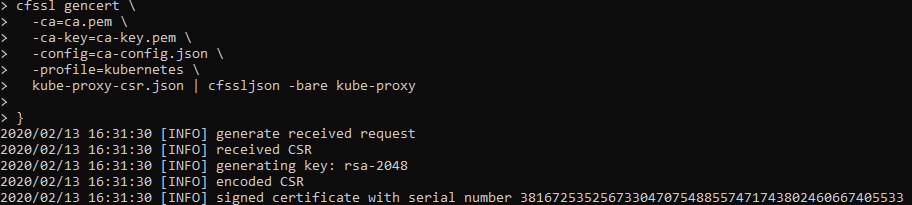
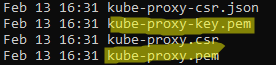
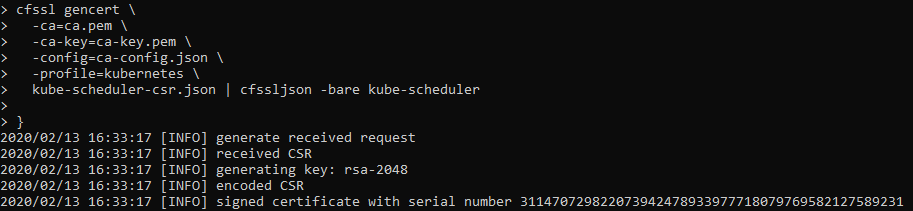
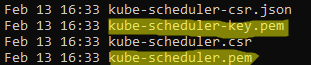
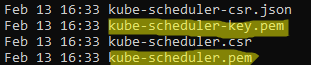
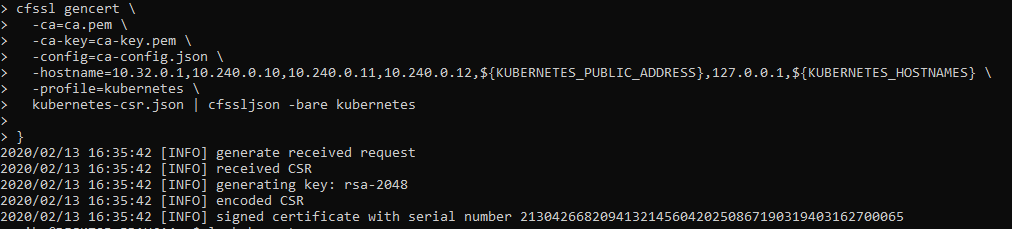
Provision a CA and TLS Certificates

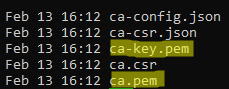
Certificate Authority

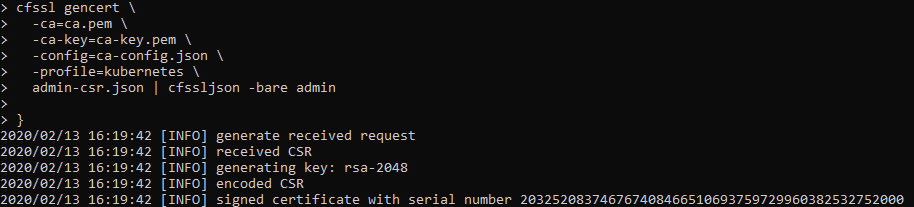
Client & Server Certificates

Kubelet Client Certificates

Controller Manager Client Certificates

Kube Proxy Client Certificates

Scheduler Client Certificates

Kubernetes API Server Certificate

Reference https://github.com/kelseyhightower/kubernetes-the-hard-way/blob/master/docs/04-certificate-authority.md

Service Account Key Pair

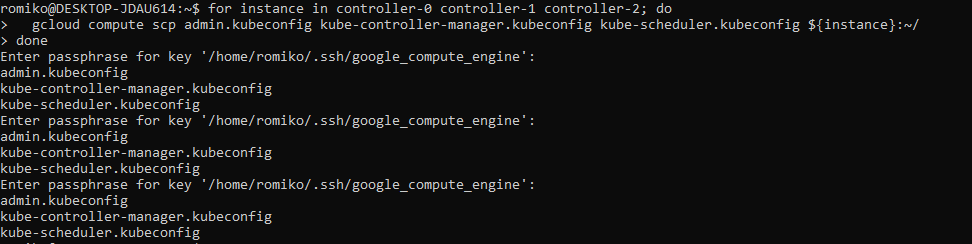
Certificate Distribution – Compute Instances

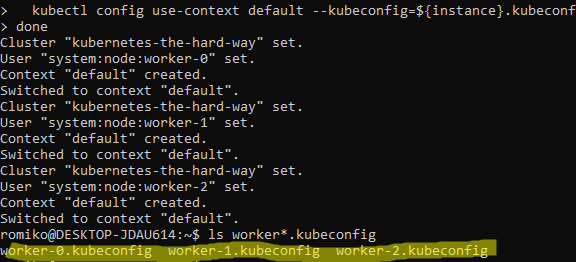
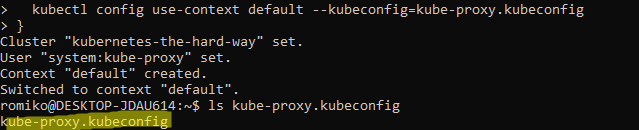
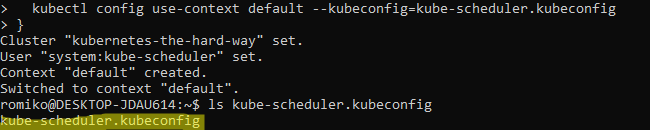
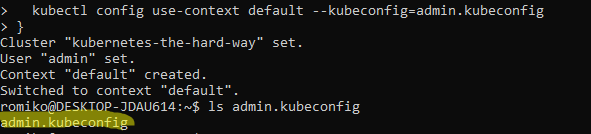
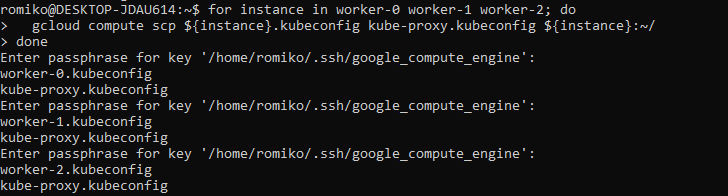
Generating Kubernetes Configuration Files for Authentication

Generating the Data Encryption Config and Key

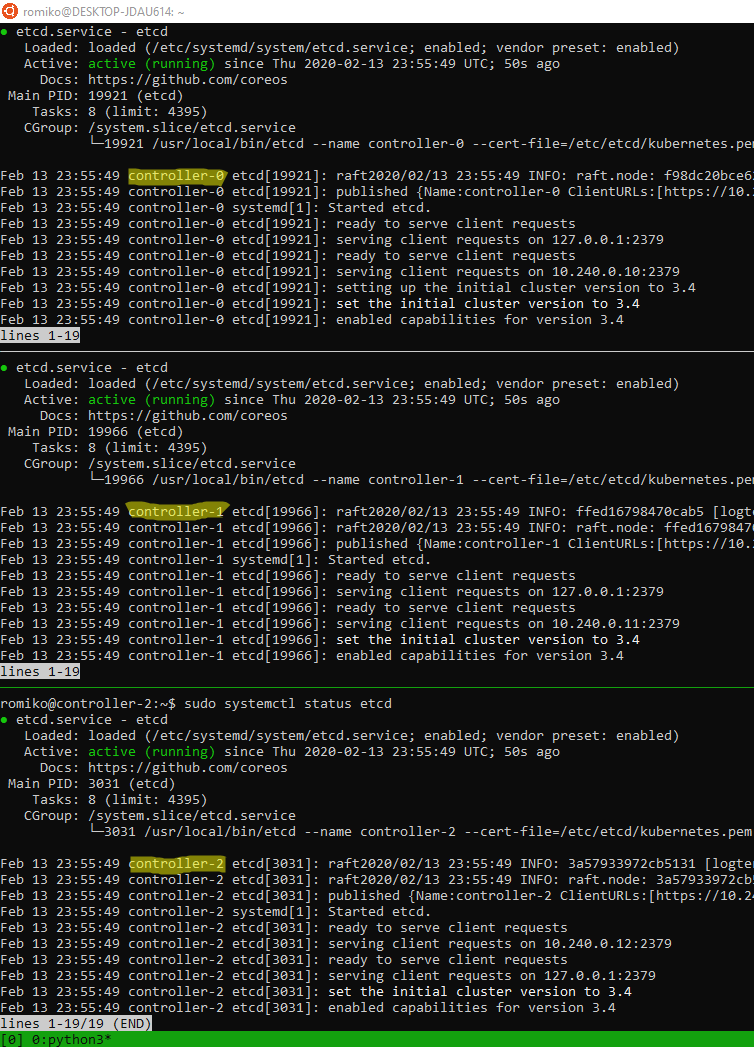
Bootstrapping etcd cluster

Use TMUX set synchronize-panes on to run on multiple instances at same time. Saves time!

Notice where are using TMUX in a Windows Ubuntu

Linux Subsystem and running commands in parallel to save a lot of time.

The only manual command is actually ssh into each controller, once in, we activate tmux synchronize feature. So what you type in one panel will duplicate to all others.

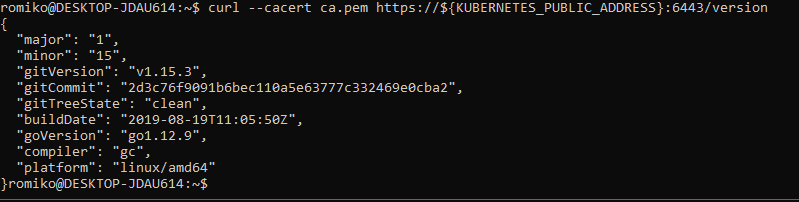
Bootstrapping the Control Pane (services)

Bootstrapping the Control Pane (LB + Health)

Required Nginx as Google health checks does not support https

Bootstrapping the Control Pane (Cluster Roles)

Bootstrapping the Worker Nodes

Configure kubectl remote access

Provisioning Network Routes

DNS Cluster Add-On

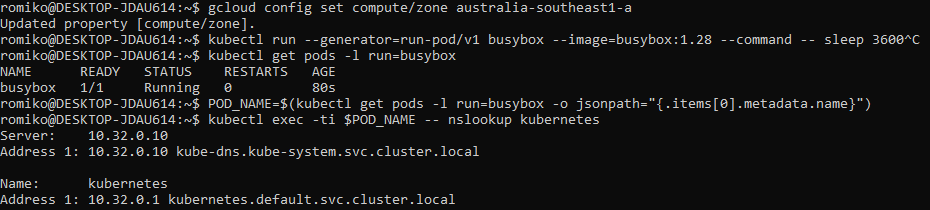
First Pod deployed to cluster – using CoreDNS

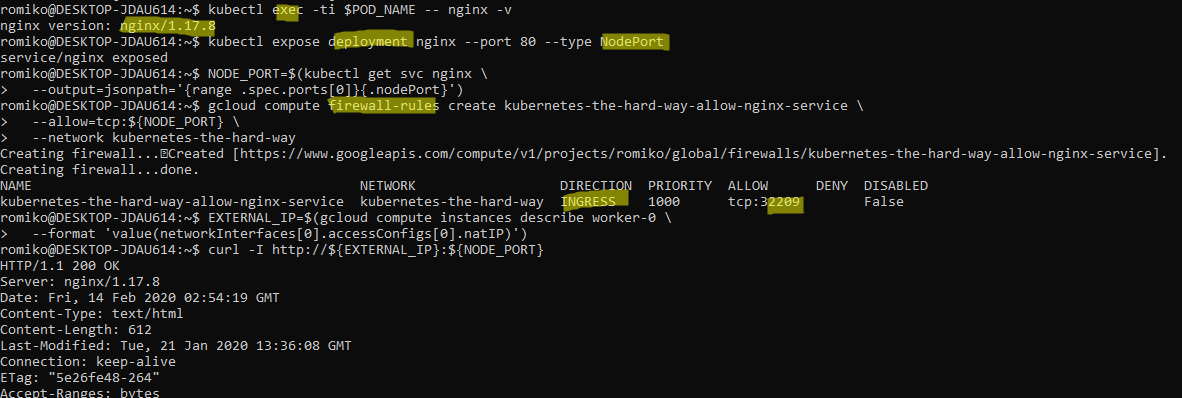
Smoke Test

Once you have completed the install of your kubernetes cluster, ensure you tear it down after some time to ensure you do not get billed for the 6 compute instances, load balancer and public statis ip address.

A big thank you to Kelsey for setting up a really comprehensive instruction guide.

Puppet Enterprise – Structure your Hiera Data

Synopsis

This post will discuss how to structure your Hiera Data, so that your profiles will automatically inject the parameters.

Why? So we can keep our profile classes and other classes super clean and succinct.

If you have If else statements in your classed depending on what environment or node the code is running on, you might have a code structure smell. Lets dig in.

Assumptions

You are using a Puppet Control Repository and leveraging Code Manager (R10K) to manage your code with Puppet Enterprise

Secondly you are using Profiles and Roles pattern to structure your classes.

I highly recommend you download the Puppet Control Repository template here.

Profiles and Roles

The most important aspect to consider is structuring your Profiles and Roles to accept parameters that can be resolved and matched to Hiera Data.

Here we have a role for all our Jumpboxes that we can use to remote into.
As we can see it will have the following profiles applied:


class role::jumpbox {
include profile::base
include profile::jumpbox::jumpboxsoftware
include profile::jumpbox::firewall
include profile::jumpbox::hosts
}

Lets pick one of these profiles that require data from Hiera.


class profile::jumpbox::hosts (
  String $hostname = 'changeme',
  String $ip = 'changeme',
)
{
  host { $hostname:
    ensure => present,
    ip     => $ip,
  }
}

The above profile ensures that the /etc/hosts file has some entries in it.

It accepts two parameters:
profile::jumpbox::hosts::ip

profile::jumpbox::hosts::hostname

Similar to Java or C# we can use a sort of dependency injection technique, where puppet will automatically look for this parameter in Hiera; a key/value store.

Hiera

The trick is to structure your Hiera Data and use the same Fully Qualified Names in the keys.

Each environment needs a different set of host names.

I then have the following structure in the control repro

.data\<environment1>\jumpbox\conf.yaml
.data\<environment2>\jumpbox\conf.yaml
.data\<environment3>\jumpbox\conf.yaml

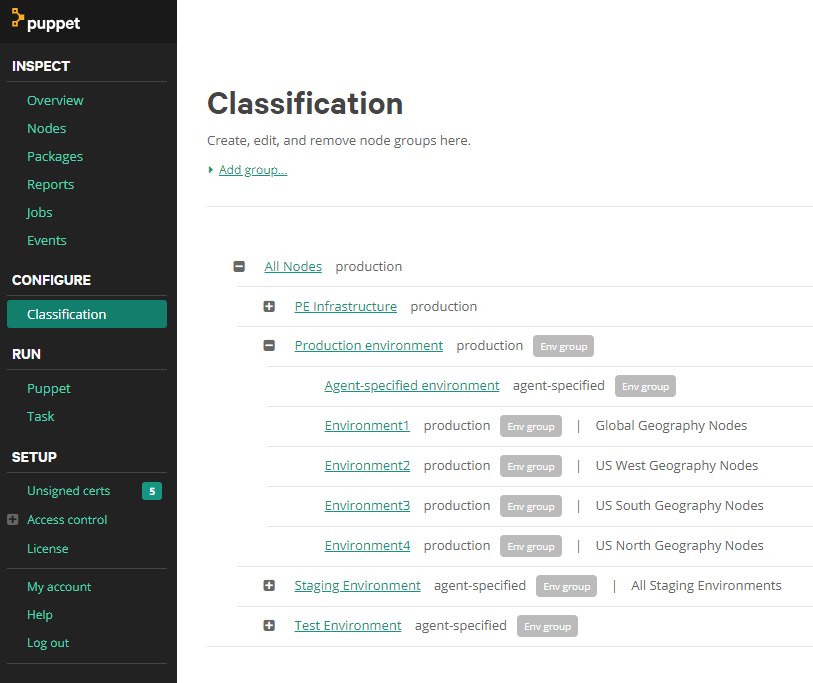
Each folder in data represents an Environment in Puppet Classifications:

The second important convention is we use a geography variable in each Environment to resolve Hiera Data automatically.

Go to your Puppet Master Enterprise Web Console and manage the Classifications.

What you are doing is creating a variable that can be used by the hiera.yaml file to dynamically load data for the correct environment when the agent runs.

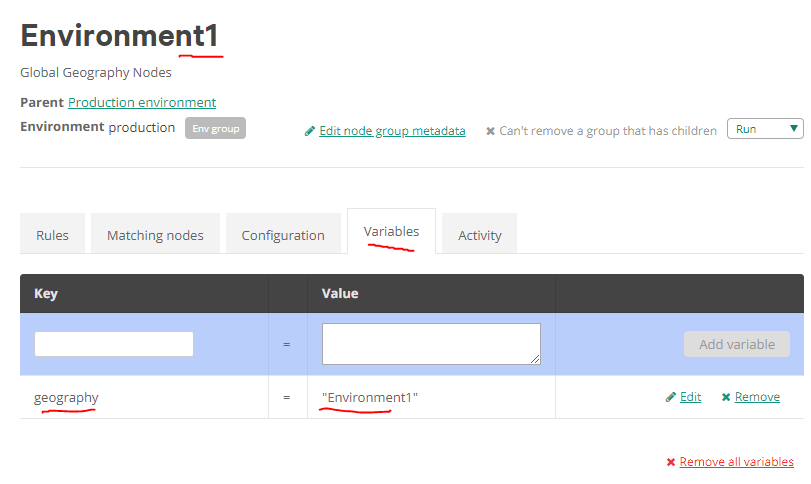
On the Puppet Master we need to setup our environments to match the Control Repository and add the magic variable. Any Node that runs the puppet agent will then have this variable set. This can then be used to load the corresponding Hiera config file.

Here we can see Environment1 has a variable defined called geography that matches the Environment name. We can then leverage this convention:

Puppet Profile -> Hiere Data lookup -> Folder that matches the variable name -> resolve parameter

This is all done automatically for you.

Puppet Control Repository Structure

The repository then looks like this:

Let us dig a little deeper and see how this structure is configured.

hiera.yaml

.\hiera.yaml

This file now contains the instructions to tell Hiera how to load our data.

—hiera.yaml—


---
version: 1

defaults:
  datadir: "data"

hierarchy:
  - name: 'Yaml Key Value Store'
    data_hash: yaml_data
    paths:
      - "%{geography}/jumpbox/conf.yaml"
      - "common.yaml"

  - name: "Encrypted Data"
    lookup_key: eyaml_lookup_key
    paths: 
      - "%{geography}/jumpbox/secrets.eyaml"
      - "common.eyaml"
    options:
      pkcs7_private_key: /etc/puppetlabs/puppet/eyaml/private_key.pkcs7.pem
      pkcs7_public_key: /etc/puppetlabs/puppet/eyaml/public_key.pkcs7.pem

Data – yaml

the .yaml files will contain the same variable names (fully qualified) that match the PROFILE files e.g.

—conf.yaml—


profile::jumpbox::hosts::hostname: 'rdp.rangerrom.com'
profile::jumpbox::hosts::ip: 8.8.8.8'

As you can see above. As long as your profiles and parameters match, Hiera will automatically inject the correct parameter for each environment.

Hiera will resolve – %{geography}/jumpbox/conf.yaml

In the Puppet master you had setup your classifications, so when the puppet agent runs on Environment1 nodes, it will get the jumpbox/conf.yaml that matches the variable name geography=”Environment1″

Encrypted Data – eyaml

Encrypted data is just as easy to store.
* Generate the encrypted data.
* Store the data in an eyaml file in the same folder as the yaml data.
* Add a path to the data in the hiera.yaml file.

We have encrypted data e.g. the default local admin account setup via the profile – include profile::base
We use the Puppet Master private key to generate the encrypted data, see the end of this blog on how to create encrypted data.

—secrets.eyaml—


profile::base::adminpassword: >
    ENC[PKCS7,MIIBeQYJKoZIhvcNAQcDoIIBajCCAWYCAQAxggEhMIIBHQIBADAFMAACAQEw
    DQYJKoZIhvcNAQEBBQAEggEAnMWlddVoU9lC8tBNvOLI9OYI6xtCD0y3NIVe
    Ylm25dUZ8sqGP+yVQ8Y0P5xIse5f/WVOkavByZJK5yV4fDYFpD6IhXk4IJUe
    dVUw8VmO/RG84AknDDrtNPlSPm4uQqYPOOa0BmgO1iiOY4rcAxhFzT5nzod3
    MIK7lmbuP859R5jtJ5PZxZKCNERGY+dxUZfcdPs0/zr/KgLGcHc/awzYtEuI
    0tOGPp80gTVkhmCHO7KuClsg97XTRGi0BfiuiyjOWLIeAx5hbhMHi65ZPl5U
    MlJFoTA1nw3ATcC6NL3ikECWaQrt2xyxZ1uoYKqvN0ClsFLIqBQ1gXRTvQPD
    SlBQqDA8BgkqhkiG9w0BBwEwHQYJYIZIAWUDBAEqBBCWLuT77kT6q/ojfjKx
    wk17gBATvEM58mGyP5CGbMqlbEip]

How to Encrypt Data

SSH into the Puppet Master. Locate your Puppet Master Certificates. Then run the following


puppetmaster@rangerrom.com:~$ sudo /opt/puppetlabs/puppet/bin/eyaml encrypt -p --pkcs7-public-key=/etc/puppetlabs/puppet/eyaml/public_key.pkcs7.pem

Enter password: ***
string: ENC[PKCS7,MIIBeQYJKoZIhvcNAQcDoIIBajCCAWYCAQAxggEhMIIBHQIBADAFMAACAQEwDQYJKoZIhvcNAQEBBQAEggEAnMWlddVoU9lC8tBNvOLI9OYI6xtCD0y3NIVeYlm25dUZ8sqGP+yVQ8Y0P5xIse5f/WVOkavByZJK5yV4fDYFpD6IhXk4IJUedVUw8VmO/RG84AknDDrtNPlSPm4uQqYPOOa0BmgO1iiOY4rcAxhFzT5nzod3MIK7lmbuP859R5jtJ5PZxZKCNERGY+dxUZfcdPs0/zr/KgLGcHc/awzYtEuI0tOGPp80gTVkhmCHO7KuClsg97XTRGi0BfiuiyjOWLIeAx5hbhMHi65ZPl5UMlJFoTA1nw3ATcC6NL3ikECWaQrt2xyxZ1uoYKqvN0ClsFLIqBQ1gXRTvQPDSlBQqDA8BgkqhkiG9w0BBwEwHQYJYIZIAWUDBAEqBBCWLuT77kT6q/ojfjKxwk17gBATvEM58mGyP5CGbMqlbEip]

OR

block: >
    ENC[PKCS7,MIIBeQYJKoZIhvcNAQcDoIIBajCCAWYCAQAxggEhMIIBHQIBADAFMAACAQEw
    DQYJKoZIhvcNAQEBBQAEggEAnMWlddVoU9lC8tBNvOLI9OYI6xtCD0y3NIVe
    Ylm25dUZ8sqGP+yVQ8Y0P5xIse5f/WVOkavByZJK5yV4fDYFpD6IhXk4IJUe
    dVUw8VmO/RG84AknDDrtNPlSPm4uQqYPOOa0BmgO1iiOY4rcAxhFzT5nzod3
    MIK7lmbuP859R5jtJ5PZxZKCNERGY+dxUZfcdPs0/zr/KgLGcHc/awzYtEuI
    0tOGPp80gTVkhmCHO7KuClsg97XTRGi0BfiuiyjOWLIeAx5hbhMHi65ZPl5U
    MlJFoTA1nw3ATcC6NL3ikECWaQrt2xyxZ1uoYKqvN0ClsFLIqBQ1gXRTvQPD
    SlBQqDA8BgkqhkiG9w0BBwEwHQYJYIZIAWUDBAEqBBCWLuT77kT6q/ojfjKx
    wk17gBATvEM58mGyP5CGbMqlbEip]
puppetmaster@rangerrom.com:~$


Installing Puppet Enterprise on CentOS 7 in AWS EC2 with custom public HostName

Hey,

I ran into a few issues when I wanted to install Puppet Enterprise 2-17 in AWS as an EC2 instance. The main issues were

Summary

  • Need to use hostnamectl and cloud.cfg to change my hostname, as I wanted puppet on a public address, not private address, just for a POC
  • I was using a t2.nano and t2.micro, which will not work with Puppet Enterprise 2017 (puppet-enterprise-2017.2.2-el-7-x86_64). The error you get is just Failed to run PE Installer…… So I used a t2.medium to get around the issue.
  • The usual /etc/hosts file needs some settings and DNS registration (Route53 for me)
  • Disabled SELinux (We usually use a VPN)
  • Configure security groups and have 4433 as backup port (Probably not needed)

Preliminary Install Tasks

  1. Get the latest image from CentOS 7 (x86_64) – with Updates HVM
  2. Spin up an instance with at least 4GB memory, I had a lot of installation issues with applying the catalog with low memory. T2.Medium should work. Bigger is better!
    [puppet.rangerrom.com] Failed to run PE installer on puppet.rangerrom.com.
  3. If you not using a VPN then ensure you setup an elastic IP mapped to the instance for the public DNS name
    ElasticIP.PNG
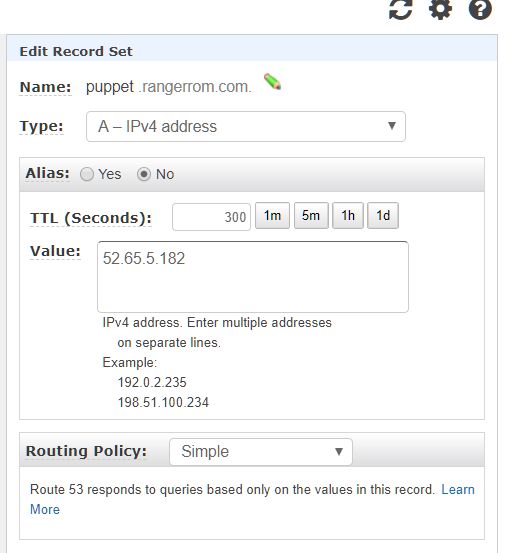
  4. Register the hostname and elastic IP in DNS
    DNS.PNG
  5. Add you hostnames to /etc/hosts (Important!), note I also added puppet as this is the default for installs. This is a crucial step, so make sure you add your hostnames that you want to use. Put the public hostname first. As this is our primary hostname127.0.0.1  puppet.rangerrom.com puppet localhost
  6. Change the hostname of your EC2 Instance. We need to do the following

    #hostnamectl
    #sudo hostnamectl set-hostname puppet.rangerrom.com –static
    #sudo vi /etc/cloud/cloud.cfg

  7. Add the following to the end of cloud.cfg
    preserve_hostname: true
  8. This is the error I got when I first installed puppet (Due to low memory), therefore we will add port 4433 as well to the AWS security in the next step. I think this was due to insufficient memory, so use a T2.Medium instance size, so you have a minimum of 4GB of memory, else java kills itself. However I add it as a backup here in case you run some other service on 443.

    #sudo vi /var/log/puppetlabs/installer/2017-08-08T02.09.32+0000.install.log

    Failed to apply catalog: Connection refused – connect(2) for “puppet.rangerrom.com” port 4433

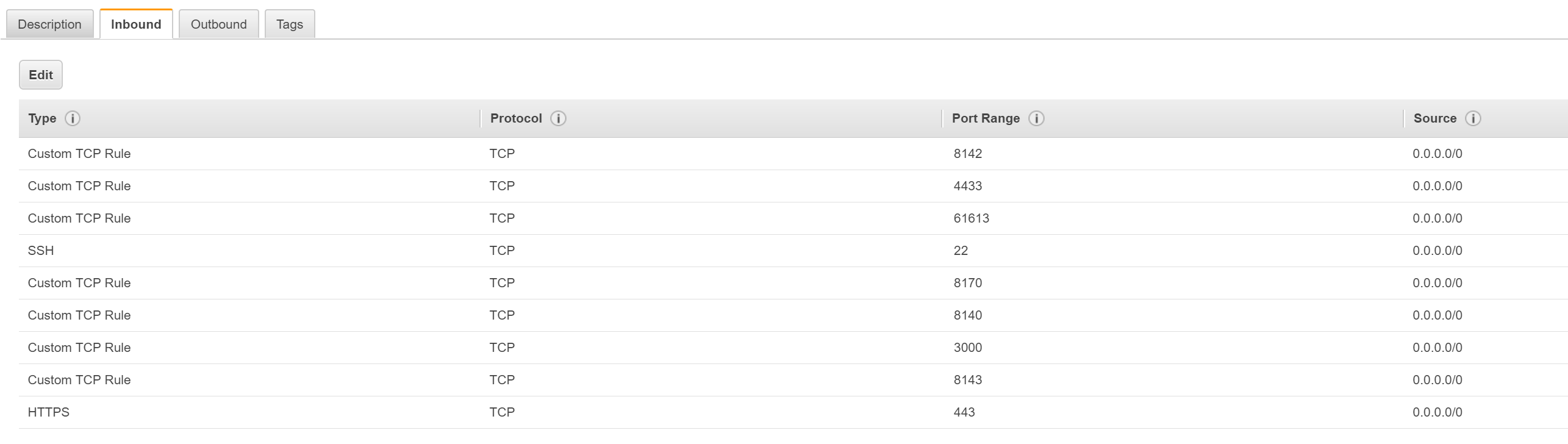
  9. Create a security group with the following ports open and also do the same for the Centos Firewall.
    PuppeSecurityGroups
  10. Run  netstat -anp | grep tcp to ensure no port conflicts.
  11. Disable SELinux or have it configured to work in a Puppet Master environment. Edit

    #sudo vi /etc/sysconfig/selinux

    set
    SELINUX=disabled

  12. Edit the sudo vi /etc/ssh/sshd_config and enable Root Logins
    PermitRootLogin yes
  13. Download Puppet Enterprise

    #curl -O https://s3.amazonaws.com/pe-builds/released/2017.2.2/puppet-enterprise-2017.2.2-el-7-x86_64.tar.gz
    #tar -xvf puppet-enterprise-2017.2.2-el-7-x86_64.tar.gz

  14. Install NC and use it to test if your ports are accessible.
    sudo yum install nc
    nc -nlvp 3000 (Run in one terminal) 
  15. nc puppet 3000 ( Run from another terminal)
    NC Test Firewalls.PNG
    This is a great way to ensure firewall rules are not restricting your installation. Secondly we testing that the local server can resolve itself, as it is important that you can resolve puppet and also your custom FQDN before running PE install.
  16. Reboot and run hostnamectl, the new hostname should be preserved.

    #sudo hostnamectl set-hostname puppet.rangerrom.com –static
    [centos@ip-172-31-13-233 ~]$ hostnamectl
    Static hostname: puppet.rangerrom.com
    Transient hostname: ip-172-31-13-233.ap-southeast-2.compute.internal
    Icon name: computer-vm
    Chassis: vm
    Machine ID: 8bd05758fdfc1903174c9fcaf82b71ca
    Boot ID: 0227f164ff23498cbd6a70fb71568745
    Virtualization: xen
    Operating System: CentOS Linux 7 (Core)
    CPE OS Name: cpe:/o:centos:centos:7
    Kernel: Linux 3.10.0-514.26.2.el7.x86_64
    Architecture: x86-64

Installation

  1. Now that we done all our preinstall checks, kick off the installer.

    #sudo ./puppet-enterprise-installer

  2. Enter 1 for a guided install.
  3. Wait until it asks you to connect to the server on https://<fqdn&gt;:3000
    This is what occurs if you did not configure your hostname correctly and you want a public hostname (EC2 internal is default):
    PuppetInstallStage1.PNG

    We want our public hostname.
    PuppetInstallStage1Correct
    Puppet will basically run a thin web server to complete the installation with the following command:
    RACK_ENV=production /opt/puppetlabs/puppet/share/installer/vendor/bundler/bin/thin start –debug -p 3000 -a 0.0.0.0 –ssl –ssl-disable-verify &> /dev/null

  4. Recall, we have the above FQDN in our host file, yours will be your hostname that you setup.
  5. Visit your Puppetmaster site at https://fqdn:3000
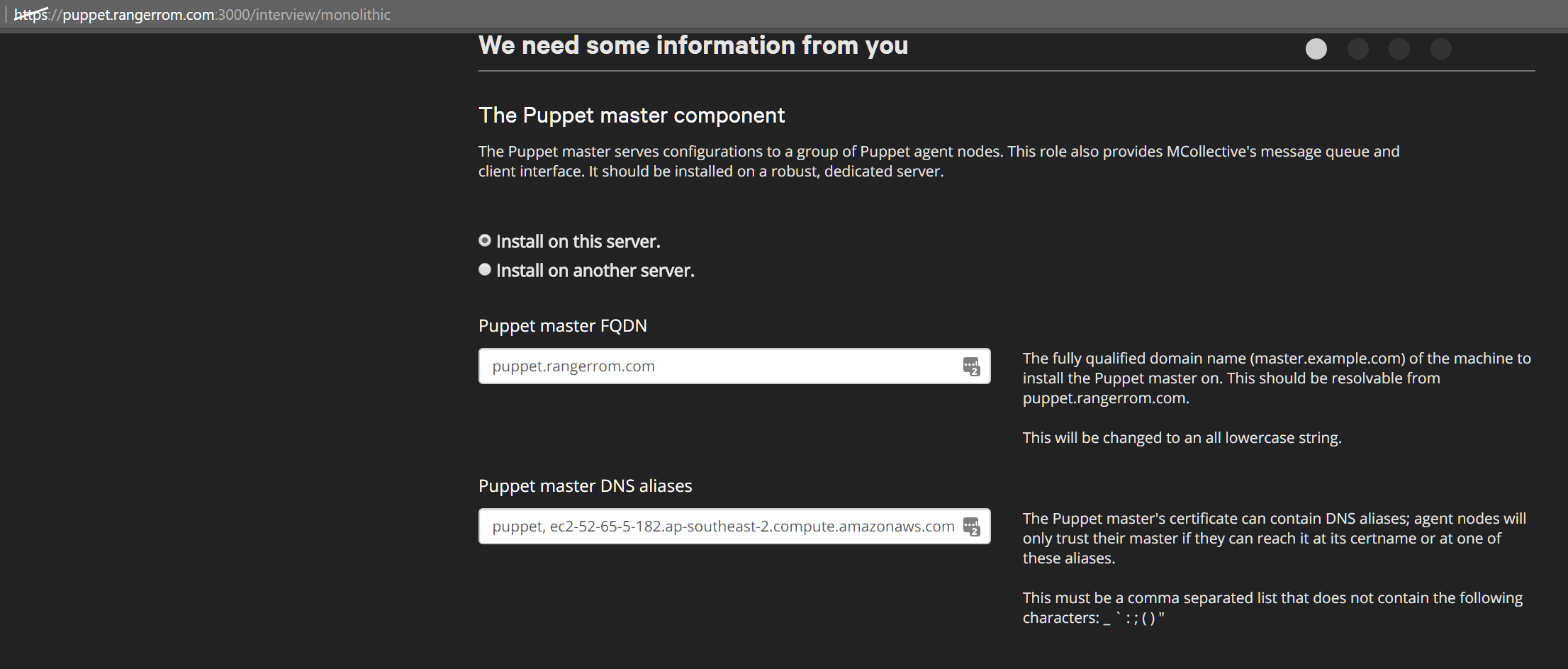
  6. Ensure in DNS Alias, you add puppet and all other DNS names you want to use. Otherwise the installation will fail.

    You should see the correct default hostname, if not, you got issues…. I added some alias names such as puppet and my internal and external ec2 addresses.

    PuppetWebDNSAlias.PNG

  7. Set an Admin password and click next
  8. Check and double check the settings to confirm.
    PuppetConfirm.PNG
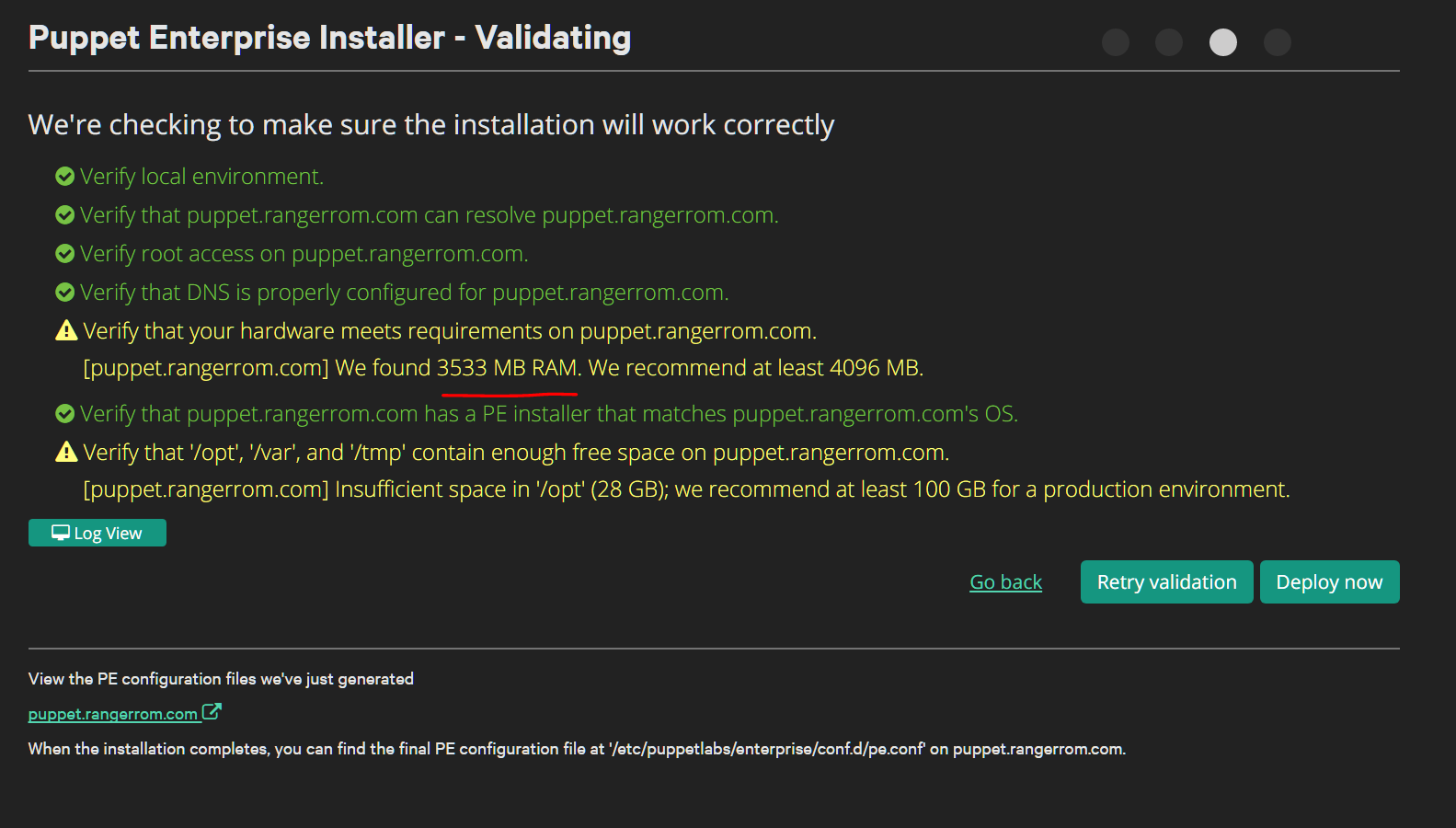
  9. Check the validation rules, since this is for testing, I am happy with the warnings. It would be awesome if puppetlabs did DNS name resolution validation checks on the HostName. Anyways, here we get a warning about memory, 4GB is what is needed, so if you have install failures it may be due to memory!
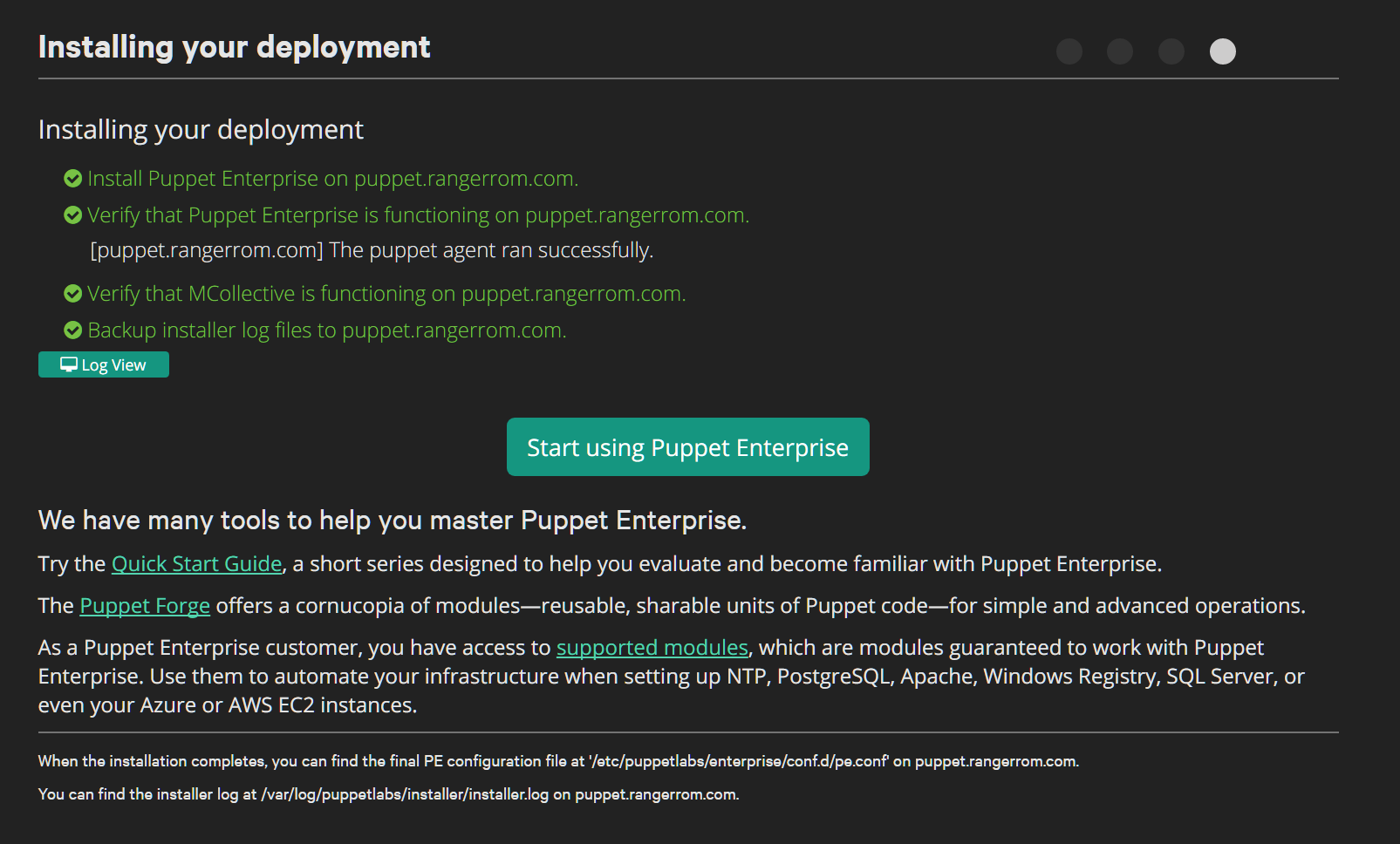
    Validator.PNG
  10. I am feeling lucky, lets try with 3533MB of RAM 🙂SuccessInstall.PNG